Showing posts with label nougat. Show all posts
Showing posts with label nougat. Show all posts
Monday, May 29, 2017
Android 7 0 Nougat for PC x86 x64 ISO Image WIFI Working
Android 7 0 Nougat for PC x86 x64 ISO Image WIFI Working
Download - Android x86 Nougat iso image [Working WIFI Connection] Nougat for PC. Recently Android x86 ORG release developing nougat based Operating System for users. But there are lots of bugs like Play Store not available so you cant use Play Store Apps yet. But developers work on this project so you will get new build ASAP. Also check out How to install and Run Android x86 on PC with Windows Dual Boot.
You can download Android Nougat x86 x64 ISO image non-stable version for testing and find whats new in Android Nougat. Share this ISO with your friend and family. Please share more information about bugs and feature with us and our other visitors.
How to Download
- Download Given in end of post

Nougat feature for PC
- Game and APK not tested
- Performance fast and Smooth
- Dual Boot Supported with Windows
- Support external device like mouse, keyboard and monitor
- Power Suspend and Resume Supported
- External storage supported
- WiFi Working
- Bluetooth Working
- UEFI system not Supported
Not Working
- Play Store
- Google Play Services
- UEFI Boot
Download here
http://bit.ly/2cCGJU3
You can download Android Nougat x86 x64 ISO image non-stable version for testing and find whats new in Android Nougat. Share this ISO with your friend and family. Please share more information about bugs and feature with us and our other visitors.
Go to link download

Sunday, May 28, 2017
Update Samsung Galaxy A5 to Android 7 0 Nougat using CM14
Update Samsung Galaxy A5 to Android 7 0 Nougat using CM14
Hello Guys, Now Nougat ROM available for Samsung Galaxy A5. This is not an official update from CM14 it is a custom Nougat ROM for Samsung Galaxy A5. There is minor bugs and issues on this ROM before installing this ROM, Please read Working and not working features.
For first boot it can take up to 10 - 15 minutes for making catch files on this device. So, please keep patience. You can also check out How to .If you find other bugs or issue with ROM, please drop your comment below. Thank you and have a nice day.
Requirement
- TWRP Recovery Pre-Installed on Device
- Device at-least charge 50%
- Nougat ROM (Download all files from end of the post, Link given)
- GApps for Nougat
Before Installing
Before you go to the next step please make sure backup your personal photos, Games, contract and other data.How to Install Nougat 7.0 on Samsung Galaxy A5
- Download GApps for Nougat ROM
- Copy Both ROM and GApps zip files on your device internal or external storage
- Power off your device
- Boot device into recovery mode.
- Once your device Reboot into TWRP recovery mode Tap on ‘Wipe", Select Advance Wipe and marks the Dalvik Cache, Cache, Data and System option from the list and Swipe to Wipe.
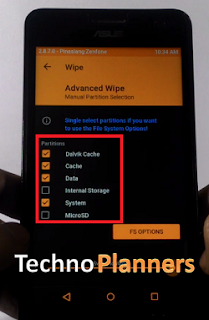
- Go back and select "Install", Now find the ROM file from the internal storage and flash it. Wait until its finished.
- Similarly, Flash GApps
- Once it shows Successfully Install/Complete, Go back and Select wipe, Go to Advanced Wipe and select "Dalvik Cache and Cache" and do wipe.
- Once its done, Reboot your device.
Download here
ROM- http://bit.ly/2eV6iRt
For first boot it can take up to 10 - 15 minutes for making catch files on this device. So, please keep patience. You can also check out How to .If you find other bugs or issue with ROM, please drop your comment below. Thank you and have a nice day.
Go to link download
Sunday, May 21, 2017
How to Root MOTO G4 Plus 7 0 Nougat Update
How to Root MOTO G4 Plus 7 0 Nougat Update
Hello Guys in this post I will show you how to root moto g4 plus on nougat update. So As you know as moto roll out a new official update for moto g4 plus and in this post I will teach you step by step how to root moto device.

Pre-Required
- Boot loader Unlocked
- The Device should be running with custom TWRP recovery you can also check out How to Install TWRP Moto G4 Plus
- Battery atleaste 50% charged
How to Root Moto G4 Plus Nougat
- Download both zip files from the end of the post link given.
- Copy both zip files in your device internal storage
- Power off your device
- Now Boot your device into recovery mode by pressing Volume Down + Power button and press volume down button until you see the recovery mode option.
- Once you find the recovery mode option just press power button and your device boot into recovery mode.
- Now Tap on install button and select Xtream zip file and flash it on your device
- Once it flashed successfully, Similarly, flash SuperSU zip file on your device
- Now Reboot your device
- Now Download Phhs Superuser App from Play Store
- Now you can use your device with root power.
Download here
Elementx- http://bit.ly/2mhIKK8
SupeSU- http://bit.ly/2lGpXqD
Congratulation, Now you can enjoy your moto g4 plus nougat with root power. You can also check out How to update moto g4 plus nougat update.
Go to link download
Friday, May 19, 2017
ROM Resurrection Remix Nougat 7 0 Asus Zenfone 5 T00J T00F
ROM Resurrection Remix Nougat 7 0 Asus Zenfone 5 T00J T00F
Hey Guys, Recently another developer shared another Nougat ROM for ASUS Zenfone 5 and Zenfone 6. This is more stable and unofficial version of Android 7.0.1 Nougat from minhtri109 and it is based on CM14. This builds create on latest Google Android 7.0.1 source code with Linux 3.10.x kernel. Below you can read working features and bugs. This Resurrection Remix ROM tested with Zenfone 5 T00J/T00F but do it with your own risk and I am not responsible for any damage. If you think there is a bug in this ROM you can check out the Lineage OS on Zenfone 5.
Requirements
Working Features
Whats NOT working
Resurrection Remix Features
There is lots of customization available in the RR like Screen dim timeout mode, Dim alpha, Double tap to sleep on the navbar, Navigation Bar left/Right handed mode Switch for landscape, Navbar slim dim, Button customization on navbar tiles, Animate dim, and the last one is my favorite Enable/ or disable nav bar.
TWRP Recovery
Before Installing the Custom ROM on your device. You have to flash custom recovery TWRP Touch Recovery on your Zenfone. If you are already using Custom Recovery Go to next flash step otherwise, please use this tutorial to flash TWRP Recovery on your Zenfone5/6.
Congratulation, Now you can enjoy the Android 7.0.1 Nougat Update on your Zenfone 5. First boot can take up to 5 - 10 Minutes. So, Please do not power off your device in this stage. Once the boot complete it will ask for WiFi or mobile data connection, Google Account etc. Fill all information if you want to access Play Store/ or Gmail Applications on your device. Before you go, You can also check out Lollipop Marshmallow Nougat Custom ROMs List for Zenfone 5. Please share this post and your reviews/ or bug report with our other visitors.
Requirements
- RR ROM (Download all files from end of post)
- Pico Google Apps for Nougat
Working Features
- WiFi
- Bluetooth
- Camera
- Games
- Play Store
- Internet
- Developer Mode
- Flashlight
Whats NOT working
- FM
- Import contacts from SIM card not work
Resurrection Remix Features
There is lots of customization available in the RR like Screen dim timeout mode, Dim alpha, Double tap to sleep on the navbar, Navigation Bar left/Right handed mode Switch for landscape, Navbar slim dim, Button customization on navbar tiles, Animate dim, and the last one is my favorite Enable/ or disable nav bar.
TWRP Recovery
Before Installing the Custom ROM on your device. You have to flash custom recovery TWRP Touch Recovery on your Zenfone. If you are already using Custom Recovery Go to next flash step otherwise, please use this tutorial to flash TWRP Recovery on your Zenfone5/6.
How to flash Resurrection Remix Nougat Zenfone
- First, You have to download requirements material for the device from the end of the post.
- Download Pico Gapps for Nougat from here and Choose x86 -> Android 7.0 -> Pico.
- Now, From your PC copy ROM and GApps zip files and paste it in your zenfone internal storage using data cable/ or using wireless application for example: Share-it/ Super Beam.
- Unplug your device from PC and Turn off it.
- Reboot into recovery mode by using the Power + Volume Down button.
- Select Wipe > Advance Wipe > check the data, dalvik cache, catch, system and swipe to wipe it.
- Tap Install and find the ROM zip file and flash it
- Similarly, flash GApps on your device.
- After flashing, you should format old files from in the TWRP.
- Go back and select Wipe > Advance Wipe > check the data, dalvik cache, data, internal storage (optional).
- Now, finally Reboot your device.
Download here
ROM- http://bit.ly/2jMN9j7
Congratulation, Now you can enjoy the Android 7.0.1 Nougat Update on your Zenfone 5. First boot can take up to 5 - 10 Minutes. So, Please do not power off your device in this stage. Once the boot complete it will ask for WiFi or mobile data connection, Google Account etc. Fill all information if you want to access Play Store/ or Gmail Applications on your device. Before you go, You can also check out Lollipop Marshmallow Nougat Custom ROMs List for Zenfone 5. Please share this post and your reviews/ or bug report with our other visitors.
Go to link download
Tuesday, May 16, 2017
Moto G4 Plus Nougat update Download Install Official OTA Firmware
Moto G4 Plus Nougat update Download Install Official OTA Firmware
Now Nougat Update for Moto G4/G4 Plus available in Lenovo Moto G4/G4 Plus. And this firmware work for XT1643 XT1640 XT1642 XT1622 and XT1626. This is an official update from MOTO. So you can install it without loosing your personal data and games. Currently this firmware status of testing. That is the reason MOTO does not provide an OTA update at this time.
For first boot it can take up to 10 - 15 minutes for making catch files on this device. So, please keep patience. If you find other bugs or issue with this update, please drop your comment below. Thank you and have a nice day.
Requirement
- A Device running on stock recovery
- Device at-least 60% charged
- Nougat Firmware for Moto G4/G4 Plus (Download from end of the post)
- We are not responsible for any damage to your phone do it with your own risk. But this method is tested on my moto g4 plus (INDIA Variant)
- Take a complete backup of your phone for safer side and then proceed
Before Installing
Before you go to the next step please make sure backup your personal photos, Games, contract and other data.How to Install Nougat update on Moto G4 Plus
- First enable Debugging mode from settings > About and tap the Build Number 7 times.
- Download Nougat zip firmware file for Moto G4 Plus from below link and save it to internal memory.
- Reboot Moto G4 Plus to Recovery mode by pressing and hold the Volume Down and Power Button.
- Press Volume down once to highlight the Recovery mode option. Press Power button to select it and reboot into recovery mode.
- Now select Apply update from the SD Card.
- Choose the zip file you downloaded and wait to complete the installation process. For installing it can take up to 15 minutes
- Done! Reboot your phone and enjoy.
Download here
ROM- http://bit.ly/2eSpWhJ
For first boot it can take up to 10 - 15 minutes for making catch files on this device. So, please keep patience. If you find other bugs or issue with this update, please drop your comment below. Thank you and have a nice day.
Go to link download
Friday, May 12, 2017
Download Lucky Patcher apk for Nougat 7 0 CM 14
Download Lucky Patcher apk for Nougat 7 0 CM 14
Now Lucky Patcher available for Android Nougat and CM14 custom ROM. You can download latest update lucky patcher apk for android nougat, marshmallow, lollipop and kitkat stock and custom rom for free of cost.
Requirement
Lucky Patcher features
Note: Lucky patcher can damage your device system files and there is no guarantee for remove ads, bypass license verification. It can bricked your device so do it with your own risk I am not responsible for any damage.
Requirement
- A Device running on Android stock/custom ROM
- Lucky Patcher APK
- Unknown Source enable on the device
Lucky Patcher features
- Remove ads
- Modify Permissions
- Bypass premium applications license verification
- Buy any paid application
- Modded play store
- And more much
How to Install Lucky Patcher
- Download lucky patcher apk from end of the post link
- Copy APK file to your device using a data cable or wireless file transfer application
- Install APK on your device
- Run Lucky Patcher from app drawer, and you will see all the applications list on your display
- It will explain all detail about apps behavior, ads, license verification
- Just apply path to it and you are done
Download here
http://bit.ly/2fxSCZt
Note: Lucky patcher can damage your device system files and there is no guarantee for remove ads, bypass license verification. It can bricked your device so do it with your own risk I am not responsible for any damage.
Go to link download
Friday, May 5, 2017
How to Install Android Nougat on PC with Windows 7 0 Dual Boot
How to Install Android Nougat on PC with Windows 7 0 Dual Boot
Hey, So As we know as Nougat available for lots of devices and Now Nougat x86 branch is ready for Windows PC and Linux PC. In this post I will teach you how to install Android Nougat on PC and its also work for x32 bit and x 64 bit machine. That is the latest version of Android x86 project for PC. Now Wifi and Play Store working access internet on the machine.
Pre Requirements
Features
Congratulation, Now you can enjoy Android Nougat on PC and notebook with Windows 7, 8, 8.1, 10 dual boot supported. If you find any this help full please drop your comment below and Share this post with your friends thank you and have a nice day.
Pre Requirements
- Android Nougat ISO (Download All files from end of post)
- Rufus to make a bootable Pen-Drive
- 1GB Pen drive needed
Features
- WiFi Working
- Bluetooth Working
- Application and Game
- Dual Boot Supported
- Support External Device
- Power Suspend And Resume Working
- UEFI Supported
- 32-Bit/ 64-Bit Supported
How to Install Android Nougat on PC
- Download Rufus and Android Nougat image from end of post.
- Run Rufus Software on your PC and Connect USB Flash Drive to PC. Now Click CD-Drive logo button to select ISO file. Now find and select the ISO file and click on the start button. And wait to finish it.
- Reboot your PC
- Now reboot your PC using USB Flash Drive As The Source. (Make USB To Boot First And Before CD/DVD ROM Under Your System’s BIOS Settings)
- When the Android x86 Menu appears, Just Select Install Android x86 to Hard Disk.
- Select your appropriate hard disk partition to install Android x86 or you can install on any new partition.
- Now, You will get a prompt message to the installation of GRUB Bootloader. Make sure to hit on yes.

- Now, another prompt message will ask you to make system /r/w. Hit Yes on this.
- After that, you will get another prompt to install internal space. Use 2047 MB of space, as that’s the maximum supported.
- Now select Reboot. After Reboot You can use Android x86 on PC.
Download here
Rufus - http://bit.ly/1MSWEHX
Nougat ISO - http://bit.ly/2emXWOk
Congratulation, Now you can enjoy Android Nougat on PC and notebook with Windows 7, 8, 8.1, 10 dual boot supported. If you find any this help full please drop your comment below and Share this post with your friends thank you and have a nice day.
Go to link download
Thursday, May 4, 2017
GApps for Android 7 0 7 1 Nougat Aroma Super Stock Full Pico etc
GApps for Android 7 0 7 1 Nougat Aroma Super Stock Full Pico etc
Hello Guys, Recently We are ready to share Google GApps for Nougat Android 7.0, CM14 CynogenMod and its supported all Custom ROM for which based on the Nougat Operating System. At this time this GApps 100% compatible with CM14 ROMs and all other Nougat Custom ROM.

Google Release there new Nougat source code for developers and Custom ROM developers being development of Nougat Custom ROM for your Android Phone. Once you Install CM14/ other Nougat ROM on your device then you needed to also Install GApps for Google Play Store, Google Play Service and other required Apps for your device.
GApps for Android 7.0 Nougat Comes in different variants like Aroma, Super, Stock, Full, Mini, Micro, Nano, Pico and There is one more GApps with the name of TVStock GApps it will upcoming for nougat. If your device has boring Boot animation on your custom ROM. You can also check out our new post about Get Android Nougat Boot Animation on any Android.
From this post you can download any GApps for Nougat ROM. These files are running on the latest version. If you find anything help full from this Techno Planners blog, Please share this post on your social profile. It will help us to grow. Also Drop your comment below with your review. Thank you and have a nice day.
Google Release there new Nougat source code for developers and Custom ROM developers being development of Nougat Custom ROM for your Android Phone. Once you Install CM14/ other Nougat ROM on your device then you needed to also Install GApps for Google Play Store, Google Play Service and other required Apps for your device.
GApps for Android 7.0 Nougat Comes in different variants like Aroma, Super, Stock, Full, Mini, Micro, Nano, Pico and There is one more GApps with the name of TVStock GApps it will upcoming for nougat. If your device has boring Boot animation on your custom ROM. You can also check out our new post about Get Android Nougat Boot Animation on any Android.
Requirement for Installing GApps
- Custom Nougat ROM already Installed on the device
- GApps ZIP file
- TWRP/CWM Recovery
- Battery level atleat 30% charged
How to Flash GApps on Android 7.0 Nougat
- First, download GApps for Nougat/CM14 from end of post link given.
- Copy it onto your device Internal/External Storage.
- Now Power off and boot your phone into Recovery Mode.
- Once your device Reboot into TWRP recovery Tap on ‘Install’ and select Gapps package
- Or if you are using the CWM Recovery Select> install zip from SD card and select Gapps package.
- Once the GApps flashed on your device.
- Clear cache and Dalvik Cache after flashing the Gapps.
- Finally Reboot your device
How to Download Right file of GApps for Nougat
- Go to GApps download link page from below link

- From Platform, Select your device processor, for example, if your device have ARM64 bit processor then select ARM64 bit Option.

- From Android, Select Android 7.0

- From Variant, Select any package file according to your requirement

- Then tap on Red Download Button

Download here
http://bit.ly/1JOWjUq
From this post you can download any GApps for Nougat ROM. These files are running on the latest version. If you find anything help full from this Techno Planners blog, Please share this post on your social profile. It will help us to grow. Also Drop your comment below with your review. Thank you and have a nice day.
Go to link download
Tuesday, May 2, 2017
Lineage OS Zenfone Max Nougat 7 1 1 ROM Download
Lineage OS Zenfone Max Nougat 7 1 1 ROM Download
In this post we are sharing guide about how to install Lineage OS ROM Zenfone Max. So As we know as the Lineage OS nougat recipe is ready for Zenfone Max. So, now in this post I will show you how to install Lineage OS on Zenfone Max. This method is tested by other users, but I am sure it will 100% work for you, but do it at your own risk and I am not responsible for any damage.
Pre-Requirement
Before flash any ROM, Make a full backup of your device using TWRP Recovery. With these backup you can restore your device in previous condition with full internal store data and applications.
Congratulation, After first boot you can use your Zenfone Max with Lineage OS Nougat ROM. You can also check out Lineage OS Zenfone 2 Laser Please note first, boot can take up to 10 minutes So, Please dont turn off your device. Please share this ROM on your social media sites. Thank you and have a nice day.
Pre-Requirement
- Custom TWRP Recovery
- Device at least 50% charged
- Lineage OS ROM (Download all files from end of the post)
- Google Apps for Lineage OS
Before flash any ROM, Make a full backup of your device using TWRP Recovery. With these backup you can restore your device in previous condition with full internal store data and applications.
How to Install Lineage OS on Zenfone Max
- First Download Lineage OS ROM from the end of the post link given in red color.
- Second Download GApps for Lineage OS.
- Copy both zip files in your device internal storage/external storage.
- Switch Off your device
- Boot your device into TWRP recovery mode using your buttons
- Once your device successfully boot into TWRP Recovery Mode. Just Select Wipe > Advance Wipe > Check "Dalvik Catch", "Catch", "Data", "System" option and swipe to confirm wipe.
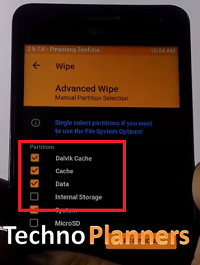
- Go back and Tap on Install option and find ROM file and flash it.
- Once its done, Similarly, flash GApps.
- Go back, Tap on Wipe and select factory reset option
- Reboot your device
- Done.
Download here
ROM- http://bit.ly/2iG9bEq
Congratulation, After first boot you can use your Zenfone Max with Lineage OS Nougat ROM. You can also check out Lineage OS Zenfone 2 Laser Please note first, boot can take up to 10 minutes So, Please dont turn off your device. Please share this ROM on your social media sites. Thank you and have a nice day.
Go to link download
Monday, May 1, 2017
Download install CM14 1 Zuk Z2 Android nougat 7 1 ROM
Download install CM14 1 Zuk Z2 Android nougat 7 1 ROM
If you want latest Android experience on your Zuk Z2. So you needed to download and install cm14.1 Android Nougat 7.1 ROM on your Zuk Z2. Today in this tutorial Techno Planners is providing step by step guide about How to Install Nougat 7.0 on Zuk Z2 using CM14.1. CM14.1 is a custom ROM and at this time this is first build for Zuk Z2 so it is possible, it may contain some bugs, so install it at your own risk I am not responsible for any damage.
Congratulations, Now you can enjoy Android Nougat on your Zuk Z2. At this time this ROM has some bugs, please share bug and other problem with us and our other visitors.
Requirement
- CM14.1 ROM for Zuk Z2
- GApps for Nougat
- TWRP Custom Recovery Pre installed on your device
Before flash new ROM
Before flash/ Install new ROM on your device make a full backup of your device data, photos, music and personal files because it will clean your device internal storage. You can save your date on your SD Card or PC.How to Install Nougat on Zuk Z2
- First of all download the CM 14.1 from the end of the post link given at end of post
- Download GApps for Nougat CM14.1
- From your PC, copy the downloaded zip files to your phone memory card
- Now boot your device into recovery mode by pressing and hold volume up + Power button at the same time.
- Once your device boot in recovery mode.
- Select Wipe, do wipe data factory reset and wipe cache partition
- Then go back and Select install option
- Now select the CM 14.1 file and flash ROM zip file on your device
- Once its done, Similarly, flash GApps on your device
- Go back to select wipe and make factory reset
- Once its done, Reboot your device
Download here
ROM- http://bit.ly/2h1KIfj
Congratulations, Now you can enjoy Android Nougat on your Zuk Z2. At this time this ROM has some bugs, please share bug and other problem with us and our other visitors.
Go to link download
Saturday, April 29, 2017
Xposed for Nougat Install Framework on Android 7 0 7 1
Xposed for Nougat Install Framework on Android 7 0 7 1
Hello Guys, In Previews post we shared Android 7.0 x86 ISO for PC. Presently We are sharing a crisp Guide about Xposed for Nougat. Thanks to XDA developers Who made this Xposed structure for our Android Nougat based gadgets. Xposed are made for the Nougat but there are a lot of bugs because of this it is not yet available to download. At this time Xpsoed framework under build so you can download after server days.
Congratulation, Now you can enjoy Xposed Module on your nougat device. You can also download Lucky Patcher apk for Nougat. If you find any problem in download link or in installing process. Please drop your comment below, we will reply as soon as possible.
Xposed Module
Xposed is an Application that progressions the framework conduct utilizing modules. There are bunches of modules accessible in the Xposed Installer App. Yet, a few modules are not working for our Zenfone.Caution
Before introducing Xposed on your gadget. Please take a backup of your Applications, Contacts, Internal Storage and other data. Do it at your own Risk, I am not responsible for any harm or damage. But this method tested.Requirement
- Your phone has pre-rooted and Custom CWM or TWRP Recovery Installed
- Check the processor of your Android device as Xposed Framework is available for Xposed framework available for different types of CPU’s. You can check the CPU of your smartphone by installing PU X: System & Hardware info application from Google Play Store.
- Enable “unknown source” in the security settings of your device
How to Install Xposed on Nougat
- Download the Xposed APK and Framework zip file.
- After that, Copy APK and firmware zip file on your device internal storage
- Install Xposed APK on your device
- Now Power Off your device
- Boot your device into recovery mode
- Tap on install option
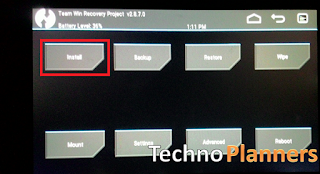
- Now find Xposed framework zip and flash it on your device
- Finally, Reboot your device.
Download here
APK- Upcoming
Framework- Upcoming
Congratulation, Now you can enjoy Xposed Module on your nougat device. You can also download Lucky Patcher apk for Nougat. If you find any problem in download link or in installing process. Please drop your comment below, we will reply as soon as possible.
Go to link download
Friday, April 28, 2017
Coolpad Note 5 To Android Nougat 7 0 Update Manually
Coolpad Note 5 To Android Nougat 7 0 Update Manually
Hello Guys in previews post we talk about How to install Nougat ROM on OnePlus One. Now in this post we talk about How to update Coolpad Note 5 to Android Nougat. This Nougat Firmware optimized for hardcore gameplay you can play all games like Real Foolball game, Mortal combat 5 etc without any lagging issue. This method and ROM tested on this device, but please do it with your own risk I am not responsible for any damage.
Features
Requirement
Congratulation, After first boot you can taste your nougat sweet on your Coolpad note 5. First boot can take up to 10 minutes for making cache data on your device. If you find any issues with files Please drop your comment below we will reply as soon as possible.
Features
- Multi window
- Doze
- Improved Notifications
- New Messaging Apps
- Seamless update
- Vulkan API
- Much more
Requirement
- Coolpad note 5 Nougat firmware
- YGDP Software for PC
- Windows PC
- Device Running on stock firmware with stock recovery
- Make sure that your phone has at least 40-50% charged
How to Update Coolpad Note 5 to Android Nougat
- Download Coolpad Note 5 Nougat firmware zip file and latest YGDP from the end of the post link given.
- Extract Nougat firmware zip file using WinRAR tool.
- Now Install YGDP Tool on your windows PC.
- Run YGDP Tool and It will ask for password on the first run, use 9527 as the password below.
- Now Click on configure and select the .CPB file from the extracted nougat firmware folder.

- Coolpad Note 5 To Android Nougat
- Browse .CBP file from Coolpad Note 5 Nougat folder and click on Apply.
- Now turn off your phone and connect it to the PC in “bootloader mode” under “recovery menu”.
- Now click on the Start button to start the process.
- Now wait for the process to complete. You will see a Successful Upgrade message on your YGDP Tool.
- Done! Reboot your device and enjoy Android 7.0 nougat on Coolpad Note 5.
Download here
Firmware- http://bit.ly/2fPWJ5N
YGDP tool- http://bit.ly/2gfIaJE
Congratulation, After first boot you can taste your nougat sweet on your Coolpad note 5. First boot can take up to 10 minutes for making cache data on your device. If you find any issues with files Please drop your comment below we will reply as soon as possible.
Go to link download
Download Nougat ROM for Redmi Note 3 Google Apps
Download Nougat ROM for Redmi Note 3 Google Apps
Hello Guys, Now Nougat ROM available for Redmi Note 3. This is not an official update from MIUI it is a custom Nougat ROM for Redmi Note 3. There is minor bugs and issues on this ROM before installing this ROM, Please read Working and not working features.
For first boot it can take up to 10 - 15 minutes for making catch files on this device. So, please keep patience. You can also check out How to .If you find other bugs or issue with ROM, please drop your comment below. Thank you and have a nice day.
Requirement
- TWRP Recovery Pre-Installed on Device
- Device at-least charge 50%
- Nougat ROM (Download all files from end of the post, Link given)
- GApps for Nougat
Whats working :
- Boots
- RIL (Calls, SMS, Data)
- Fingerprint (FPC1020 only)
- Wi-Fi
- Bluetooth
- Camera (Image Capture only)
- Video Playback
- Audio
- Sensors
- Flash
- LED
- GPS
Whats not working
- Video recording
- SELinux is permissive
Before Installing
Before you go to the next step please make sure backup your personal photos, Games, contract and other data.How to Install Nougat 7.0 on Redmi Note 3
- Download ROM from end of post
- Download GApps for Nougat ROM
- Copy Both ROM and GApps zip files on your device internal or external storage
- Power off your device
- Boot device into recovery mode.
- Once your device Reboot into TWRP recovery mode Tap on ‘Wipe", Select Advance Wipe and marks the Dalvik Cache, Cache, Data and System option from the list and Swipe to Wipe.
- Go back and select "Install", Now find the ROM file from the internal storage and flash it. Wait until its finished.
- Similarly, Flash GApps
- Once it shows Successfully Install/Complete, Go back and Select wipe, Go to Advanced Wipe and select "Dalvik Cache and Cache" and do wipe.
- Once its done, Reboot your device.
Download here
ROM- http://bit.ly/2enGHRM
For first boot it can take up to 10 - 15 minutes for making catch files on this device. So, please keep patience. You can also check out How to .If you find other bugs or issue with ROM, please drop your comment below. Thank you and have a nice day.
Go to link download
Wednesday, April 26, 2017
Nougat On PC Nougat x86 x64 ISO with Windows and Linux OS
Nougat On PC Nougat x86 x64 ISO with Windows and Linux OS
Hey, So As we know as Nougat available for lots of devices and Now Nougat x86 branch is ready for Windows PC and Linux PC. In this post I will teach you how to install Android Nougat on PC and its also work for x32bit and x64 bit machine. That is the latest version of Android x86 project for PC. Now Wifi and Play Store working access internet on the machine.
Pre Requirements
Features
Congratulation, Now you can enjoy Android Nougat on PC and notebook with Windows 7, 8, 8.1, 10 dual boot supported. If you find any this help full please drop your comment below and Share this post with your friends thank you and have a nice day.
Pre Requirements
- Android Nougat ISO (Download All files from end of post)
- Rufus to make a bootable Pen-Drive
- 1GB Pen drive needed
Features
- WiFi Working
- Bluetooth Working
- Application and Game
- Dual Boot Supported
- Support External Device
- Power Suspend And Resume Working
- UEFI Supported
- 32-Bit/ 64-Bit Supported
How to Install Android Nougat on PC
- Download Rufus and Android Nougat image from end of post.
- Run Rufus Software on your PC and Connect USB Flash Drive to PC. Now Click CD-Drive logo button to select ISO file. Now find and select the ISO file and click on the start button. And wait to finish it.
- Reboot your PC
- Now reboot your PC using USB Flash Drive As The Source. (Make USB To Boot First And Before CD/DVD ROM Under Your System’s BIOS Settings)
- When the Android x86 Menu appears, Just Select Install Android x86 to Hard Disk.
- Select your appropriate hard disk partition to install Android x86 or you can install on any new partition.
- Now, You will get a prompt message to the installation of GRUB Bootloader. Make sure to hit on yes.
- Now, another prompt message will ask you to make system /r/w. Hit Yes on this.
- Android 6.0.1 on PC
- After that, you will get another prompt to install internal space. Use 2047 MB of space, as that’s the maximum supported.
- Now select Reboot. After Reboot You can use Android x86 on PC.
Download here
Rufus - http://bit.ly/1MSWEHX
Nougat ISO - http://bit.ly/2emXWOk
Congratulation, Now you can enjoy Android Nougat on PC and notebook with Windows 7, 8, 8.1, 10 dual boot supported. If you find any this help full please drop your comment below and Share this post with your friends thank you and have a nice day.
Go to link download
Tuesday, April 18, 2017
How to Root Android Nougat 7 0 7 1 without PC Computer
How to Root Android Nougat 7 0 7 1 without PC Computer
Hello Guys in this post we talk about how to root any android nougat 7.0/7.1 without using PC Computer. As we know as Google already release Android Nougat sweet for all users and lots of users want root their device and in this post I will show you step by step guide on how you can root android nougat without PC Computer. So for this tutorial we are using two different methods first method is Kingoroot and the second method is flash SuperSU zip using custom CWM/TWRP Recovery. Both methods tested on custom ROM and stock ROM, but do it at your own risk I am not responsible for any Damage. You can also install Xposed on Android Nougat.
Disclaimer
Before root your device, You needed to make a full backup of your device data, contact number and other important data.
If the KingoRoot mobile Application method still failed for your device. You have to try the second TWRP recovery method or you can use KingoRoot PC version.
Congratulations, Now you can verify root successfully installed or not by using the Root Checker Application you can download the Root checker Application from Play Store. Please share this post with your friends and family, Comment down below if you have any question. Thank you and have a nice day.
Requirement
- Android Device Running on Nougat
- Device at least 40% charged
- KingoRoot APK (Download link given at end of post)
Disclaimer
Before root your device, You needed to make a full backup of your device data, contact number and other important data.
How to Root Android Nougat using Kingoroot
- Download Kingoroot Apk from end of post link given
- Copy APK file on your device internal/external SD card storage
- Install APK on your device, and Connect your device with WIFI or mobile Data network because the rooting scripts downloaded from Kingos server.
- Open Kingoroot Application, and Tap the icon of KingoRoot and press "One Click Root" to start.
- Get the result: succeeded or failed.
- If you get the failed result, You may want to try it several times because it will download many scripts from the server and apply it on your device.
If the KingoRoot mobile Application method still failed for your device. You have to try the second TWRP recovery method or you can use KingoRoot PC version.
How to Root Android Nougat using TWRP Recovery
- Download SuperSU zip file from the end of the post link given.
- Copy the SuperSU zip file and paste into your device internal storage.
- Power off your device and boot your device into TWRP recovery mode.
- Now Tap on “Install” option and select the SuperSU zip file.
- After selecting the SuperSU.zip file, do “Swipe to Confirm Flash” on the bottom of the screen to begin the flashing process.
- Once SuperSU is flashed
- Now Reboot your device option
Download here
KingoROOT APK- http://bit.ly/1OE5MSq
SuperSU zip- http://bit.ly/2hNIL2e
Congratulations, Now you can verify root successfully installed or not by using the Root Checker Application you can download the Root checker Application from Play Store. Please share this post with your friends and family, Comment down below if you have any question. Thank you and have a nice day.
Go to link download
Cm14 nougat rom for Moto E 2nd gen Otus Download
Cm14 nougat rom for Moto E 2nd gen Otus Download
Lots of users want to taste new Android Nougat ROM on Moto E 2nd Generations device. But this is not an official update from MOTO it is custom ROM from CYNOGEN MOD. So, If you really want to install nougat on your device you needed to flash CM14 ROM on your MOTO E. You can download ROM and other required files from the end of the post. This method tested on a moto E device but do it at your own risk I am not responsible for any damage.
Bugs:
After first boot you can use nougat update on the MOTO E device. Please note first boot can take upto 15 to 20 minutes. So, Please keep patience. You can also read about How to install Xposed on Nougat.
Requirement
- CM14 Nougat ROM for MOTO E (Download from end of the post)
- GApps for Nougat
- Custom TWRP recovery mode pre installed on the device
Working features on CM14
- WIFI
- Bluetooth
- Booting
- Audio
- Camera (photos)
- Video playback
- RIL
Bugs:
- Video recording not working
ROM OS INFO for MOTO E
- Status: Alpha
- Last Updated 2016-09-23
- OSVersion: 7.x Nougat
- Kernel: Linux 3.4.x
How to Install Nougat on MOTO E 2nd Gen
- First of all download the ROM zip file from the end of the post link given in red highlighted color.
- Now download Google GApps for Nougat.
- Now transfer ROM and GApps zip files on your MOTO device with the help of data cable or wireless file transfer apps.
- Now boot your device into recovery mode by press and hold Volume Down + Power Button at the same time.
- Once you reach the recovery mode, you will see many options there.
- Now tap on Wipe, Select Wipe data, wipe cache partition and wipe Dalvik cache option and wipe it
- Go back and select install option, then find and select the ROM zip file and flash it
- Similarly, find GApps and flash it
- After installation, Tap on a wipe and factory reset your device.
- Reboot your device
Download here
ROM- http://bit.ly/2goyBJL
After first boot you can use nougat update on the MOTO E device. Please note first boot can take upto 15 to 20 minutes. So, Please keep patience. You can also read about How to install Xposed on Nougat.
Go to link download
Sunday, April 16, 2017
Custom ROMs for Zenfone 5 List Lollipop Marshmallow Nougat
Custom ROMs for Zenfone 5 List Lollipop Marshmallow Nougat
Now we are sharing the List of best stable Custom ROM for ASUS Zenfone 5. Zenfone 5 users love to taste Custom ROM on their device. Here we are providing Custom Rom with their features and Bugs information. So, it helps to decide which is a better ROM for you.

CM12.1 Stable Version for Zenfone 5
CyanogenMod 12.1 which based on Android 5.1.1 but this is an unofficial version of CM12.1. Below you can read feature and bugs on this Rom. Also, check out How to Install CM12.1 on Zenfone 5.
Working Features on CM12.1
- Output Sound is louder
- Dual Sim Working
- Camera quality is better
- You can use horizontal mode in home
- Better Touch Performance
- Battery backup is better if compare to the previous build
Bugs on CM12.1
- Showing? Mark in battery indicator in charge mode
- SD-Card is not working in some device
Resurrection ROM for Zenfone 5
Resurrection ROM v5.5.9 Build 7.0 also based on Android 5.1.1 and its last build date is 25 November 2015. Also Check out How to Install Resurrection Remix on Zenfone 5.
Working features on Resurrection ROM
- Dual Sim Working
- Apollo Music Player
- Come With Dual Launcher
- Double Tap to Sleep features available
Bugs on Resurrection ROM
- FM not Working
- GPS not Working
Stable Big Rom 10 for Zenfone 5
Big Rom is based on Stock firmware 3.24.40.87 and there is a minor change in this ROM like boot animations and pre-added some interesting features you can read below. Also Check out How to Install BIG_ROM v13.0 on Zenfone 5.
Features of Big Rom
- Based on Latest Stock ROM 3.24.40.87
- Gapps Pre-Installed
- Comes with custom Boot Animation
- Motion Gestures
- Phone Tester
- Pre - Rooted
- Increase Sound Volume
- Battery Performance is better
- Set CPU
- Sony Music Player
Stable Gecko ROM for Zenfone 5
Gecko ROM also based on Stock 3.24.40.80 Firmware and its have Android 5.0.x Lollipop. There is lots of change, but it looks likes Stock ROM.
Features
- ROM space Compressed
- Latest Google Apps Installed
- Sony WalkMan Player
- Screencast feature
- Block Ads
- Fixed SD-Card Write Permission
Shell ROM for Zenfone 5
This is Stock ROM based on stock Lollipop firmware 3.23.40.87 but customize with lots of features like ZenMotion, Volume Increase, etc., by the ShesnonRibeiro XDA developer. Also Check out How to Install Shell ROM Zenfone 5.
Shell ROM Features
- ZenMotion added (Working Double Tap to Wake/Sleep).
- Horizontal mode work on home screen.
- Now output volume is louder.
- Updated to new dialer and Contact interface
- Multi User mode (Add Two or more users in one device)
- New font added
- Root explorer Application pre installed
- Improve Performance and battery backup
CM13 Android 6.0 ROM for Zenfone 5
CyanogenMod 13 which based on Android 6.0.1 with smoother and faster performance, but this is an unofficial version of CM13 and this current ROM status experimental. Below you can read feature and bugs on this Rom. Also, check out How to Install Android 6.0 Marshmallow on Zenfone 5 T00J/T00F.
Features
- Odexed, first boot faster
- No additional applications
- LATEST sources
- Monthly security update
- CM boot animation
- Lock Screen
- Miscellaneous
- Navigation
- Dark UI mode
- Settings button in status Bar
- Dual Sim Card Working
- Calling fixed
Bugs and Issues
- Camera Fixed
- GPS
- FM
Euphoria OS 2.0 for Zenfone 5
Euphoria OS 2.0 with Android 6.0 Marshmallow ROM for Zenfone 5/6. This ROM provided by the senior XDA developer.
Features
- Rooted
- Great Battery
- Play Store worked
- Smoother and faster Performance
- Fast booting
- Voice calls
Bugs fixed
- Camera not working
- GPS
- FM Radio
Resurrection Remix MM 5.6.7 for Zenfone 5
This is official build of Resurrection Remix based on Android 6.0.x Marhsmallow for Zenfone 5 with latest marshmallow source code. If you want to taste this ROM use this tutorial about Install Resurrection Remix MM 6.0 for Zenfone 5.
RR Working
- Camera
- Bluetooth/WiFi
- Flash Light
- SMS
Bug
- GPS
- Radio not working
BIG ROM Zenfone 5 13.0 Pro
Big ROM is another custom rom for ASUS zenfone 5 and zenfone 6 with amazing features and a new kernel for improving performance and battery life. At this time this ROM based on stock WW 3.24.40.87 firmware. You can check out tutorial How to Install Big ROM.
Whats New in Big ROM Pro
- Base in Stock Firmware WW 3.24.40.87
- Support Zenfone 6
- Network Traffic in BR Center/status bar
- Carrier label in BR Center/status bar
- CPUspied in BR Center/status bar
- Restart UI in BR Center/status bar
- Floating mode (Multitasking)
- KnockCode in BR Center/LockScreen (need enables in Xposed)
- Gesture in BR Center/Button
- Update kernel BORETS24 DT2W 17/03/2016
- Update open gapps 13/04/2016
Zenfone 5 Dirty Unicorn v10.5 Unofficial ROM
Dirty Unicorn ROM is another custom rom for ASUS zenfone 5 and zenfone 6. At this time this ROM based on AOSP Android 6.0.1 Marshmallow. You can check out tutorial about Zenfone 5 Dirty Unicorn.Android 7.0 Nougat Zenfone 5
Android 7.0 Nougat for Zenfone 5, Zenfone 6, Zenfone 2 Laser, Zenfone 2, Zenfone 3, Zenfone GO, Zenfone selfie. Once the ROM is ready for your device, We will publish a fresh post for your device as soon as possible. So please keep visiting on our blog.Lineage OS Zenfone 5
Lineage OS is another custom rom for ASUS zenfone 5 and zenfone 6 with amazing features but there is lots of bugs. Check out How to flash Lineage OS Zenfone 5.Bugs/Not Working:
- FM Radio Not working
- some video formats do not play so accurate
- problems with some apps like UC Browser
- GPS not working
Recently another developer shared another Lollipop ROM for ASUS Zenfone 5 and Zenfone 6. This is most stable and unofficial version of Android 5.0.1 from TechGenius and it is based on Stock 5.0. This builds create on latest Stock Android 5.0 3.24.40.87 source code with Linux 3.10.x kernel. Below you can read working features and bugs. How to Install Montana ROM v3.2 on Zenfone 5.
In this Post We are providing Best Custom ROMs for Asus Zenfone 5. At this time, we are choosing seven ROMs CM12.1, Resurrection ROM, Big ROM, Gecko ROM, CM13, Euphoria OS 2.0 and Resurrection Remix MM for Asus Zenfone 5/6. Please Share more information and bug report with our other visitors.
Go to link download
Friday, April 14, 2017
Download Lineage OS ROM Zenfone 2 Laser Android Nougat 7 1 1
Download Lineage OS ROM Zenfone 2 Laser Android Nougat 7 1 1
Hello Guys, In this post we are sharing guide about how to install lineage OS ROM nougat on Asus zenfone 2 laser. So As we know as the Lineage OS nougat recipe is ready for Zenfone 2 laser. So, now in this post I will show you how to install Lineage OS on Zenfone 2 Laser. This method is tested by other users, but I am sure it will 100% work for you, but do it at your own risk and I am not responsible for any damage.
Pre-Requirement
Before flash any ROM, Make a full backup of your device using TWRP Recovery. With these backup you can restore your device in previous condition with full internal store data and applications.
Congratulation, After first boot you can use your zenfone 2 laser with Lineage OS Nougat ROM. Please note first, boot can take up to 10 minutes So, Please dont turn off your device. Please share this ROM on your social media sites. You can also check out How to flash CM14.1 Nougat on Zenfone 2 laser. Thank you and have a nice day.
Pre-Requirement
- Custom TWRP Recovery
- Device at least 50% charged
- Lineage OS ROM (Download all files from end of the post)
- GApps for Lineage OS
Before flash any ROM, Make a full backup of your device using TWRP Recovery. With these backup you can restore your device in previous condition with full internal store data and applications.
How to Install Lineage OS on Zenfone 2 Laser
- First Download Lineage OS ROM from the end of the post link given in red color.
- Second Download GApps for Lineage OS.
- Copy both zip files in your device internal storage/external storage.
- Switch Off your device
- Boot your device into TWRP recovery mode using your buttons
- Once your device successfully boot into TWRP Recovery Mode. Just Select Wipe > Advance Wipe > Check "Dalvik Catch", "Catch", "Data", "System" option and swipe to confirm wipe.
- Go back and Tap on Install option and find ROM file and flash it.
- Once its done, Similarly, flash GApps.
- Go back, Tap on Wipe and select factory reset option
- Reboot your device
- Done.
Download here
ROM- http://bit.ly/2hIFnKp
Congratulation, After first boot you can use your zenfone 2 laser with Lineage OS Nougat ROM. Please note first, boot can take up to 10 minutes So, Please dont turn off your device. Please share this ROM on your social media sites. You can also check out How to flash CM14.1 Nougat on Zenfone 2 laser. Thank you and have a nice day.
Go to link download
Friday, April 7, 2017
Lineage OS Nougat ROM Zenfone 5 Android 7 1 1 How to Install
Lineage OS Nougat ROM Zenfone 5 Android 7 1 1 How to Install
In preview post we talk about Lineage OS for Zenfone Max. Now, Today in this post we talk about Lineage OS Android Nougat ROM for ASUS Zenfone 5/6. Unfortunately, This is not an official update from Lineage OS and There are some bugs and error like FM Radio, GPS and playing some video file formate. Currently, This ROM status on the experiment so, maybe there are more bugs and issue. If you detect any bug or problem with this ROM, please share it with us and our other visitors. Please do it with your own risk, I am not responsible for any damage.
Requirement
TWRP Recovery
Before upgrading to marshmallow you have to flash Custom TWRP Recovery. If you have pre-install recovery you can skip this step otherwise use this tutorial to How to Install TWRP on Zenfone your device.
Bugs/Not Working:
Backup
Requirement
- Lineage OS ROM (Download all files from end of post)
- GApps for Lineage OS
- Desktop/PC
TWRP Recovery
Before upgrading to marshmallow you have to flash Custom TWRP Recovery. If you have pre-install recovery you can skip this step otherwise use this tutorial to How to Install TWRP on Zenfone your device.
Bugs/Not Working:
- FM Radio Not working
- some video formats do not play so accurate
- problems with some apps like UC Browser
- GPS not working
Backup
- Before flashing the ROM update make a backup using TWRP recovery.
- Power off Your Zenfone
- Open TWRP recovery mode by using the Power + Volume Down button.
- Tap on Backup then Slide left to right from Swipe to backup button
- Once the Backup Complete reboot device normally and Copy TWRP folder on your PC/Computer.
How to install Nougat on Zenfone 5
- Download LineageOS ROM and GApps from end of the post.
- Copy ROM and GApps zip file in your device storage.
- Turn off your Zenfone
- Boot your device into Recovery mode using Power + Volume DOWN button.
- Once your device successfully boot into TWRP Recovery Mode. Just Select Wipe > Advance Wipe > Check "Dalvik Catch", "Catch", "Data", "System" option and swipe to confirm wipe.
- Tap Install and flash the ROM zip file.
- Go back and flash the GApps.
- Tap Wipe > Advance Wipe, Select dalvik cache, data, internal storage
- Once its done, Reboot your device.
Download here
ROM- http://bit.ly/2ivD8HH
For first boot it can take up to 10 minutes for making cache file, Please dont turn off your device in that stage. Before you go, read about How to Install Android Nougat on Zenfone 5 and Resurrection Remix Nougat on Zenfone 5 T00J/T00F. Please Share this Tutorial with your friends and family.
For first boot it can take up to 10 minutes for making cache file, Please dont turn off your device in that stage. Before you go, read about How to Install Android Nougat on Zenfone 5 and Resurrection Remix Nougat on Zenfone 5 T00J/T00F. Please Share this Tutorial with your friends and family.
Go to link download
Thursday, April 6, 2017
Update Android 7 0 Nougat on Lenovo Vibe K5 K5 Plus using CM14
Update Android 7 0 Nougat on Lenovo Vibe K5 K5 Plus using CM14
Hello Guys, Now Nougat ROM available for Lenovo Vibe K5/ K5 Plus. This is not an official update from CM14 it is a custom Nougat ROM for Lenovo Vibe K5/ K5 Plus. There is minor bugs and issues on this ROM before installing this ROM, Please read Working and not working features.
Whats working :
Before you go to the next step please make sure backup your personal photos, Games, contract and other data.
For first boot it can take up to 10 - 15 minutes for making catch files on this device. So, please keep patience. You can also check out How to .If you find other bugs or issue with ROM, please drop your comment below. Thank you and have a nice day.
Requirement
- TWRP Recovery Pre-Installed on Device
- Device at-least charge 50%
- Nougat ROM (Download all files from end of the post, Link given)
- GApps for Nougat
Whats working :
- Boots
- RIL (Calls, SMS, Data)
- Fingerprint (FPC1020 only)
- Wi-Fi
- Bluetooth
- Camera (Image Capture only)
- Video Playback
- Audio
- Sensors
- Flash
- LED
- GPS
Before you go to the next step please make sure backup your personal photos, Games, contract and other data.
How to Install Nougat 7.0 on Lenovo Vibe K5/ K5 Plus
- Download ROM from end of post
- Download GApps for Nougat ROM
- Copy Both ROM and GApps zip files on your device internal or external storage
- Power off your device
- Boot device into recovery mode.
- Once your device Reboot into TWRP recovery mode Tap on ‘Wipe", Select Advance Wipe and marks the Dalvik Cache, Cache, Data and System option from the list and Swipe to Wipe.
- Go back and select "Install", Now find the ROM file from the internal storage and flash it. Wait until its finished.
- Similarly, Flash GApps
- Once it shows Successfully Install/Complete, Go back and Select wipe, Go to Advanced Wipe and select "Dalvik Cache and Cache" and do wipe.
- Once its done, Reboot your device.
Download here
ROM- http://bit.ly/2dRlAm4
For first boot it can take up to 10 - 15 minutes for making catch files on this device. So, please keep patience. You can also check out How to .If you find other bugs or issue with ROM, please drop your comment below. Thank you and have a nice day.
Go to link download
Subscribe to:
Posts (Atom)