Showing posts with label boot. Show all posts
Showing posts with label boot. Show all posts
Wednesday, May 24, 2017
Install Android x86 6 0 Marshmallow on PC notebook with Dual Boot
Install Android x86 6 0 Marshmallow on PC notebook with Dual Boot
Hello Guys In this tutorial you will learn How to Install Android x86 6.0 Marshmallow on PC notebook with Windows, Linux and Mac Dual Boot supported. After installation of Android x86 on computer or notebook you can enjoy android application, games like asphalt and modern combat and more much. Note : - WiFi Connection not working on Android x86 6.0. So, you can not use internet services but Android x86 developers are working on this project and it will fix ASAP. You can also check out [Official] Android 5.1 x86 RC1 Lollipop ISO image for you PC. That is the most stable version of Android x86.
Requirement
- Android x86 6.0 ISO Image. (Download All files from end of post)
- Rufus for Windows
- 1 USB flash drive or Bootable CD/DVD
- USB Device (SD-Card, External hard disk, USB Pen Drive)
How to Install Android x86 6.0 on PC with Dual Boot
Step 1. Download Android x86 ISO and Rufus boot maker from end of post.
Step 2. By Using Rufus, Make a bootable USB/CD/DVD using the ISO image file that you downloaded from below.
Step 3. After that, Restart your PC via USB/CD/DVD drive as the source.
- (Make USB To Boot First And Before CD/DVD ROM Under Your System’s BIOS Settings)
Step 4. Now Android x86 menu Appear on your screen, Just select Install Android-x86 to harddisk.
Step 5. Choose Partition, Select your hard disk partition where you want to install it.
Step 6. Now, It will ask for installation for Grub Bootloader. Just select "YES".
Step 7. Now, another prompt message will ask you to make system /R/W. hit "YES" on this.
Step 8. After that, It will ask for install internal space. Use 2047 MB for space, As that is the maximum supported.
Step 9. Now, Restart your PC. You can select Android-x86 6.0-rc1 to boot Android and Choose Windows to start Windows on your PC.
Enjoy Android Android x86 6.0 Marshmallow on your PC, notebook and Laptop with Windows, Linux and MAC dual boot. Share this tutorial with your friends and family.
Step 5. Choose Partition, Select your hard disk partition where you want to install it.
Step 6. Now, It will ask for installation for Grub Bootloader. Just select "YES".
Step 7. Now, another prompt message will ask you to make system /R/W. hit "YES" on this.
Step 8. After that, It will ask for install internal space. Use 2047 MB for space, As that is the maximum supported.
Step 9. Now, Restart your PC. You can select Android-x86 6.0-rc1 to boot Android and Choose Windows to start Windows on your PC.
Download here
http://bit.ly/1NXFzzu
Enjoy Android Android x86 6.0 Marshmallow on your PC, notebook and Laptop with Windows, Linux and MAC dual boot. Share this tutorial with your friends and family.
Go to link download

Tuesday, May 16, 2017
How to Install Android 6 0 Marshmallow on Zenfone 5 Boot Animation
How to Install Android 6 0 Marshmallow on Zenfone 5 Boot Animation
Tutorial - How to install Android 6.0 Marshmallow Boot Animation on Asus Zenfone 4, Zenfone 5, Zenfone 6, Selfie, Zoom, Laser, ZenPad and all Android phone supported. Every Android lover known the Marshmallow release for some device and it very stable and more powerful version if we compare with oldest version. But I like one feature it boot animation. Marshmallow Boot animation is very styles and colorful thats why i install it on my Zenfone 5 and share this tutorial with our lovely users. We also attach a video tutorial, it will more helpful to understand this guide. Also Check out How to Install ZenMotion feature on Zenfone 5 and Zenfone 6 (Wake/Sleep Supported).
Pre-Requirement
Note : Choose the right version of Marshmallow Boot Animation. For Example if you have a screen of resolution 1280x720 pixels, you would choose the 720p version and The Zenfone 5 have 720 pixels and i am providing 720 pixel file that you can download from end of post.
![Install Android 6.0 Marshmallow on Zenfone 5 [Boot Animation]](https://blogger.googleusercontent.com/img/b/R29vZ2xl/AVvXsEguapq2tVb5vsAvIUw9TfDrou9Fzd5_mTzP0nmk34XVr44QBnplqFnK8MU27hhoD7DhE-LylsxDBH4lx7gUnpdxTdnEcvy8zlYU2BKv8YQceTonCMrER4WFFjOfYnEKOydUtXDe0nKqCxY/s320/How+to+Install+Android+6.0+Marshmallow+on+Zenfone+5+%255BBoot+Animation%255D.png "How to Install Android 6.0 Marshmallow on Zenfone 5 [Boot Animation]")
![Install Android 6.0 Marshmallow on Zenfone 5 [Boot Animation]](https://blogger.googleusercontent.com/img/b/R29vZ2xl/AVvXsEjh86_vAsJ1yL-YSlChkzs_8DtzhagECeGA9BRHsWHCdzKw40ZRVASp3Ub_EDNAFhyOMwviixHh-JVcumbE32sr81LKtInuO34tIj0WzfKty519vXnk8_I5K574W8BC4iEvIGhRCpLJm2Y/s320/How+to+Install+Android+6.0+Marshmallow+on+Zenfone+5.png "How to Install Android 6.0 Marshmallow on Zenfone 5 [Boot Animation]")
Pre-Requirement
- Marshmallow Boot Animation file (Download from end of post)
- ES file Explorer (Download from Play Store)
- Rooted Zenfone Also check out One Click Root for Zenfone 4, 5, 6 and Zenfone 2
Note : Choose the right version of Marshmallow Boot Animation. For Example if you have a screen of resolution 1280x720 pixels, you would choose the 720p version and The Zenfone 5 have 720 pixels and i am providing 720 pixel file that you can download from end of post.
How to Install Android 6.0 Marshmallow on Zenfone 5
Step 1. First download Marshmallow Boot animation zip file and copy in your device internal storage.
Step 2. Install ES file Explorer on your device.
Step 3. Open ES Explorer then tap on upper left corner button and select Tools then Enable Root Explorer and it will prompt to Grant Super SU (Root Permission). Hit on Grant Button.
Step 4. Now Go To Device/System/Media directory and Rename your bootanimation to old.bootanimation.zip .
Step 5. Now Go Internal storage then copy BootAnimation.zip file and Paste into Device/System/Media/paste here.
Step 6. Now Reboot Your Device.
Download here
http://bit.ly/1PC2aOX
Congratulation. Now your old and boring Asus boot animation convert into marshmallow boot animation. I hope you love it. Please share it with your friends and family
Go to link download
Monday, May 15, 2017
How to Install Android N 7 0 Boot Animation on Any Android Phone
How to Install Android N 7 0 Boot Animation on Any Android Phone
In this Tutorial I will show you how to install Android Nougat 7.0 Boot Animation on Any Android Phone or device. This is next android version for nexus devices and we got this boot animation from final developer preview. This method test with stock and custom ROM but do it with your own risk i am not responsible for any damage.
2. Copy both file in your device storage (internal/external).
3. Go to file manager, tap on ES Explorer APK to Install, you may get an unknown source warning If you Install the apk first time on your device. Tap on settings, Swipe down and enable unknown source option, tap on OK. Now go back and try to install APK.
4. Open it and enable Root Explorer mode and grant super su permission if it ask.

6. Navigate to the /system/media folder on your device. choose and Rename the file name from "bootanimation.zip" to "bootanimation.zip.bak" or "bootanimation.zip.old", then press "OK."

7. Then copy Android nougat boot animation zip file from wherever you downloaded and paste it, and paste it to system/media folder.
8. Once youve done that, long-press the newly-copied bootanimation.zip file, then choose "Permissions." Finally, set the Owner category to "Read" and "Write," then make sure all other categories are set to just "Read."
9. Reboot and Enjoy
Congratulation, Now you can enjoy new boot animation on your older android phone. If you find any thing help full from this blog. Please share this tutorial with other android users. Before you go also check read about Android N-ify you can install Android 7.0 feature on your Android phone with this.
Requirement
- Android Nougat Boot Animation
- ES Explorer APK (Download Link given in end of the post)
How to Install Android N 7.0 on any Android
1. First Download the boot-animation.zip and ES Explorer APK from end of post link given.2. Copy both file in your device storage (internal/external).
3. Go to file manager, tap on ES Explorer APK to Install, you may get an unknown source warning If you Install the apk first time on your device. Tap on settings, Swipe down and enable unknown source option, tap on OK. Now go back and try to install APK.
4. Open it and enable Root Explorer mode and grant super su permission if it ask.
6. Navigate to the /system/media folder on your device. choose and Rename the file name from "bootanimation.zip" to "bootanimation.zip.bak" or "bootanimation.zip.old", then press "OK."
7. Then copy Android nougat boot animation zip file from wherever you downloaded and paste it, and paste it to system/media folder.
8. Once youve done that, long-press the newly-copied bootanimation.zip file, then choose "Permissions." Finally, set the Owner category to "Read" and "Write," then make sure all other categories are set to just "Read."
9. Reboot and Enjoy
Download here
ES Explorer APK - http://bit.ly/29w75RX
BOOT Animation - http://bit.ly/29JJdKQ
Congratulation, Now you can enjoy new boot animation on your older android phone. If you find any thing help full from this blog. Please share this tutorial with other android users. Before you go also check read about Android N-ify you can install Android 7.0 feature on your Android phone with this.
Go to link download
Thursday, May 11, 2017
How to Get Android 6 0 Marshmallow Boot Animation on Zenfone Series
How to Get Android 6 0 Marshmallow Boot Animation on Zenfone Series
Tutorial - How To Install Android 6.0 Marshmallow Boot Animation on Asus Zenfone 4, Zenfone 5, Zenfone 5, Zenfone 2, All Android Device and Zenfone supported. Now you can change your boring boot animation with interesting Android M Boot Animation. This method tested on ASUS Zenfone 5. Below, We also provide a video tutorial with step by step guide. How to Root Asus Zenfone 4, 5, 6 without PC.
Requirement

Requirement
- Boot Animation Zip file (Download from End of post)
- Rooted Zenfone
- ES File Explorer
How to Install Android 6.0 M Boot Animation
Step 1. Download Boot Animation zip file from below link and copy it in your internal storage.
Step 2. Now, Install ES Explorer from Play Store.
Step 3. Once Installed, Open ES Explorer then tap on upper left corner button and select Tools then Enable Root Explorer and it will prompt to Grant Super SU (Root Permission). Now Hit on Grant Button.
Step 4. Now Go To Device/System/Media directory and Rename your bootanimation to old.bootanimation.zip .
Step 5. Now Go Internal storage then copy BootAnimation.zip file and Paste into Device/System/Media/paste here.
Download here
http://bit.ly/1h3VzAS
Now Reboot Your Device. Now you will get Android 6.0 M Marshmallow Boot Animation on your Asus Zenfone 4, Zenfone 5, Zenfone 5, Zenfone 2, All Android device and Zenfone supported. How To Update Zenfone 5 to Firmware 3.23.40.60.
Go to link download
Wednesday, May 10, 2017
Install Remix OS with Windows on UEFI PC with Dual Boot
Install Remix OS with Windows on UEFI PC with Dual Boot
Tutorial - How to Install Remix OS 2.0 with Windows 7, 8, 8.1, 10 with Dual Boot. Recently Remix OS Developers have shared latest Remix OS for UEFI PC. In preview post we talk about Install Remix OS on PC laptop Hard Disk With Windows Dual Boot. If you are using Legacy Desktop/ PC you can check out that tutorial.
Pre-Requirement
Download Remix Image for UEFI and EasyUEFI software from end of post. Then Install EasyUEFI on your PC.
Step 2. Create a fresh Partition
Now, Create a New partition atlest 10 GB and format it in fat32. Click Windows + R button, then type diskmgmt.msc and press enter button to start disk management. Now right click on any partition, then select shrink volume. Now enter the amount space to shrink 10000 then click on shrink button. Now you will get unallocated space. Right click on the unallocated space and select new simple volume and follow these instructions.
Step 3. Make Bootable flash Drive
Now Connect pen drive with PC and format it in Fat32. After format Run Remix USB Tool and Click on Browser button for the select remix image file, then click on OK button and wait for the process to complete. Dont remove the USB flash drive after process complete.
Step 4. Copy Data from flash Drive to fresh Partition
After making a bootable flash drive. Copy all folders and files from flash drive and copy in your Remix OS partition that you create on your PC.
Step 5. Run EasyUEFI on PC
After Copy All files in Remix OS Partition. Run EasyUEFI, then click on Add New Entry. Now Select type as Linux or other OS. Now Enter Name Remix OS (Or you can enter any name like android-x86) in the Description. After that, Select Remix OS partition from Target Partition menu. Now Click on Browser Button from below then click on + Button. Then double click on EFI then boots folder. Now Select Bootia32 for 32 bit Computer and select bootx64 for 64-Bit Computer then Click on OK Button. Then again OK button to save configurations.

Step 6. Reboot Your PC
Now Shutdown your PC and Turn on using Boot Menu Key (F12 Key Work for Lenovo). There you can select Remix OS. After select Remix OS it will show Guest Mode and Resident Mode.
Congratulations, Now You can run Remix OS with Windows 7, 8, 8.1, 10 PC/ Notebook with Dual Boot. Share this Tutorial with your friends and family.
Pre-Requirement
- Remix OS ISO for EFI
- EasyUEFI PC Software
- Minimum 8GB Flash Drive
- A Remix USB Tool for making a bootable pen drive
Bug with Remix OS for UEFI
- Play Store not available
How to Install Remix OS on UEFI PC with Windows
Step 1. Download and InstallDownload Remix Image for UEFI and EasyUEFI software from end of post. Then Install EasyUEFI on your PC.
Step 2. Create a fresh Partition
Now, Create a New partition atlest 10 GB and format it in fat32. Click Windows + R button, then type diskmgmt.msc and press enter button to start disk management. Now right click on any partition, then select shrink volume. Now enter the amount space to shrink 10000 then click on shrink button. Now you will get unallocated space. Right click on the unallocated space and select new simple volume and follow these instructions.
Step 3. Make Bootable flash Drive
Now Connect pen drive with PC and format it in Fat32. After format Run Remix USB Tool and Click on Browser button for the select remix image file, then click on OK button and wait for the process to complete. Dont remove the USB flash drive after process complete.
Step 4. Copy Data from flash Drive to fresh Partition
After making a bootable flash drive. Copy all folders and files from flash drive and copy in your Remix OS partition that you create on your PC.
Step 5. Run EasyUEFI on PC
After Copy All files in Remix OS Partition. Run EasyUEFI, then click on Add New Entry. Now Select type as Linux or other OS. Now Enter Name Remix OS (Or you can enter any name like android-x86) in the Description. After that, Select Remix OS partition from Target Partition menu. Now Click on Browser Button from below then click on + Button. Then double click on EFI then boots folder. Now Select Bootia32 for 32 bit Computer and select bootx64 for 64-Bit Computer then Click on OK Button. Then again OK button to save configurations.
Step 6. Reboot Your PC
Now Shutdown your PC and Turn on using Boot Menu Key (F12 Key Work for Lenovo). There you can select Remix OS. After select Remix OS it will show Guest Mode and Resident Mode.
- In Guest mode Once you reboot, you will lose all the data and installations apps from your device.
- In Resident mode, it will save the data and System Configurations for next time and it can take 5 - 10 minutes to install.
Download here
EasyUEFI - http://bit.ly/1NgsLgC
Remix OS EFI - http://bit.ly/1JcR5VP
Congratulations, Now You can run Remix OS with Windows 7, 8, 8.1, 10 PC/ Notebook with Dual Boot. Share this Tutorial with your friends and family.
Go to link download
Friday, May 5, 2017
How to Install Android Nougat on PC with Windows 7 0 Dual Boot
How to Install Android Nougat on PC with Windows 7 0 Dual Boot
Hey, So As we know as Nougat available for lots of devices and Now Nougat x86 branch is ready for Windows PC and Linux PC. In this post I will teach you how to install Android Nougat on PC and its also work for x32 bit and x 64 bit machine. That is the latest version of Android x86 project for PC. Now Wifi and Play Store working access internet on the machine.
Pre Requirements
Features
Congratulation, Now you can enjoy Android Nougat on PC and notebook with Windows 7, 8, 8.1, 10 dual boot supported. If you find any this help full please drop your comment below and Share this post with your friends thank you and have a nice day.
Pre Requirements
- Android Nougat ISO (Download All files from end of post)
- Rufus to make a bootable Pen-Drive
- 1GB Pen drive needed
Features
- WiFi Working
- Bluetooth Working
- Application and Game
- Dual Boot Supported
- Support External Device
- Power Suspend And Resume Working
- UEFI Supported
- 32-Bit/ 64-Bit Supported
How to Install Android Nougat on PC
- Download Rufus and Android Nougat image from end of post.
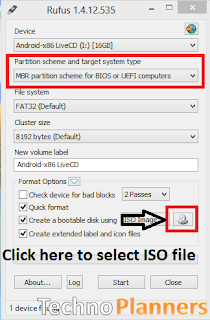
- Run Rufus Software on your PC and Connect USB Flash Drive to PC. Now Click CD-Drive logo button to select ISO file. Now find and select the ISO file and click on the start button. And wait to finish it.
- Reboot your PC
- Now reboot your PC using USB Flash Drive As The Source. (Make USB To Boot First And Before CD/DVD ROM Under Your System’s BIOS Settings)
- When the Android x86 Menu appears, Just Select Install Android x86 to Hard Disk.
- Select your appropriate hard disk partition to install Android x86 or you can install on any new partition.
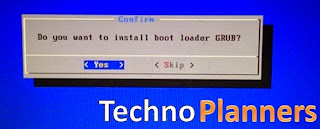
- Now, You will get a prompt message to the installation of GRUB Bootloader. Make sure to hit on yes.
- Now, another prompt message will ask you to make system /r/w. Hit Yes on this.
- After that, you will get another prompt to install internal space. Use 2047 MB of space, as that’s the maximum supported.
- Now select Reboot. After Reboot You can use Android x86 on PC.
Download here
Rufus - http://bit.ly/1MSWEHX
Nougat ISO - http://bit.ly/2emXWOk
Congratulation, Now you can enjoy Android Nougat on PC and notebook with Windows 7, 8, 8.1, 10 dual boot supported. If you find any this help full please drop your comment below and Share this post with your friends thank you and have a nice day.
Go to link download
Monday, May 1, 2017
How to Remove Operating System From Dual Boot Windows
How to Remove Operating System From Dual Boot Windows
?????????? Salatuk (Prayer time) APK :
????? ?? ???? ??? ????? ????? Salatuk (Prayer time) APK ?
???? ????? ????? Salatuk (Prayer time) APK:

???? ?????? ?? ?????
download apk messenger
????? Salatuk (Prayer time) APK ??? :
????? ????? ????? Salatuk (Prayer time) APK
?? ???? ?????? ?? ????????? ????? Salatuk (Prayer time) APK ?????? ?????? !!
??????? ???? ????? ????? :
- apk minecraft 0.13.1
- apk downloader ext
- apk mob
- apk wifi password cracker
- download apk messenger
- apk for android market
Go to link download
Sunday, April 23, 2017
Quick Boot
Quick Boot

Quick Boot
Type : zip
Size : 1 MB
Artis :
Android Apps Zip
Android Apps Zip
Rating : 

Search Result
Quick Boot (Reboot) | AppBrain Android Market
Get the Quick Boot (Reboot) Android app (½, 1,000,000+ downloads) ** Root access to your phone is required to use this...
Quick Boot - CV | AutoZone.com - AutoZone | Auto Parts ...
$25 AZ Gift Card For Every $100 Spent On Online Ship to Home Orders. Use Code: BOOM25. See Details
What is quick boot - The Q&A wiki
"Quick Boot" Is a Feature of the BIOS During the power on self test, the BIOS checks the hardware devices and counts the system memory. Out of all of the different ...
Quick Boot (Reboot) - Android Apps on Google Play
Reboot your phone quickly. Boot into Recovery and Bootloader with one tap. ** Root access to your phone is required to use this application. If you are not aware wheth...
Buttered Cat Software - Products :: QuickBoot
QuickBoot is a handy utility to make it easier to reboot into your Boot Camp windows drive, or even another OS X install. It will also not permantly change your ...
Quick Power On Self Test / Quick Boot - Welcome to The PC Guide!
[ The PC Guide | Systems and Components Reference Guide | Motherboard and System Devices | System BIOS | BIOS Settings | Advanced Features] Quick Power On Self Test ...
quick boot? - Vista Support Forums
I am sitting for 4 or 5 minutes while my system boots. There is a black screen, then the windows progress bar (RAM check?) and then the desktop shows with no icons.
Hacking Windows XP: Speed Up Your Boot | ExtremeTech
Hacking Windows XP: Speed Up Your Boot; Hacking Windows XP: Speed Up Your Boot. By ssinchak on April 14, 2005 at 3:25 pm; Comment; Share This article.
How to Install a Dorman Split CV Boot | eHow
Autozone: Product & How To Info, Quick Boot; Resources. Read this Article in UK English; Dorman Split Boots; More Like This. How to Install a CV Joint;
CV joint boot replacement - split boot or "quick boot" - Chevy ...
4x4 Drivetrain ... Hey all- Im in quite a bit of a bind. Both of my front cv joint boots are ripped and ... Im surpraised that your mechanic didnt tell you abt ...
Get the Quick Boot (Reboot) Android app (½, 1,000,000+ downloads) ** Root access to your phone is required to use this...
Quick Boot - CV | AutoZone.com - AutoZone | Auto Parts ...
$25 AZ Gift Card For Every $100 Spent On Online Ship to Home Orders. Use Code: BOOM25. See Details
What is quick boot - The Q&A wiki
"Quick Boot" Is a Feature of the BIOS During the power on self test, the BIOS checks the hardware devices and counts the system memory. Out of all of the different ...
Quick Boot (Reboot) - Android Apps on Google Play
Reboot your phone quickly. Boot into Recovery and Bootloader with one tap. ** Root access to your phone is required to use this application. If you are not aware wheth...
Buttered Cat Software - Products :: QuickBoot
QuickBoot is a handy utility to make it easier to reboot into your Boot Camp windows drive, or even another OS X install. It will also not permantly change your ...
Quick Power On Self Test / Quick Boot - Welcome to The PC Guide!
[ The PC Guide | Systems and Components Reference Guide | Motherboard and System Devices | System BIOS | BIOS Settings | Advanced Features] Quick Power On Self Test ...
quick boot? - Vista Support Forums
I am sitting for 4 or 5 minutes while my system boots. There is a black screen, then the windows progress bar (RAM check?) and then the desktop shows with no icons.
Hacking Windows XP: Speed Up Your Boot | ExtremeTech
Hacking Windows XP: Speed Up Your Boot; Hacking Windows XP: Speed Up Your Boot. By ssinchak on April 14, 2005 at 3:25 pm; Comment; Share This article.
How to Install a Dorman Split CV Boot | eHow
Autozone: Product & How To Info, Quick Boot; Resources. Read this Article in UK English; Dorman Split Boots; More Like This. How to Install a CV Joint;
CV joint boot replacement - split boot or "quick boot" - Chevy ...
4x4 Drivetrain ... Hey all- Im in quite a bit of a bind. Both of my front cv joint boots are ripped and ... Im surpraised that your mechanic didnt tell you abt ...
Description
4x4 Drivetrain ... Hey all- Im in quite a bit of a bind. Both of my front cv joint boots are ripped and ... Im surpraised that your mechanic didnt tell you abt ...,Autozone: Product & How To Info, Quick Boot; Resources. Read this Article in UK English; Dorman Split Boots; More Like This. How to Install a CV Joint;,Hacking Windows XP: Speed Up Your Boot; Hacking Windows XP: Speed Up Your Boot. By ssinchak on April 14, 2005 at 3:25 pm; Comment; Share This article.,I am sitting for 4 or 5 minutes while my system boots. There is a black screen, then the windows progress bar (RAM check?) and then the desktop shows with no icons.,[ The PC Guide | Systems and Components Reference Guide | Motherboard and System Devices | System BIOS | BIOS Settings | Advanced Features] Quick Power On Self Test ...,QuickBoot is a handy utility to make it easier to reboot into your Boot Camp windows drive, or even another OS X install. It will also not permantly change your ...,Reboot your phone quickly. Boot into Recovery and Bootloader with one tap. ** Root access to your phone is required to use this application. If you are not aware wheth...,"Quick Boot" Is a Feature of the BIOS During the power on self test, the BIOS checks the hardware devices and counts the system memory. Out of all of the different ...,$25 AZ Gift Card For Every $100 Spent On Online Ship to Home Orders. Use Code: BOOM25. See Details,Get the Quick Boot (Reboot) Android app (½, 1,000,000+ downloads) ** Root access to your phone is required to use this...
Similar Post
- Android HD Games Part I
- nlp101
- Egg Farm 1 0 2
- tbqy8 YouWave for Android Home 3 3
- The Schwartz Unsheathed
- Fruit Ninja 1 5 2 for android
- Rom Manager Premium For Android
- mvi 4 0 3 Android
- MailDroidPRO 2 57
- b121 MM
Go to link download
Saturday, April 22, 2017
How to Fix Boot Loop on Asus Zenfone 5
How to Fix Boot Loop on Asus Zenfone 5
Tutorial - How to fix boot loop on Asus Zenfone 5. Now you can fix your Zenfone 5 from boot loop/ USB Logo by doing some simple steps. You needed some files like Drivers and firmware file, you can download it from end of post. We also attract a video Tutorial on Fix Boot loop on Zenfone 5. Also Check out One Click Root for Zenfone 4, 5, 6 and Zenfone 2 Lollipop and Kitkat Supported.
Requirement

Requirement
- Asus USB Drivers and Intel USB Drivers Pre-Installed on System. (Download from Below Link).
- ADB Flash Tool file. (Download from http://bit.ly/1WRCxOS).
- Firmware file UL-ASUS_T00F-WW-2.21.40.44-user.zip (Download from Below Link).
How to Fix Boot Loop on Asus Zenfone 5
Step 1. After downloading adb & fastboot tool extract it to desktop.
Step 2. Copy UL-ASUS_T00F-WW-2.21.40.44-user.zip in adb folder.
Step 3. Open UL-ASUS_T00F-WW-2.21.40.44-user.zip and extract recovery.img from it.
Step 4. Open your mobile in droidboot mode. First Power off your device then Press Power button after vibrate suddenly press Volume Up button.
Step 5. Now open adb folder and press SHIFT + Right Mouse Button and select open command here.
Step 6. Then type fastboot flash recovery recovery.img then enter.
Step 7. Now select recovery mode thn press power button ( if u dont know how to select recovery mode in droidboot mode open the link in step 4).
Step 8. now select apply update from adb then connect with pc and leave it
Step 9. now again follow step 5.
Step 10. now type adb sideload UL-ASUS_T00F-WW-2.21.40.44-user.zip then enter.
Step 11. now reboot and enjoy.
Download here
Asus Drivers - http://bit.ly/1Kavzi1
Intel USB Drivers - http://intel.ly/1LuBd0k
UL-ASUS_T00F-WW-2.21.40.44-user- http://bit.ly/1NIe9wm
Congrulations, Now you can your Zenfone without Boot Loop problem. You can also check out How to Install Android 6.0 Marshmallow Boot Animation on any Asus Zenfone.
Go to link download
Thursday, April 13, 2017
Run Android x86 6 0 6 0 1 on PC with Windows Dual Boot Working WiFi
Run Android x86 6 0 6 0 1 on PC with Windows Dual Boot Working WiFi
Tutorial - How to Install/ Run Android 6.0.1 [6.0] Marshmallow Operating System for Old 32-Bit PC and its also work for x64 bit machine. That is the latest version of Android x86 project for PC. Now Wifi and Play Store working access internet on the machine.
Features
Pre Requirements
Step 2. Make a bootabe Pen-drive
Run Rufus Software on your PC and Connect USB Flash Drive to PC. Now Click CD-Drive logo button to select ISO file. Now find and select the ISO file and click on start button. and wait to finished it.
Step 3. Reboot your PC
Now reboot your PC using USB Flash Drive As The Source. (Make USB To Boot First And Before CD/DVD ROM Under Your System’s BIOS Settings)
Step 4. When the Android x86 Menu appear, Just Select Install Android x86 to Hard Disk.
Step 5. Select your appropriate hard disk partition to install Android x86 or you can install on any new partition.
Step 6. Now, You will get a prompts messages to installation of GRUB Bootloader. Make sure to hit on yes.
![Android 6.0.1 on PC with Windows Dual Boot [Working WiFi]](https://blogger.googleusercontent.com/img/b/R29vZ2xl/AVvXsEget4l1NuVDpUeJQ3P1Oz8zpMNiLiztEUa8X8bIrf4DK4o4XLMebJvJjFkH851B37Jnf73HaMg4wloSVajOZZOlqiUAnl_yef7oWIQS7VJJtGPiGVNZfZ5SFitvL6bm3mLTFJ6E0nT9dig/s320/How+to+install+Android+x86+5.1+on+Windows+10.jpg "Run Android 6.0.1 on PC with Windows Dual Boot [Working WiFi]")
Step 7. Now, another prompt message will ask you to make system /r/w. Hit Yes on this.
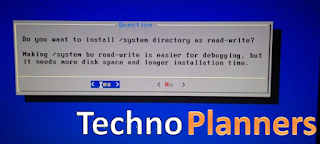
Step 8. After that, you will get another prompt to install internal space. Use 2047 MB for space, as that’s the maximum supported.
Step 9. Now select Reboot. After Reboot You can use Android x86 on PC.
Congratulation, Now you can enjoy Android 6.0.1 Marshmallow OS on PC and notebook with Windows 7, 8, 8.1, 10 dual boot supported.
Features
- WiFi Working
- Bluetooth Working
- Application and Game (Tested Asphalt 7 and Sprinkle Island)
- Dual Boot Supported
- Support External Device
- Power Suspend And Resume Working
- UEFI Supported
- 32-Bit/ 64-Bit Supported
Alternative of Android x86
Remix OS based on Android x86 project. With Remix os you can enjoy android apps and games on your PC. Remix OS interface look like Windows 7 and it work like a real Windows Operating System. You can also check out How to Install Remix OS on PC.Pre Requirements
- Android 6.0.1 image (Download All files from end of post)
- Rufus to make a bootable Pen-Drive
- 1GB Pen drive needed
How to Install Android on PC
Step 1. Download Rufus and Android 6.0 x86 image from end of post.Step 2. Make a bootabe Pen-drive
Run Rufus Software on your PC and Connect USB Flash Drive to PC. Now Click CD-Drive logo button to select ISO file. Now find and select the ISO file and click on start button. and wait to finished it.
Step 3. Reboot your PC
Now reboot your PC using USB Flash Drive As The Source. (Make USB To Boot First And Before CD/DVD ROM Under Your System’s BIOS Settings)
Step 4. When the Android x86 Menu appear, Just Select Install Android x86 to Hard Disk.
Step 5. Select your appropriate hard disk partition to install Android x86 or you can install on any new partition.
Step 6. Now, You will get a prompts messages to installation of GRUB Bootloader. Make sure to hit on yes.
Step 7. Now, another prompt message will ask you to make system /r/w. Hit Yes on this.
Step 8. After that, you will get another prompt to install internal space. Use 2047 MB for space, as that’s the maximum supported.
Step 9. Now select Reboot. After Reboot You can use Android x86 on PC.
Download here
Rufus - http://bit.ly/1MSWEHX
Android ISO - http://bit.ly/21qvAFR
Congratulation, Now you can enjoy Android 6.0.1 Marshmallow OS on PC and notebook with Windows 7, 8, 8.1, 10 dual boot supported.
Go to link download
Wednesday, April 12, 2017
Dual Boot Remix OS Beta with Windows with Pictures Steps
Dual Boot Remix OS Beta with Windows with Pictures Steps
Official Tutorial - Remix OS Beta: How to Dual Boot Windows Android as a Desktop Step by step with Snapshot. Now You can install and Run Remix OS alongside with Windows 7, Windows 8 and Windows 10. A Remix-OS Beta version based on Android 5.1.1 Lollipop. Now it supported 32-Bit Process but only for Legacy Machine and 64-Bit Supported for both UEFI and Legacy machine. Jide make a tool to install it on your PC but at this time this tool only works with Windows Platform.
Congratulation, Now you can Enjoy Remix OS on your Windows PC with Windows actual dual boot. Please share this Tutorial with your social profile.
Requirement
- ISO and Installer Tool (Download from end of post)
How to Install Remix OS Beta on Hard Drive
- Download requirement files from the end of the post and Extract it using WinRAR tool.
- Open extracted folder and Run remixos-installation-tool.
- Now Select ISO file that you downloaded, By clicking on Browser button and select the ISO file.

- Now make sure Hard Disk selected in Type.

- Select Drive Partition (example C:/) where you want to install it.

- From the end click on OK button and wait until the process has finished it.
- Once its done, It will promote for Reboot.
- Now your PC by click Reboot button or you can reboot it manually from Start Menu. It will ask for select Windows/Remix-OS. By using Keyword
NOTE for UEFI Machine boot
Press special key (F12 for Dell, F9 for HP, F12 for Lenovo) while booting to enter boot menu and ensure that Secure Boot is disabled. Otherwise, it will be failed to boot Remix-OS.Installation method for Flash Drive
Did you know, You can also install it on your USB flash drive (Pen-Drive) and it works for both Windows and MAC Operating System. You can convert any PC Desktop to Android as a desktop by inserting flash drive. Please Check out How to Install Remix OS for PC on flash Drive.How to Uninstall Remix OS
If it is not compatible with your PC or other reasons to remove it. There are very simple and easy method to uninstall it.- Open My Computer.
- Navigate to the Partition directory where you install remix-OS (Example C:Remix-OS).
- Find and Run UninstallRemixOS file.

- It will show a popup message "RemixOS is currently installed. Remove the existing version?" Click on OK button.

- Wait it to finish, Once its done. All files, delete and remove boot menu option automatically from PC.
How to Install Play Store
The Jide hasnt provided officially Play Store and Google Play Services Application on the remix-OS-beta due to some reason but you can install it manually. Please Check out How to install Google Play Store and Play Services.Download here
http://bit.ly/1RKHu9b
Congratulation, Now you can Enjoy Remix OS on your Windows PC with Windows actual dual boot. Please share this Tutorial with your social profile.
Go to link download
Sunday, April 9, 2017
How to Install Remix OS for PC Beta on HDD Dual Boot
How to Install Remix OS for PC Beta on HDD Dual Boot
Tutorial - How to Install Official Remix OS for PC Beta version for PC and laptop on [HDD] hard disk with Windows 7, Windows 8 or Windows 10 Dual Boot. For Mac operating system use flash drive installation method because Installer Tool work with Windows and its upcoming for MAC platform.
Pre-Requirement
Select Remix OS in Windows Boot Menu.
Press special key (F12 for Dell, F9 for HP, F12 for Lenovo, Option Key for MAC) while booting and enter Boot Menu.
Congratulations, Now you can enjoy Remix OS for PC Beta version of your Desktop. This is official installation from Jide Share this tutorial with your friends and family. Also check out How to install Google Play Store on Remix OS.
What is a Beta
Jide the developer of Remix OS releases their beta version for consumers. In beta version there of lots of major changes likes 32-Bit (x86) Processor Support, Compatible with UEFI machine, You will receive OTA Updates, 50 Major bugs fixed and the most important features is Hard Disk Installer. Now you can install it to hard Disk without using third party software like EASYBCD.NOTE
Currently, installation tool only supports Windows 7, Windows 8 or Windows 10 operating system with a minimum capacity of 8GB of internal storage. MAC Users, please install on USB flash drive.Pre-Requirement
- Remix OS Package Zip file from end of the post
For Hard Disk Installation:
- Download the Remix OS for PC package from end of post.
- Extract the downloaded package using WinRAR Tool and Open the Remix OS Installation Tool.
- Now Press Browser button to select Remix ISO file from desktop.

- Now Select Type as Hard Disk.

- And, Select Drive Partition where you want to Install it.

- Press Ok Button to start and wait it to finished it.
- Once it done, Reboot your PC.
NOTE for UEFI Machine boot:
Press special key (F12 for Dell, F9 for HP, F12 for Lenovo, Option Key for MAC) while booting to enter boot menu and ensure that Secure Boot is disabled.Select Remix OS in Windows Boot Menu.
For USB Flash Drive Installation:
NOTE: for UEFI boot: please ensure that Secure Boot is disabled and A USB 3.0 flash drive, with a minimum capacity of 8GB and a recommended writing speed of 20MB/s.- Download the Remix OS for PC package from end of post.
- Connect USB flash drive into your PC.
- Run the Remix OS Installation Tool from the extracted package.
- Click on Browser button and select Remix ISO file.
- Select Type as USB Flash Drive.
- Press on OK button and wait it to finished it.
- Reboot your PC.
Press special key (F12 for Dell, F9 for HP, F12 for Lenovo, Option Key for MAC) while booting and enter Boot Menu.
- Select "USB Storage Device" under boot option.
- Select either "Guest Mode" or "Resident Mode" to start Remix OS.
Download here
Remix OS ISO- http://bit.ly/1TOJG2s
Congratulations, Now you can enjoy Remix OS for PC Beta version of your Desktop. This is official installation from Jide Share this tutorial with your friends and family. Also check out How to install Google Play Store on Remix OS.
Go to link download
Wednesday, March 22, 2017
Install Remix OS on PC laptop Hard Disk with Windows Dual Boot
Install Remix OS on PC laptop Hard Disk with Windows Dual Boot
Tutorial - How to Install Remix OS on PC laptop hard disk with Windows 7, 8, 8.1 and 10 Dual boot. Recently We found a method to run Remix os without a USB flash drive. In this method we are using BCD Software and Remix ISO file both files are available for free to download. You can also check out How to Install Android x86 6.0 Marshmallow on PC with Dual Boot.
Pre-Requirement

Pre-Requirement
- Remix ISO
- EasyBCD Tool
- 10 GB Hard Disk Partition
- WinRAR for extracting ISO image
- Windows PC
How to Install Remix OS on PC Laptop
Step 1. Download and Install
First you have to download Remix ISO, WinRAR and EasyBCD tool from end of post. Then Install WinRAR and EasyBCD tool on your Windows PC.
Step 2. Create a New Partition
Now, Create a new partition atlest 10 GB and format it in fat32. Click Windows + R button then type diskmgmt.msc and press enter button to start disk management. Now right click on any partition then select shrink volume. Now enter the amount space to shrink 10000 then click on shrink button. Now you will get unallocated space. Right click on unallocated space and select new simple volume and follow these instructions.
Step 3. Copy and Extract ISO file
Now Copy Remix ISO file in new partition and extract it using winrar. After extract you will have ISO file and extracted files in same partition.
Step 4. Run EasBCD
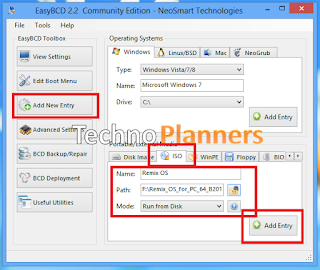
Open EasyBCD, Click on Add new entry then from right side select ISO from portable and external media portal. Enter Name as Remix OS and then select ISO file in path option and click on add entry.
Step 5. Restart You PC
After Successfully add new entry, Restart your PC. Now you have to select Remix OS option from the list to start it. And if you want to start your windows Just select Windows option from the list.
Download here
Remix OS ISO - http://bit.ly/1Zn8LFA
EasyBCD - http://bit.ly/1OjSjO3
Congratulations, Now you can enjoy Remix OS without a flash drive and its actually installed on your hard disk. Share this tutorial with your friends and family.
Go to link download
Saturday, March 4, 2017
How to Install Windows 8 8 1 10 Boot Animation on Asus Zenfone 5
How to Install Windows 8 8 1 10 Boot Animation on Asus Zenfone 5
Tutorial - How To Install Windows 8, 10 Boot Animation on Asus Zenfone 4, Zenfone 5, Zenfone 5, Zenfone 2, All Android Device and Zenfone supported. Now you can change your boring boot animation with interesting Windows Boot Animation. This method tested on ASUS Zenfone 5. Below, We also provide a video tutorial with step by step guide. One Click Root for Zenfone 4, 5, 6 Kitkat and Lollipop supported.
Requirement

Requirement
- Windows Boot Animation Zip file (Download from End of post)
- Rooted Zenfone
- ES File Explorer
How to Install Windows Boot Animation
Step 1. Download Boot Animation zip file from below link and copy it in your internal storage.
Step 2. Now, Install ES Explorer from Play Store.
Step 3. Once Installed, Open ES Explorer then tap on upper left corner button and select Tools then Enable Root Explorer and it will prompt to Grant Super SU (Root Permission). Now Hit on Grant Button.
Step 4. Now Go To Device/System/Media directory and Rename your bootanimation to old.bootanimation.zip .
Step 5. Now Go Internal storage then copy BootAnimation.zip file and Paste into Device/System/Media/paste here.
Download here
http://bit.ly/1iXB8a7Now Reboot Your Device. Now you will get Windows 8, 8.1, 10 Boot Animation on your Asus Zenfone 4, Zenfone 5, Zenfone 6, Zenfone 2, All Android device and Zenfone supported. You can also check out How to Install Android 6.0 Marshmallow Boot Animation on Asus Zenfone 5.
Go to link download
Subscribe to:
Posts (Atom)