Showing posts with label rom. Show all posts
Showing posts with label rom. Show all posts
Thursday, May 25, 2017
CM13 Marshmallow for Redmi Note 3 Custom ROM
CM13 Marshmallow for Redmi Note 3 Custom ROM
Hello Guys AS we know as CM13 for Redmi Note 3 is available right now and In this post I will show you how you can install Custom CM13 ROM on Redmi Note 3 phones. This ROM only for snapdragon processor, please do not try it on other model otherwise it can be brick your device like system files corrupt and bootloop. Try this ROM at your own risk and I am not responsible for any damage. And it can void your warranty. Read about Custom ROMs for Redmi Note 3 List Lollipop and Marshmallow.
With this method you can flash any ROM on your device without any problem. If you find any bug in this CM13 for Redmi Note 3 ROM. Please drop your comment below, we will reply as soon as possible and share bugs and features with our other visitors. You can also check out How to Install Android N 7.0 Boot Animation on any Android.Thank you and have a nice day.
Read It before installing
Before Install any Custom ROM make sure the device has ROOT access and Custom TWRP recovery is already flashed on the device. If you are already flash TWRP on your device you are ready to go to the next step.Working Features
- Audio work fine in Loud Speaker and earphone
- Working WIFI
- Working Bluetooth
- Camera
- RIL
- GPS
- FM Radio
- Fingerprint FIXED
Requirement
- Android 6.01 ROM (Download ROM and GApps from end of post)
- GApps
- TWRP Recovery
How to Install CM13 ROM on Redmi Note 3
- First download ROM and GApps from end of post.
- Copy both ROM and GApps on your device Internal/SD Card storage
- Power Off your device
- Reboot into recovery mode by pressing and hold Volume Down + Power button.
- Once your device successfully reboots into TWRP Recovery
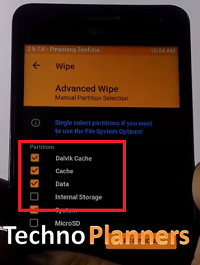
- Now, Tap on Wipe > Advance Wipe, Select Wipe cache, Dalvik cache, System and Data option then Swipe to wipe.
- Go back, Tap on Install and find the ROM zip file and flash it.
- Once ROM successfully flashed, Similarly, flash GApps.
- Once ROM successfully flashed, Go back and wipe cache & Dalvik cache again and Reboot your device.
- Done
Download here
GApps- bit.do/GAppsforRN3
ROM- http://bit.do/CM134RN3
With this method you can flash any ROM on your device without any problem. If you find any bug in this CM13 for Redmi Note 3 ROM. Please drop your comment below, we will reply as soon as possible and share bugs and features with our other visitors. You can also check out How to Install Android N 7.0 Boot Animation on any Android.Thank you and have a nice day.
Go to link download

Wednesday, May 24, 2017
How To Install Pixel Master Camera on CM 12 1 Rom Zenfone 5
How To Install Pixel Master Camera on CM 12 1 Rom Zenfone 5
Tutorial - How To Install Pixel Master Camera Application for CM 12.1 Rom. We can install default Asus Pixelmaster Camera App using TWRP Recovery Tool.

Pre-Requesting
Step 2. Copy downloaded file in SD-Card.
Step 3. Now Reboot your mobile into TWRP recovery.
Step 4. In TWRP recovery select "Install" and choose That downloaded file.
Step 5. After selecting, Swipe the slider to right side to continue installation.
Step 6. After Successful installation your mobile will restart automatically.
Done. Please Note: - You will not get any ZenUI updating from Play store. To update Pixel Master and Asus Galley you need to download Apk file and install as normal app. If you not using CyanogenMod on Zenfone you can also check out How To Install [CM 12.1] CyanogenMod Lollipop 5.1.1 on Zenfone 5.
Pre-Requesting
- TWRP Recovery Installed (Check Out How To Install flash TWRP).
- Pre Installed CM12.1 Rom
- Pixel Master patch file (Download From Below Link)
How to Install Pixel Master Camera on CM12.1
Step 1. Download Pixel Master patch from below Link.Step 2. Copy downloaded file in SD-Card.
Step 3. Now Reboot your mobile into TWRP recovery.
Step 4. In TWRP recovery select "Install" and choose That downloaded file.
Step 5. After selecting, Swipe the slider to right side to continue installation.
Step 6. After Successful installation your mobile will restart automatically.
Download here
https://db.tt/hJUxJ8xO
Done. Please Note: - You will not get any ZenUI updating from Play store. To update Pixel Master and Asus Galley you need to download Apk file and install as normal app. If you not using CyanogenMod on Zenfone you can also check out How To Install [CM 12.1] CyanogenMod Lollipop 5.1.1 on Zenfone 5.
Go to link download
Sunday, May 21, 2017
CM13 ROM Update Android 6 0 on Zenfone 2 without Root
CM13 ROM Update Android 6 0 on Zenfone 2 without Root
Hello Guys, In this text tutorial I will teach you how to update ASUS zenfone 2 in android 6.0 marshmallow. First, I am telling you this is a custom ROM from cynogenmod CM13 for zenfone 2 but in the upcoming months we will get an official update from ASUS. This ROM has android 6.0.x OS and Linux kernel 3.10.x version.
![Android 6.0 on Zenfone 2 [Z00A - Z008] without Root](https://blogger.googleusercontent.com/img/b/R29vZ2xl/AVvXsEg0QUREVCKTlTt_CEAJV9XcpusnuxNWrVoerY0utwMlWmMl4WGK_ucOFY8bf3LDyWycEOAZbAzUrJT5vW-wiMBHv3y_Ymu8z_0aQ9H89-U9FYElDI8368x0lwcQgF-O9suaUgqDqqFPWIY/s320/Update+Android+6.0+on+Zenfone+2+%255BZ00A+-+Z008%255D+without+Root.png "[CM13] Update Android 6.0 on Zenfone 2 [Z00A - Z008] without Root")
First boot can take up-to 10 minutes to make cache files for applications. Once its done, you can confirm Android 6.0.x version install on your system by Going to Settings > About Phone > it must show Android version 6.0.1. You can play Marshmallow eggster game by hitting Android version 5 to 6 times. Thank you for using our tutorial you can also check out How to Flash TWRP Recovery on Asus Zenfone 2 Laser, Please share this tutorial with your friends and family.
Before Updating
First, you have to make a backup of your Application, Personal data, Contact detail, Internal Storage, etc. Because this tutorial will wipe your data and files. You can also make a backup of your stock firmware using CWM/ TWRP custom recovery. In this tutorial I am using TWRP recovery.Requirement
- Android 6.0 ROM for Zenfone 2 (Download all files from end of post)
- GApps for Marshmallow
- Custom Recovery Installed if you dont have any custom recovery, please first flash custom recovery on your device.
Make a full backup
- Power Off your device
- Reboot device in Recovery Mode by using the Power + Volume UP button
- Once the Team Win Recovery Open, Select "Backup"
- Check "Cache, Data and System" option from the list and "swipe to backup" button.
- It will take server minutes to complete and its depend on device data size. Once its done, Boot your device normally and save TWRP folder on your PC/ SD-Card.
Android 6.0 Zenfone 2 Flash Using TWRP Recovery
- Download ROM and GApps Zip file from the end of the post on your computer.
- Then, connect your device with your computer/PC with the help of the USB cord.
- Place both files in your device internal/external storage.
- Disconnect the USB cable and also power off your device.
- Reboot into recovery mode.
- From recovery select “Wipe” then select format data and write yes to confirm wipe.
- Now go back to the main menu and select “Install”.
- First Pick the CM13 Marshmallow zip file and flash it on your ASUS ZenFone 2.
- Once its done, flash Google Apps zip.
- Done, select Wipe Cache and swipe to wipe
- Go back to main menu of recovery select “reboot system now”.
Using CWM Recovery
- Use above steps from 1st step to 5th step.
- Select “Wipe data/ factory reset”“wipe cache partition” and “wipe dalvik cache”, then select “Yes” to confirm.
- Now select “Apply update” from the main menu and select “Choose from internal storage” or choose an external storage if you place the zip file in SD_Card.
- Select CM13 ROM file and it will install without confirmation.
- Once the ROM is installed, flash the GApps file.
- Reboot your device.
Download here
GApps - http://bit.ly/1NBj4y8
Z00A - http://bit.ly/1LZVdtL
Z008 - http://bit.ly/1LZVk8A
First boot can take up-to 10 minutes to make cache files for applications. Once its done, you can confirm Android 6.0.x version install on your system by Going to Settings > About Phone > it must show Android version 6.0.1. You can play Marshmallow eggster game by hitting Android version 5 to 6 times. Thank you for using our tutorial you can also check out How to Flash TWRP Recovery on Asus Zenfone 2 Laser, Please share this tutorial with your friends and family.
Go to link download
Friday, May 19, 2017
ROM Resurrection Remix Nougat 7 0 Asus Zenfone 5 T00J T00F
ROM Resurrection Remix Nougat 7 0 Asus Zenfone 5 T00J T00F
Hey Guys, Recently another developer shared another Nougat ROM for ASUS Zenfone 5 and Zenfone 6. This is more stable and unofficial version of Android 7.0.1 Nougat from minhtri109 and it is based on CM14. This builds create on latest Google Android 7.0.1 source code with Linux 3.10.x kernel. Below you can read working features and bugs. This Resurrection Remix ROM tested with Zenfone 5 T00J/T00F but do it with your own risk and I am not responsible for any damage. If you think there is a bug in this ROM you can check out the Lineage OS on Zenfone 5.
Requirements
Working Features
Whats NOT working
Resurrection Remix Features
There is lots of customization available in the RR like Screen dim timeout mode, Dim alpha, Double tap to sleep on the navbar, Navigation Bar left/Right handed mode Switch for landscape, Navbar slim dim, Button customization on navbar tiles, Animate dim, and the last one is my favorite Enable/ or disable nav bar.
TWRP Recovery
Before Installing the Custom ROM on your device. You have to flash custom recovery TWRP Touch Recovery on your Zenfone. If you are already using Custom Recovery Go to next flash step otherwise, please use this tutorial to flash TWRP Recovery on your Zenfone5/6.
Congratulation, Now you can enjoy the Android 7.0.1 Nougat Update on your Zenfone 5. First boot can take up to 5 - 10 Minutes. So, Please do not power off your device in this stage. Once the boot complete it will ask for WiFi or mobile data connection, Google Account etc. Fill all information if you want to access Play Store/ or Gmail Applications on your device. Before you go, You can also check out Lollipop Marshmallow Nougat Custom ROMs List for Zenfone 5. Please share this post and your reviews/ or bug report with our other visitors.
Requirements
- RR ROM (Download all files from end of post)
- Pico Google Apps for Nougat
Working Features
- WiFi
- Bluetooth
- Camera
- Games
- Play Store
- Internet
- Developer Mode
- Flashlight
Whats NOT working
- FM
- Import contacts from SIM card not work
Resurrection Remix Features
There is lots of customization available in the RR like Screen dim timeout mode, Dim alpha, Double tap to sleep on the navbar, Navigation Bar left/Right handed mode Switch for landscape, Navbar slim dim, Button customization on navbar tiles, Animate dim, and the last one is my favorite Enable/ or disable nav bar.
TWRP Recovery
Before Installing the Custom ROM on your device. You have to flash custom recovery TWRP Touch Recovery on your Zenfone. If you are already using Custom Recovery Go to next flash step otherwise, please use this tutorial to flash TWRP Recovery on your Zenfone5/6.
How to flash Resurrection Remix Nougat Zenfone
- First, You have to download requirements material for the device from the end of the post.
- Download Pico Gapps for Nougat from here and Choose x86 -> Android 7.0 -> Pico.
- Now, From your PC copy ROM and GApps zip files and paste it in your zenfone internal storage using data cable/ or using wireless application for example: Share-it/ Super Beam.
- Unplug your device from PC and Turn off it.
- Reboot into recovery mode by using the Power + Volume Down button.
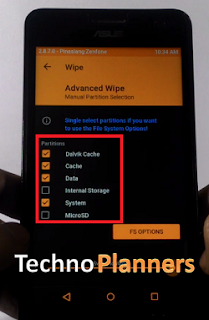
- Select Wipe > Advance Wipe > check the data, dalvik cache, catch, system and swipe to wipe it.
- Tap Install and find the ROM zip file and flash it
- Similarly, flash GApps on your device.
- After flashing, you should format old files from in the TWRP.
- Go back and select Wipe > Advance Wipe > check the data, dalvik cache, data, internal storage (optional).
- Now, finally Reboot your device.
Download here
ROM- http://bit.ly/2jMN9j7
Congratulation, Now you can enjoy the Android 7.0.1 Nougat Update on your Zenfone 5. First boot can take up to 5 - 10 Minutes. So, Please do not power off your device in this stage. Once the boot complete it will ask for WiFi or mobile data connection, Google Account etc. Fill all information if you want to access Play Store/ or Gmail Applications on your device. Before you go, You can also check out Lollipop Marshmallow Nougat Custom ROMs List for Zenfone 5. Please share this post and your reviews/ or bug report with our other visitors.
Go to link download
Thursday, May 18, 2017
Zenfone 5 Dirty Unicorn v10 5 Unofficial ROM
Zenfone 5 Dirty Unicorn v10 5 Unofficial ROM
Hello Guys, there is a new Dirty Unicorn ROM for Zenfone 5 from resk87 senior member of XDA Developer. Dirty Unicorn based on Android 6.0.1 Marshmallow with more performance and power. This is not an official update from ASUS Zenfone and maybe there are some bugs and error like at this time Radio Application is not available and Sometime download is stuck. Currently, This Zenfone 5 Dirty Unicorn ROM status on the stable. If you detect any bug or problem with this ROM, please share it with us and our other visitors. And do it with your own risk, Techno Planners is not responsible for any damage
With this method you can flash any zip file on your device without any problem. If you find any bug in this Zenfone 5 Dirty Unicorn ROM or in other MOD files. Please drop your comment below and share it with our other visitors. You can also find new best Custom ROM Zenfone 5 Thank you and have a nice day.
Requirement
- Dirty Unicorn ROM
- GApps nano
- Latest TWRP Recovery
TWRP Recovery
Before upgrading to any custom ROM you have, to flash Custom TWRP Recovery. If you have pre-install recovery you can skip this step otherwise use this tutorial to Install Latest TWRP on your device.Dirty Unicorn Features
- Kernel Custom Features Management
- Trebuchet
- ZenUI Keyboard
- Asus Pixel Master Camera
- Browser
- New ramdisk
- LED sensor fixed
- Adaptive brightness fixed
- dt2w fixed
- Boot Animation Update
- Merge 6.0.1._r62 branch
- AudioFX From CM
- Latest Blob
- Sync Du Source
- Volume mod (need to flash zip)
- 3Minit Battery Mod (need to flash zip)
- SelinuxKernel On dual SIM (need to flash zip)
Guide to make a backup
- Turn off Your Zenfone
- Open TWRP recovery mode by using the Power + Volume Down button.
- Tap on Backup then Slide left to right from Swipe to backup button
- Once the Backup Complete reboot device normally and Copy TWRP folder on your PC/Computer/SD-Card.
How to flash Dirty Unicorn on Zenfone 5
- Download ROM, Gapps from end of post link given.
- Copy ROM, GApps in your device SD-Card.
- Turn Off your device.
- Reboot into Recovery using Power + Volume Down button.
- Tap on Wipe, then check "Dalvik Cache", "Cache"," Data" and "System" then swipe to wipe.
- Go back, Tap on Install and flash ROM zip file, then GApps that you copied in your SD-Card.
- Once its done, Factory Reset your device
- Reboot the device and enjoy it on your Zenfone.
Download here
Kernel- http://bit.do/kernal4du
VolumeMOD- http://bit.do/VOLMz
GAPPS- http://bit.do/nanogapps
ROM- http://bit.do/DU-ZF5
How to Install Speaker Volume MOD
- Download VolumeMOD.zip file from the link.
- Copy it onto your device
- Power off and reboot into recovery
- Tap on Install, select the ZIP and flash it
- Reboot your device
With this method you can flash any zip file on your device without any problem. If you find any bug in this Zenfone 5 Dirty Unicorn ROM or in other MOD files. Please drop your comment below and share it with our other visitors. You can also find new best Custom ROM Zenfone 5 Thank you and have a nice day.
Go to link download
Tuesday, May 16, 2017
ROM Resurrection Remix MM 6 0 for Asus Zenfone 5 T00J T00F
ROM Resurrection Remix MM 6 0 for Asus Zenfone 5 T00J T00F
Hey Guys, Recently another developer shared another Marshmallow ROM for ASUS Zenfone 5. This is stable and official version of Android 6.0.1 Marshmallow from tank0412 and it is based on CM13. This builds create on latest Google Android 6.0.1 source code with Linux 3.10.x kernel. Below you can read working features and bugs. This Resurrection Remix ROM tested with Zenfone 5 T00J/T00F but do it with your own risk and I am not responsible for any damage. If you think there is a bug in this ROM you can check out CyanogenMod 13 ROM
Step 2. Now, From your PC copy ROM and GApps zip files and paste it in your zenfone internal storage using data cable/ or using wireless application for example: Share-it/ Super Beam.
Step 3. Unplug your device from PC and Turn off it.
Step 4. Reboot into recovery mode by using the Power + Volume Down button.
Step 5 Once your phone will reboot into recovery mode, Tap Install and find the ROM zip file and flash it
Step 6 Similarly, flash GApps on your device.
Step 7. After flashing, you should format old files from in the TWRP.
Go back and select Wipe > Advance Wipe > check the data, dalvik cache, data, internal storage (optional).

Step 8. Now, finally Reboot your device.
Congratulation, Now you can enjoy the Android 6.0.1 Marshmallow Update on your Zenfone 5. First boot can take up to 5 - 10 Minutes. So, Please do not power off your device in this stage. Once the boot complete it will ask for WiFi or mobile data connection, Google Account etc. Fill all information if you want to access Play Store/ or Gmail Applications on your device. Before you go, You can also check out Lollipop Marshmallow Custom ROMs List for Zenfone 5. Please share this post and your reviews/ or bug report with our other visitors.
Requirements
- RR ROM (Download all files from end of post)
- Pico Google Apps for Android 6.0
Working Features
- Based on Android 6.0.1
- Based On Cyanogenmod 13
- Camera fixed
- WiFi
- Bluetooth
- Games
- Play Store
- Internet
- Developer Mode
- Double Tap on the navigation bar to Sleep, but I am sure not to double tap to Wake up mode
- Landscape Mode on home screen
- Flash light
- SMS/MMS fixed
- Headphone sound fixed
Whats NOT working
- GPS
- FM Radio
Resurrection Remix Features
There is lots of customization available in the RR like Screen dim timeout mode, Dim alpha, Double tap to sleep on the navbar, Navigation Bar left/Right handed mode Switch for landscape, Navbar slim dim, Button customization on navbar tiles, Animate dim, and the last one is my favorite Enable/ or disable nav bar.TWRP Recovery
Before Installing the Custom ROM on your device. You have to flash custom recovery TWRP Touch Recovery on your Zenfone. If you are already using Custom Recovery Go to next flash step otherwise, please use this tutorial to flash TWRP Recovery on your Zenfone5/6.How to flash Resurrection Remix Zenfone
Step 1: First, You have to download requirements material for the device from the end of the post. for Gapps: Choose x86 -> Android 6.0 -> PicoStep 2. Now, From your PC copy ROM and GApps zip files and paste it in your zenfone internal storage using data cable/ or using wireless application for example: Share-it/ Super Beam.
Step 3. Unplug your device from PC and Turn off it.
Step 4. Reboot into recovery mode by using the Power + Volume Down button.
Step 5 Once your phone will reboot into recovery mode, Tap Install and find the ROM zip file and flash it
Step 6 Similarly, flash GApps on your device.
Step 7. After flashing, you should format old files from in the TWRP.
Go back and select Wipe > Advance Wipe > check the data, dalvik cache, data, internal storage (optional).
Step 8. Now, finally Reboot your device.
Download here
GApps- http://bit.ly/1JOWjUq
ROM- http://bit.ly/1qW6wJV
Congratulation, Now you can enjoy the Android 6.0.1 Marshmallow Update on your Zenfone 5. First boot can take up to 5 - 10 Minutes. So, Please do not power off your device in this stage. Once the boot complete it will ask for WiFi or mobile data connection, Google Account etc. Fill all information if you want to access Play Store/ or Gmail Applications on your device. Before you go, You can also check out Lollipop Marshmallow Custom ROMs List for Zenfone 5. Please share this post and your reviews/ or bug report with our other visitors.
Go to link download
Sunday, May 14, 2017
Run Galaxy Tab 2 7 0 P3100 to Android 6 0 1 CandySiX ROM
Run Galaxy Tab 2 7 0 P3100 to Android 6 0 1 CandySiX ROM
Tutorial - How to Update Galaxy Tab 2 7.0 P3100 to Android [6.0] 6.0.1 using CandySiX ROM based on CM13. Recently XDA developers have shared another Marshmallow ROM for P3100. In preview post we also shared a Guide about How To Update Galaxy Tab 2 using CM13.
Requirement
Samsung will not provide official Update
Samsung Galaxy Tab 2 is old gadget and its accompanies Android 4.4.2 Jelly bean. Lamentable Samsung stop official upgrade for this gadget. But, Now you can Update your gadget in most recent Android version Marshmallow by taking after some simple steps. Thanks to CandySiX developers who made this ROM for us. This is first update So, maybe it has some minor bugs and issues but dont worry, it will fix in new updates.Candy ROM features
- Multi Window Mode
- Quick setting customization
- Display Brightness Optimization
- Dark UI mode
- Settings button in status Bar
- Candy Interface
- Sim Card Working
- SuperSU Installed
- Better Battery Performance
- Animations
- Lock Screen
- Miscellaneous
- Navigation
- Notification Panel & QS
- Power Menu Options
- Recent Settings
- Sound & Notification
- Status Bar
- Double Tap to Sleep
- Network traffic
Make a full backup before Installing the ROM
Before Install any custom rom on your device. Make a backup file using Custom recovery like TWRP/ CWM. If you have a already Custom Recovery Installed on your device. You can make a backup for stock firmware. If you dont have custom recovery installed. You can also check out How to Install Latest TWRP Touch recovery on your Galaxy Tab 2.How to make a backup using TWRP
- Power Off Your Device
- Open in TWRP recovery mode by using Volume Up + Power Key.
- Tap on Backup then Slide left to right on Swipe to backup button
- Once the Backup Complete Copy TWRP folder on your PC/ SD-Card.
How to make a backup using CWM
- Power Off your Device.
- Open in CWM recovery mode by using Volume Up + Power Key.
- By using Volume and power key Select backup and restore then select backup to /Sdcard.
- Once the Backup Complete Copy CWM folder on your PC/ SD-Card.
Requirement
- Download CandySix ROM
- Gapps for Marshmallow
- TWRP/CWM Recovery
How to Update Galaxy Tab 2 P3100 using TWRP Recovery
- Download Candy-Six-Rom, Gapps from end of post link given.
- Connect Your device with PC, and copy both zip files in your device Internal/SD-Card storage.
- Now Turn Off your device.
- Reboot into Recovery using Volume UP + Power button.
- Once TWRP Recovery open, Tap on Wipe and Check the Dalvik Cache, System and Data option and swipe to wipe.
- Once Wipe complete, Go back to main menu.

- Now tap on Install, Now find Candy-Six ROM.Zip and flash it.
- Similarly, flash GApps.
- Go to the main menu and Select Wipe, Now factory reset your device.
- Reboot and Enjoy.
How to Update Galaxy Tab 2 using CWM Recovery
- Download Candy-Six-Rom, Gapps from end of post link given.
- Connect Your device with PC, and copy both zip files in your device Internal/SD-Card storage.
- Now Turn Off your device.
- Reboot into Recovery using Volume UP + Power button.
- Once CWM recovery open, By using Volume and Power Key, Select Wipe Cache Partition then select Yes - Wipe Cache.

- Now Go to Advance, then select Wipe dalvik cache, then select Yes - Wipe dalvik cache.

- Select Wipe data/ Factory reset, then select Yes - Wipe all user data.

- Now select Install Zip then select choose zip from SD-Card, Now select ROM Zip file from the list and install it

- Similarly, Install GApps on your device.
- Go back to main menu list and select Wipe data/ Factory reset, then select Yes - Wipe all user data.
- Once its done, the Select Reboot system now then selects Yes - fix root.
Download here
Odin - http://bit.ly/1PPtXOf
CWM Recovery - http://bit.ly/1SjqlGm
CWM Recovery - http://bit.ly/1SjqlGm
GApps - http://bit.ly/1P4PkqJ
ROM - http://bit.ly/1TCGqX7
Congratulation, You have done all steps. First boot can take up-to 10 -15 minutes to make cache files on your device. So please dont turn off your device. Once the boot complete. You can enjoy Samsung Galaxy Tab 2 7.0 P3100 to Android 6.0.1 Marshmallow Update.
Go to link download
Saturday, May 13, 2017
Xposed framework for Zenfone Lollipop Stock Rom effortless Guide
Xposed framework for Zenfone Lollipop Stock Rom effortless Guide
Hello Guys, In Previews post we discuss How to Install ZenMotion on Zenfone. Presently We are sharing a crisp Guide about Xposed for Zenfone Lollipop. Thanks to XDA developers Who made this Xposed structure for our x86 based procedures gadget.
Xposed Module
Xposed is an Application that progressions the framework conduct utilizing modules. There are bunches of modules accessible in the Xposed Installer App. Yet, a few modules are not working for our Zenfone.
Tested Modules on Zenfone
Here is some tried and working modules list that works for Zenfone device.
Caution
Before introducing Xposed on your gadget. Please take a backup of your Applications, Contacts, Internal Storage and other data. It can stuck on the bootloop issue. Do it at your own Risk, I am not responsible for any harm.
Requirement
Rooted Zenfone, To begin with, you need to root your gadget before introducing this. If you have a rooted device you can second requirement otherwise check out How To Root Zenfone Lollipop.
Windows Platform
You require a Windows 7, 8, 8.1 or 10 PC. It can just work with Windows Operating System. Along these lines, you cannot utilize Linux or Mac framework.
Enable USB debugging Mode
Enable developer option from Settings > About > Software information > Tap 7 times build number. Once it shows developer mode enable. Go back to Settings > Developer Options > Check Enable USB Debugging Mode option from the list.
Install Intel USB Drivers on your PC
Intel USB drivers associate Android phone to the PC and its get to all framework programming and equipment data from android gadget to PC. Download Intel USB drivers from end of post and introduce the drivers on your Windows PC.
Download Xposed Lollipop
Now Download Xposed Zenfone Lollipop document from end of post link given. When it downloaded on your PC Extract it on your desktop utilizing WinRAR device.
Congratulation, Now you can utilize Xposed Application on your Zenfone. In the event that you discover any bug. It would be ideal if you drop your remark and impart it to our different guests. Do you know you can introduce Zenfone 5 Custom ROM on your Zenfone 6. Here is some Custom ROMs for Zenfone 5.
Xposed Module
Xposed is an Application that progressions the framework conduct utilizing modules. There are bunches of modules accessible in the Xposed Installer App. Yet, a few modules are not working for our Zenfone.
Tested Modules on Zenfone
Here is some tried and working modules list that works for Zenfone device.
- GravityBOX [LP] 5.1.2
- Lolistart 1.1.2
- LPThemer 1.6
- Lucky Patcher 3.6.5
- OMZen Beta 8
Caution
Before introducing Xposed on your gadget. Please take a backup of your Applications, Contacts, Internal Storage and other data. It can stuck on the bootloop issue. Do it at your own Risk, I am not responsible for any harm.
Requirement
Rooted Zenfone, To begin with, you need to root your gadget before introducing this. If you have a rooted device you can second requirement otherwise check out How To Root Zenfone Lollipop.
Windows Platform
You require a Windows 7, 8, 8.1 or 10 PC. It can just work with Windows Operating System. Along these lines, you cannot utilize Linux or Mac framework.
Enable USB debugging Mode
Enable developer option from Settings > About > Software information > Tap 7 times build number. Once it shows developer mode enable. Go back to Settings > Developer Options > Check Enable USB Debugging Mode option from the list.
Install Intel USB Drivers on your PC
Intel USB drivers associate Android phone to the PC and its get to all framework programming and equipment data from android gadget to PC. Download Intel USB drivers from end of post and introduce the drivers on your Windows PC.
Download Xposed Lollipop
Now Download Xposed Zenfone Lollipop document from end of post link given. When it downloaded on your PC Extract it on your desktop utilizing WinRAR device.
How to flash Xposed for Zenfone
- Open Extracted folder that you downloaded from below link.
- Connect your Zenfone with PC using data cable.
- Double Click on InstallXposedInstaller.bat file. Wait, it finished it.

- Grant SuperSU Permission if ask on device.
- Once it finished, Click on the InstallXposedFramework.bat file. Your Phone will reboot automatically in server second.

- It can take 5 to 8 minutes to first boot. If screen stuck at booting for more than 10 mins you are probably bricked.
- Done
How to Install Xposed on Custom Marshmallow ROM
- Download Xposed Apk and framework from Below Link
- Copy both file on your device.
- Install Apk
- Power off and Reboot your device into custom Recovery using Power + Volume down button
- Tap on install, Now find framework file and install it.
- Once it done, Reboot your device and Enjoy
Download here
Intel USB Drivers - http://intel.ly/1BJDf2w
Xposed Zenfone - http://bit.ly/20uoJsE
Xposed Apk - http://bit.ly/1UF6kLC
Framework - http://bit.ly/1UF6lir
Xposed Apk - http://bit.ly/1UF6kLC
Framework - http://bit.ly/1UF6lir
How to Uninstall Xposed from Zenfone
- Download requirement file from the above link.
- Extract it on your desktop using WinRAR tool.
- Connect your Zenfone with PC using data cable.
- Open extracted folder and double click on RemoveXposedFramework,bat file.

- It will reboot automatically in server minutes.
- Done
Congratulation, Now you can utilize Xposed Application on your Zenfone. In the event that you discover any bug. It would be ideal if you drop your remark and impart it to our different guests. Do you know you can introduce Zenfone 5 Custom ROM on your Zenfone 6. Here is some Custom ROMs for Zenfone 5.
Go to link download
Motorola Moto G — ROM CyanogenMod 11 Oficial
Motorola Moto G — ROM CyanogenMod 11 Oficial

Agora temos CyanogenMod oficial para o Moto G (falcon)!Fonte e changelog XT1032/33:
CyanogenMod 11 - XDA
Pré-requisitos
- Bootloader desbloqueado e custom recovery
Downloads
- Nightlies oficiais - CyanogenMod 11
- GApps 4.4.4
-- PROCEDIMENTO
CWM
- Coloque os arquivos na memória do aparelho
- Reinicie em bootloader, segurando as teclas volume para baixo + power ,em seguida selecione
recovery. - Selecione Wipe data, wipe cache e wipe dalvik , confirme
todos para limpar o sistema. - Selecione install zip>choose zip
from/sdcard>o - Selecione o arquivo zip , em seguida selecione YES.
- Repita os passos 4 e 5 para instalar os GAPPS Refaça apenas wipe
cache e wipe dalvik - Reinicie o aparelho.
TWRP
- Coloque os arquivos na memória do aparelho
- Reinicie em bootloader, segurando as teclas volume para baixo + power ,em seguida selecione recovery.
- Toque em WIPE, em seguida toque em ADVANCED,marque apenas DATA , CACHE, DALVIK, em seguida arraste onde diz SWIPE TO WIPE.
- Retorne ao menu principal.
- Toque em INSTALL
- Toque no arquivo zip
- Toque e arraste onde diz swipe to install zip
- Refaça os passos 5, 6, 7 para instalar os GAPPS.
- Refaça o WIPE CACHE E DALVIK.
- Toque em REBOOT SYSTEM
OBS.: O primeiro boot pode demorar de 10 a 15 minutos.


Go to link download
Sunday, May 7, 2017
ROM Manager 5 0 0 3
ROM Manager 5 0 0 3

ROM Manager 5 0 0 3
Type : apk
Size : 2 MB
Artis :
Android Apps 2012 Apk Mediafire
Android Apps 2012 Apk Mediafire
Rating : 

Search Result
ClockworkMod ROM Manager - Recoveries
ROM Manager. ROMs and Recovery Images. ROM Manager APK. Device Name ROMs Download Recovery ... 5.0.2.3: N/A: Motorola Droid 3: Download ROMs: 5.0.2.6: N/A: Motorola ...
ROM Manager 5.0.0.5 (v5.0.0.5) APK App | Android Family
ROM Manager 5.0.0.3 (v5.0.0.3) APK App; Download ROM Toolbox Pro 4.5.2 (v4.5.2) APKApp; ROM Toolbox Pro 5.1.6 (v5.1.6) APK Android App Rewrites the Scripter;
ClockworkMod
ROM Manager; Helium; Tether Drivers; Facebook; Google+; Twitter; ClockworkMod. Unlocking the potential of your phone, one app at a time. Tether. Helium. ROM Manager.
ROM Manager | AppBrain Android Market - Top Android Apps and Games ...
5.5.2.0 ROM Manager now support TWRP 5.5.1.8 Delta downloads 5.5.1.8 Fix crash 5.5.1.4 External SD card support is fixed on devices running Android 4.0+ and CWM 6+.
ROM Manager - Android Apps on Google Play
ROM Manager is THE MUST HAVE APP for any Android root user. (Over 10 million downloads and counting!) ... I downloaded both the 6.0.3 and touch and error occurred.
ROM Manager 5.0.0.3 (v5.0.0.3) APK App | Android Family
Google Starts Selling Nexus 4 in Germany Once Again, More Countries will Follow the Way
ROM Manager Premium v5.0.0.3 (5.0.0.3) Android Apk App | Apkpedia ...
ROM Manager Premium v5.0.0.3 (5.0.0.3) Android Apk App by Xcellence February 1, 2012 Android Applications 0 Comments. ROM Manager Premium v5.0.0.3
ROM Manager 5.0.0.3 | Download Top APK Free for Android
Free ROM Manager 5.0.0.3 Download through Rapidshare, Mediafire and More. Current Version: 5.0.0.3 Requires Android: 2.2 and up Category: Tools V5.0.0.3 update: 5.0.0 ...
ROM Manager Premium v5.0.0.3 (5.0.0.3) Android Apk Download ...
We have cool android games: ROM Manager Premium v5.0.0.2 (5.0.0.2) Android Apk App; ROM Manager Premium apk v4.8.0.8 Download; ROM Manager Premium v4.8.0.1 Apk
ROM_Manager_5.0.0.3 APK | Mediafire Android Apps
Why does ROM Manager ask for account permissions? Web Connect only needs to access your Google account to connect it to your google account. It cant access any ...
ROM Manager. ROMs and Recovery Images. ROM Manager APK. Device Name ROMs Download Recovery ... 5.0.2.3: N/A: Motorola Droid 3: Download ROMs: 5.0.2.6: N/A: Motorola ...
ROM Manager 5.0.0.5 (v5.0.0.5) APK App | Android Family
ROM Manager 5.0.0.3 (v5.0.0.3) APK App; Download ROM Toolbox Pro 4.5.2 (v4.5.2) APKApp; ROM Toolbox Pro 5.1.6 (v5.1.6) APK Android App Rewrites the Scripter;
ClockworkMod
ROM Manager; Helium; Tether Drivers; Facebook; Google+; Twitter; ClockworkMod. Unlocking the potential of your phone, one app at a time. Tether. Helium. ROM Manager.
ROM Manager | AppBrain Android Market - Top Android Apps and Games ...
5.5.2.0 ROM Manager now support TWRP 5.5.1.8 Delta downloads 5.5.1.8 Fix crash 5.5.1.4 External SD card support is fixed on devices running Android 4.0+ and CWM 6+.
ROM Manager - Android Apps on Google Play
ROM Manager is THE MUST HAVE APP for any Android root user. (Over 10 million downloads and counting!) ... I downloaded both the 6.0.3 and touch and error occurred.
ROM Manager 5.0.0.3 (v5.0.0.3) APK App | Android Family
Google Starts Selling Nexus 4 in Germany Once Again, More Countries will Follow the Way
ROM Manager Premium v5.0.0.3 (5.0.0.3) Android Apk App | Apkpedia ...
ROM Manager Premium v5.0.0.3 (5.0.0.3) Android Apk App by Xcellence February 1, 2012 Android Applications 0 Comments. ROM Manager Premium v5.0.0.3
ROM Manager 5.0.0.3 | Download Top APK Free for Android
Free ROM Manager 5.0.0.3 Download through Rapidshare, Mediafire and More. Current Version: 5.0.0.3 Requires Android: 2.2 and up Category: Tools V5.0.0.3 update: 5.0.0 ...
ROM Manager Premium v5.0.0.3 (5.0.0.3) Android Apk Download ...
We have cool android games: ROM Manager Premium v5.0.0.2 (5.0.0.2) Android Apk App; ROM Manager Premium apk v4.8.0.8 Download; ROM Manager Premium v4.8.0.1 Apk
ROM_Manager_5.0.0.3 APK | Mediafire Android Apps
Why does ROM Manager ask for account permissions? Web Connect only needs to access your Google account to connect it to your google account. It cant access any ...
Description
Why does ROM Manager ask for account permissions? Web Connect only needs to access your Google account to connect it to your google account. It cant access any ...,We have cool android games: ROM Manager Premium v5.0.0.2 (5.0.0.2) Android Apk App; ROM Manager Premium apk v4.8.0.8 Download; ROM Manager Premium v4.8.0.1 Apk,Free ROM Manager 5.0.0.3 Download through Rapidshare, Mediafire and More. Current Version: 5.0.0.3 Requires Android: 2.2 and up Category: Tools V5.0.0.3 update: 5.0.0 ...,ROM Manager Premium v5.0.0.3 (5.0.0.3) Android Apk App by Xcellence February 1, 2012 Android Applications 0 Comments. ROM Manager Premium v5.0.0.3,Google Starts Selling Nexus 4 in Germany Once Again, More Countries will Follow the Way,ROM Manager is THE MUST HAVE APP for any Android root user. (Over 10 million downloads and counting!) ... I downloaded both the 6.0.3 and touch and error occurred.,5.5.2.0 ROM Manager now support TWRP 5.5.1.8 Delta downloads 5.5.1.8 Fix crash 5.5.1.4 External SD card support is fixed on devices running Android 4.0+ and CWM 6+.,ROM Manager; Helium; Tether Drivers; Facebook; Google+; Twitter; ClockworkMod. Unlocking the potential of your phone, one app at a time. Tether. Helium. ROM Manager.,ROM Manager 5.0.0.3 (v5.0.0.3) APK App; Download ROM Toolbox Pro 4.5.2 (v4.5.2) APKApp; ROM Toolbox Pro 5.1.6 (v5.1.6) APK Android App Rewrites the Scripter;,ROM Manager. ROMs and Recovery Images. ROM Manager APK. Device Name ROMs Download Recovery ... 5.0.2.3: N/A: Motorola Droid 3: Download ROMs: 5.0.2.6: N/A: Motorola ...
Similar Post
- Best Top Paid Android Apps Part 1 to Part 9
- KOF3D v1 0
- h117
- 08 Androide Punto De Disparo (Www Flowrealrd com)
- Android App Pack 6 14 2011
- auto android apk
- 3000 android apps games wall papers and ringtones PC Hulp Release
- Photo Editor v2 0 0 AnDrOiD
- bsp152 MM
- Android Assistant
Go to link download
Thursday, May 4, 2017
Google GApps For Lineage OS ROM Aroma Super Stock Full Mini Micro Nano Pico
Google GApps For Lineage OS ROM Aroma Super Stock Full Mini Micro Nano Pico
Hello Guys, As we know as CynogenMod is no more and Now Lineage OS will provide all custom ROMs for other devices and its supported all Custom ROM for which based on the Nougat/Marshmallow. At this time this GApps for Lineage OS available for download and all other Nougat/Marshmallow Custom ROM.
GApps for Lineage OS Comes in different variants like Aroma, Super, Stock, Full, Mini, Micro, Nano, Pico and There is one more GApps with the name of TV Stock GApps it will upcoming for nougat.
Requirement
How to Download Right file of GApps for your device
From this post you can download any GApps for Custom ROM Lineage OS ROM. These files are running on the latest version. If you find anything help full from this Techno Planners blog, Please share this post on your social profile. It will help us to grow. Also Drop your comment below with your review. Thank you and have a nice day.
GApps for Lineage OS Comes in different variants like Aroma, Super, Stock, Full, Mini, Micro, Nano, Pico and There is one more GApps with the name of TV Stock GApps it will upcoming for nougat.
Requirement
- TWRP/CWM Recovery for installing GApps
- Device level atleat 30% charged
How to Flash GApps on Lineage OS ROM
- First, download GApps for Lineage ROM from end of post link given.
- Copy it onto your device Internal/External Storage.
- Now Power off and boot your phone into Recovery Mode.
- Once your device Reboot into TWRP recovery Tap on ‘Install’ and select Gapps package
- Or if you are using the CWM Recovery Select> install zip from SD card and select Gapps package.
- Once the GApps flashed on your device.
- Clear cache and Dalvik Cache after flashing the Gapps.
- Finally Reboot your device
How to Download Right file of GApps for your device
- Go to GApps download link page from below link
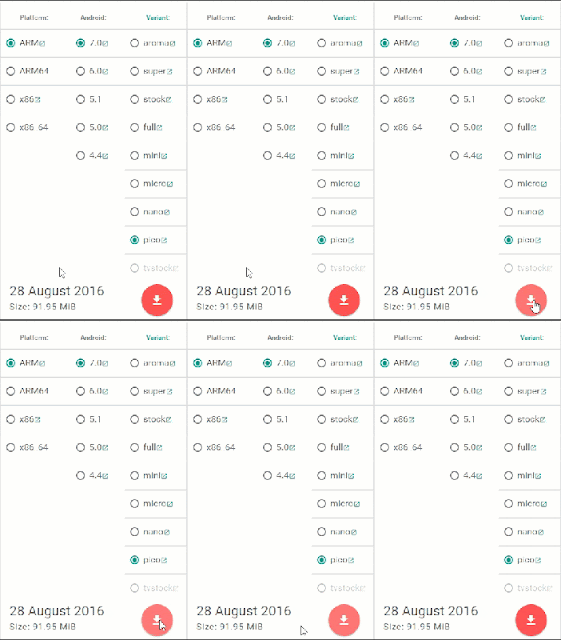
- From Platform, Select your device processor, for example, if your device have ARM64 bit processor then select ARM64 bit Option.

- From Android, Select your Android version

- From Varient, Select any package file according to your requirement

- Then tap on the Red Download Button
Download here
http://bit.ly/1JOWjUq
From this post you can download any GApps for Custom ROM Lineage OS ROM. These files are running on the latest version. If you find anything help full from this Techno Planners blog, Please share this post on your social profile. It will help us to grow. Also Drop your comment below with your review. Thank you and have a nice day.
Go to link download
Tuesday, May 2, 2017
Lineage OS Zenfone Max Nougat 7 1 1 ROM Download
Lineage OS Zenfone Max Nougat 7 1 1 ROM Download
In this post we are sharing guide about how to install Lineage OS ROM Zenfone Max. So As we know as the Lineage OS nougat recipe is ready for Zenfone Max. So, now in this post I will show you how to install Lineage OS on Zenfone Max. This method is tested by other users, but I am sure it will 100% work for you, but do it at your own risk and I am not responsible for any damage.
Pre-Requirement
Before flash any ROM, Make a full backup of your device using TWRP Recovery. With these backup you can restore your device in previous condition with full internal store data and applications.
Congratulation, After first boot you can use your Zenfone Max with Lineage OS Nougat ROM. You can also check out Lineage OS Zenfone 2 Laser Please note first, boot can take up to 10 minutes So, Please dont turn off your device. Please share this ROM on your social media sites. Thank you and have a nice day.
Pre-Requirement
- Custom TWRP Recovery
- Device at least 50% charged
- Lineage OS ROM (Download all files from end of the post)
- Google Apps for Lineage OS
Before flash any ROM, Make a full backup of your device using TWRP Recovery. With these backup you can restore your device in previous condition with full internal store data and applications.
How to Install Lineage OS on Zenfone Max
- First Download Lineage OS ROM from the end of the post link given in red color.
- Second Download GApps for Lineage OS.
- Copy both zip files in your device internal storage/external storage.
- Switch Off your device
- Boot your device into TWRP recovery mode using your buttons
- Once your device successfully boot into TWRP Recovery Mode. Just Select Wipe > Advance Wipe > Check "Dalvik Catch", "Catch", "Data", "System" option and swipe to confirm wipe.
- Go back and Tap on Install option and find ROM file and flash it.
- Once its done, Similarly, flash GApps.
- Go back, Tap on Wipe and select factory reset option
- Reboot your device
- Done.
Download here
ROM- http://bit.ly/2iG9bEq
Congratulation, After first boot you can use your Zenfone Max with Lineage OS Nougat ROM. You can also check out Lineage OS Zenfone 2 Laser Please note first, boot can take up to 10 minutes So, Please dont turn off your device. Please share this ROM on your social media sites. Thank you and have a nice day.
Go to link download
How to Install Stock Rom on Asus Zenfone 5
How to Install Stock Rom on Asus Zenfone 5
Tutorial - How To Install Stock Rom Asus Zenfone 5 using OTA file with Video Tutorial. Now, Today Techno Planners Show you How To Stock Rom Kitkat 4.4.2 on Asus Zenfone 5 with the help of step by step tutorial. Also Check out How to Install Android 6.0 Marshmallow Boot Animation on Asus Zenfone 5.
Requirement

Step 2. Copy file UL-ASUS_T00F-WW-5.3.3.3-user.zip to the ZenFone5 internal storage.
Requirement
- USB Cable
- OTA file (Download from End of Post)
How to Install Stock Rom on Asus Zenfone 5
Step 1. Download the downgrade image file UL-ASUS_T00F-WW-5.2.2.2-user.zip.
Step 2. Copy file UL-ASUS_T00F-WW-5.3.3.3-user.zip to the ZenFone5 internal storage.
Step 3. Remove the USB cable, the device will pops up the system upgrade information.
Step 4. After finished, device will auto reboot and perform factory reset.
Step 5. Then copy file UL-ASUS_T00F-WW-5.2.2.2-user to the ZenFone5 internal storage again.
Step 6. After downgraded, device will auto reboot and perform factory reset.
Step 7. After finished, please go to Settings - About - Software information- Build number. The version should be V2.21.40.44.
Download here
http://goo.gl/DYMFlP
Congratulations, You are done now you can enjoy Stock Rom Kitkat operating system on your Zenfone 5 phone. How To Install [CM 12.1] CyanogenMod Lollipop on Zenfone 5.
Go to link download
Monday, May 1, 2017
Download install CM14 1 Zuk Z2 Android nougat 7 1 ROM
Download install CM14 1 Zuk Z2 Android nougat 7 1 ROM
If you want latest Android experience on your Zuk Z2. So you needed to download and install cm14.1 Android Nougat 7.1 ROM on your Zuk Z2. Today in this tutorial Techno Planners is providing step by step guide about How to Install Nougat 7.0 on Zuk Z2 using CM14.1. CM14.1 is a custom ROM and at this time this is first build for Zuk Z2 so it is possible, it may contain some bugs, so install it at your own risk I am not responsible for any damage.
Congratulations, Now you can enjoy Android Nougat on your Zuk Z2. At this time this ROM has some bugs, please share bug and other problem with us and our other visitors.
Requirement
- CM14.1 ROM for Zuk Z2
- GApps for Nougat
- TWRP Custom Recovery Pre installed on your device
Before flash new ROM
Before flash/ Install new ROM on your device make a full backup of your device data, photos, music and personal files because it will clean your device internal storage. You can save your date on your SD Card or PC.How to Install Nougat on Zuk Z2
- First of all download the CM 14.1 from the end of the post link given at end of post
- Download GApps for Nougat CM14.1
- From your PC, copy the downloaded zip files to your phone memory card
- Now boot your device into recovery mode by pressing and hold volume up + Power button at the same time.
- Once your device boot in recovery mode.
- Select Wipe, do wipe data factory reset and wipe cache partition
- Then go back and Select install option
- Now select the CM 14.1 file and flash ROM zip file on your device
- Once its done, Similarly, flash GApps on your device
- Go back to select wipe and make factory reset
- Once its done, Reboot your device
Download here
ROM- http://bit.ly/2h1KIfj
Congratulations, Now you can enjoy Android Nougat on your Zuk Z2. At this time this ROM has some bugs, please share bug and other problem with us and our other visitors.
Go to link download
Friday, April 28, 2017
Download Nougat ROM for Redmi Note 3 Google Apps
Download Nougat ROM for Redmi Note 3 Google Apps
Hello Guys, Now Nougat ROM available for Redmi Note 3. This is not an official update from MIUI it is a custom Nougat ROM for Redmi Note 3. There is minor bugs and issues on this ROM before installing this ROM, Please read Working and not working features.
For first boot it can take up to 10 - 15 minutes for making catch files on this device. So, please keep patience. You can also check out How to .If you find other bugs or issue with ROM, please drop your comment below. Thank you and have a nice day.
Requirement
- TWRP Recovery Pre-Installed on Device
- Device at-least charge 50%
- Nougat ROM (Download all files from end of the post, Link given)
- GApps for Nougat
Whats working :
- Boots
- RIL (Calls, SMS, Data)
- Fingerprint (FPC1020 only)
- Wi-Fi
- Bluetooth
- Camera (Image Capture only)
- Video Playback
- Audio
- Sensors
- Flash
- LED
- GPS
Whats not working
- Video recording
- SELinux is permissive
Before Installing
Before you go to the next step please make sure backup your personal photos, Games, contract and other data.How to Install Nougat 7.0 on Redmi Note 3
- Download ROM from end of post
- Download GApps for Nougat ROM
- Copy Both ROM and GApps zip files on your device internal or external storage
- Power off your device
- Boot device into recovery mode.
- Once your device Reboot into TWRP recovery mode Tap on ‘Wipe", Select Advance Wipe and marks the Dalvik Cache, Cache, Data and System option from the list and Swipe to Wipe.
- Go back and select "Install", Now find the ROM file from the internal storage and flash it. Wait until its finished.
- Similarly, Flash GApps
- Once it shows Successfully Install/Complete, Go back and Select wipe, Go to Advanced Wipe and select "Dalvik Cache and Cache" and do wipe.
- Once its done, Reboot your device.
Download here
ROM- http://bit.ly/2enGHRM
For first boot it can take up to 10 - 15 minutes for making catch files on this device. So, please keep patience. You can also check out How to .If you find other bugs or issue with ROM, please drop your comment below. Thank you and have a nice day.
Go to link download
Thursday, April 27, 2017
Flash Revert back to Stock Rom from Custom Rom Zenfone 5
Flash Revert back to Stock Rom from Custom Rom Zenfone 5
Tutorial - How to flash or back to stock ROM from custom ROM on asus zenfone 5. You can apply this tutorial on your any zenfone device like Zenfone 4, Zenfone 6, Zenfone 2, Selfie, Laser etc but you need to download firmware according to your device model. Here you can download stock firmware for zenfone 5 and you can find your firmware on asus website. You can download all files from end of post. Also Check out How to Install Multi-user Mode on Asus Zenfone 5 and Zenfone 6.
Pre - Requirement
- Stock Firmware (Download all requirements files from end of post)
- ADB Fastboot Tool
- Battery at-least 40 percent charged
- Intel USB Drivers and ADB USB drivers installed on your PC
How to Back to Stock Rom from custom rom Asus Zenfone
Step 1. Download and Installation
First download all requirements files and One firmware file from end of post and install ADB drivers on your PC. After installation task is complete now extract ADB fastboot tool on your desktop.
Step 2. Get Recovery file
Now Copy UL-ASUS_T00F-WW-x.xx.x.x.-user.zip firmware file in extracted fastboot folder. Then open zip file using winrar and extract recovery.img file from it and copy in adb fastboot folder.
Step 3. Reboot device in DroidBoot mode
Tune off your device then Press Volume Up + Power button for 6 second.
Step 4. Run Commend Prompt
On your PC, Go to extracted Adb fastboot tool folder and right click anywhere in the folder while pressing the shift key and select open command window here.

Step 5. Now connect your zenfone with pc using data cable
Step 6. Using Commend Prompt
By Using Cmd prompt type fastboot flash recovery recovery.img then press enter button.
Step 7. Select Recovery Option
After successfully flash recovery file Now select recovery mode on your zenfone by using volume and power key. After selecting recovery option your device reboot and may be it showing no command. Now press power + volume up button. Then select Apply update from ADB sideload.
Step 8. Run Again Commend Prompt
Once again, Run Commend prompt on your PC from adb fastboot tool folder. Type adb sideload UL-ASUS_T00F-WW-x.xx.x.x.-user.zip and hit enter to flash firmware.
Step 9. Reboot your Device
Once, the firmware file successfully flash on your device. It will showing Install from ADB complete. Now select reboot system now using volume and power key.
Congratulations, After Reboot your device, you can use stock ROM on your Zenfone. This tutorial work for all zenfones but you needed to download firmware according to your device model. You can also Check out How To Update Asus Zenfone 5 in Lollipop OTA Official Update.
Step 5. Now connect your zenfone with pc using data cable
Step 6. Using Commend Prompt
By Using Cmd prompt type fastboot flash recovery recovery.img then press enter button.
Step 7. Select Recovery Option
After successfully flash recovery file Now select recovery mode on your zenfone by using volume and power key. After selecting recovery option your device reboot and may be it showing no command. Now press power + volume up button. Then select Apply update from ADB sideload.
Step 8. Run Again Commend Prompt
Once again, Run Commend prompt on your PC from adb fastboot tool folder. Type adb sideload UL-ASUS_T00F-WW-x.xx.x.x.-user.zip and hit enter to flash firmware.
Step 9. Reboot your Device
Once, the firmware file successfully flash on your device. It will showing Install from ADB complete. Now select reboot system now using volume and power key.
Download here
ADB Driver Installer - http://bit.ly/1mxPlMW
ADB Fastboot Tool - http://bit.ly/1WRCxOS
WW-2.21.40.44-Firmware - http://bit.ly/1iCc7kM
WW-5.2.2.2-Firmware - http://bit.ly/1Swwjmb
Congratulations, After Reboot your device, you can use stock ROM on your Zenfone. This tutorial work for all zenfones but you needed to download firmware according to your device model. You can also Check out How To Update Asus Zenfone 5 in Lollipop OTA Official Update.
Go to link download
Sunday, April 23, 2017
Montana ROM v3 2 for Zenfone 5 6 How to Install Download
Montana ROM v3 2 for Zenfone 5 6 How to Install Download
Hey Guys, Recently another developer shared another Lollipop ROM for ASUS Zenfone 5 and Zenfone 6. This is most stable and unofficial version of Android 5.0.1 from TechGenius and it is based on Stock 5.0. This builds create on latest Stock Android 5.0 3.24.40.87 source code with Linux 3.10.x kernel. Below you can read working features and bugs. This Stock 5.0 ROM Montana ROM Zenfone 5 test on T00J/T00F but do it with your own risk and I am not responsible for any damage. Also check out Nougat ROM on Zenfone 5.
Requirement
Working Features
Montana ROM Features
There is lots of customization available in the Montana ROM like Screen dim timeout mode, Dim alpha, Double tap to sleep on the navbar, Navigation Bar left/Right handed mode Switch for landscape, Navbar slim dim, Button customization on navbar tiles, Animate dim, and the last one is my favorite Enable/ or disable nav bar.
Supported Models
TWRP Recovery
Before Installing the Custom ROM on your device. You have to flash custom recovery TWRP Touch Recovery on your Zenfone. If you are already using Custom Recovery Go to next flash step otherwise, please use this tutorial to flash TWRP Recovery on your Zenfone5/6.
Congratulation, Now you can enjoy the Android 5.0.1 Lollipop on your Zenfone 5. First boot can take up to 5 - 10 Minutes. So, Please do not power off your device in this stage. Once the boot complete it will ask for WiFi or mobile data connection, Google Account etc. Fill all information if you want to access Play Store/ or Gmail Applications on your device. Before you go, You can also check out Lollipop Marshmallow Nougat Custom ROMs List for Zenfone 5. Please share this post and your reviews/ or bug report with our other visitors.
Requirement
- RR ROM (Download all files from end of post)
- Bootloader Unlocked
Working Features
- Based on 3.24.40.87
- Asus Boot animation without intel logo
- Add ZenMotion
- Build.prop tweaks
- Zenfone 3 wallpapers
- New Asus Mobile Manager
- Stable, clean, fast
- ZenUI 3 Themed
- GovernorTuner 3.1 Tweak
- Debloated a Lot
- Init.d tweaks
- Added Stock 87 Lollipop kernel (No-DT2W,If you want dt2w you need to download and flash borets kernel from downloads)
- Disabled signature check
- SystemUI improved and modded
- Settings redesigned
- And more
- New Lock Screen
- FM Radio working in all country
- Camera quality improved
Montana ROM Features
There is lots of customization available in the Montana ROM like Screen dim timeout mode, Dim alpha, Double tap to sleep on the navbar, Navigation Bar left/Right handed mode Switch for landscape, Navbar slim dim, Button customization on navbar tiles, Animate dim, and the last one is my favorite Enable/ or disable nav bar.
Supported Models
- A500CG/A501CG (T00F-T00J-T00J-D)
- A600CG/A601CG (T00G-Z002)
TWRP Recovery
Before Installing the Custom ROM on your device. You have to flash custom recovery TWRP Touch Recovery on your Zenfone. If you are already using Custom Recovery Go to next flash step otherwise, please use this tutorial to flash TWRP Recovery on your Zenfone5/6.
How to flash Montana Lollipop on Zenfone
- First, You have to download requirements material for the device from the end of the post.
- Now, From your PC copy ROM and GApps zip files and paste it in your zenfone internal storage using data cable/ or using wireless application for example: Share-it/ Super Beam.
- Unplug your device from PC and Turn off it.
- Reboot into recovery mode by using the Power + Volume Down button.
- Select Wipe > Advance Wipe > check the data, dalvik cache, catch, system and swipe to wipe it.
- Tap Install and find the ROM zip file and flash it
- After flashing, you should format old files from in the TWRP.
- Go back and select Wipe > Advance Wipe > check the data, dalvik cache, data, internal storage (optional).
- Now, finally Reboot your device.
Download here
ROM- https://drive.google.com/file/d/0B12W06_GZR7CaFVOSGRTTklJNkk
Congratulation, Now you can enjoy the Android 5.0.1 Lollipop on your Zenfone 5. First boot can take up to 5 - 10 Minutes. So, Please do not power off your device in this stage. Once the boot complete it will ask for WiFi or mobile data connection, Google Account etc. Fill all information if you want to access Play Store/ or Gmail Applications on your device. Before you go, You can also check out Lollipop Marshmallow Nougat Custom ROMs List for Zenfone 5. Please share this post and your reviews/ or bug report with our other visitors.
Go to link download
Wednesday, April 19, 2017
Shell ROM v5 2 Zenfone 5 T00J T00F Stock Based ROM
Shell ROM v5 2 Zenfone 5 T00J T00F Stock Based ROM
In the previous post we talk about How to Install BIG_ROM on ASUS Zenfone 5. Now Today, Techno Planners is sharing Shell ROM v5.2 Lollipop for ASUS Zenfone 5 T00J/T00F. This is Stock ROM based on stock Lollipop firmware 3.23.40.87 but customize with lots of features like ZenMotion, Volume Increase, etc., by the ShesnonRibeiro XDA developer. Do it with your own risk, We are not responsible for any damage.
Requirements files for Installation
Make a full backup
Before Updating the Zenfone, Save important files, Contacts, and other data in a safe partition and make a backup of your stock ROM using Custom Recovery. Just Turn off your device. Now Press Power + Volume Down Button to open device in Recovery mode. Once Recovery mode Open, Just select Backup and make a backup. Once, Backup process completes Reboot your Device and Copy TWRP folder from the device and paste it on your PC/ External SD-Card. With a backup you can go back to preview stage.
Features
Bugs
For first boot, Device can freeze on Google Boot animation for 5 - 10 minutes to make the cache file. Once it done, You can enjoy shell ROM on Zenfone 5 without any problem.
Requirements files for Installation
Install TWRP Recovery
TWRP recovery is the most popular custom recovery on the Android platform. Before flash any Custom ROM on your device. You needed to install TWRP recovery on your phone. If you have pre-installed TWRP recovery. Skip this step otherwise check out How To Install flash TWRP on Zenfone 5.Make a full backup
Before Updating the Zenfone, Save important files, Contacts, and other data in a safe partition and make a backup of your stock ROM using Custom Recovery. Just Turn off your device. Now Press Power + Volume Down Button to open device in Recovery mode. Once Recovery mode Open, Just select Backup and make a backup. Once, Backup process completes Reboot your Device and Copy TWRP folder from the device and paste it on your PC/ External SD-Card. With a backup you can go back to preview stage.
Download Shell ROM
Now download Shell ROM from end of post link given. Once it downloaded on your PC, Place ZIP file in your device internal storage.Features
- ZenMotion added (Working Double Tap to Wake/Sleep).
- Horizontal mode work on home screen.
- Now output volume is louder.
- Updated to new dialer and Contact interface
- Multi User mode (Add Two or more users in one device)
- New font added
- Root explorer Application pre installed
- Improve Performance and battery backup
- Replace ASUS Stock emoji with one emoji
- GPS Working
- Add Wallpaper
- Change Battery Icon
- Add Custom theme
- ASUS Music replaced by Pixel player
- Change Settings Interface
- Screen-cast (You can record screen using screen cast Application)
Bugs
- Pixel Player is not working
How to flash Shell ROM on Zenfone 5
- Reboot your device in recovery mode (By pressing the Power + Volume Down button).
- Once recovery open, Tap on Wipe > Advance Wipe.
- Now mark the Dalvik Cache, Cache and Data option from the list and Swipe to Wipe.
- Go back and select Install, Now find the ROM file from the internal storage and flash it. Wait until its finished.
- Once it shows Successfully Install/Complete, Go back and Select wipe, Go to Advanced Wipe and select "Dalvik Cache and Cache" and do wipe.
- Once its done, Reboot your device.

Download here
ROM- http://bit.ly/210m7bu
For first boot, Device can freeze on Google Boot animation for 5 - 10 minutes to make the cache file. Once it done, You can enjoy shell ROM on Zenfone 5 without any problem.
Go to link download
Tuesday, April 18, 2017
Cm14 nougat rom for Moto E 2nd gen Otus Download
Cm14 nougat rom for Moto E 2nd gen Otus Download
Lots of users want to taste new Android Nougat ROM on Moto E 2nd Generations device. But this is not an official update from MOTO it is custom ROM from CYNOGEN MOD. So, If you really want to install nougat on your device you needed to flash CM14 ROM on your MOTO E. You can download ROM and other required files from the end of the post. This method tested on a moto E device but do it at your own risk I am not responsible for any damage.
Bugs:
After first boot you can use nougat update on the MOTO E device. Please note first boot can take upto 15 to 20 minutes. So, Please keep patience. You can also read about How to install Xposed on Nougat.
Requirement
- CM14 Nougat ROM for MOTO E (Download from end of the post)
- GApps for Nougat
- Custom TWRP recovery mode pre installed on the device
Working features on CM14
- WIFI
- Bluetooth
- Booting
- Audio
- Camera (photos)
- Video playback
- RIL
Bugs:
- Video recording not working
ROM OS INFO for MOTO E
- Status: Alpha
- Last Updated 2016-09-23
- OSVersion: 7.x Nougat
- Kernel: Linux 3.4.x
How to Install Nougat on MOTO E 2nd Gen
- First of all download the ROM zip file from the end of the post link given in red highlighted color.
- Now download Google GApps for Nougat.
- Now transfer ROM and GApps zip files on your MOTO device with the help of data cable or wireless file transfer apps.
- Now boot your device into recovery mode by press and hold Volume Down + Power Button at the same time.
- Once you reach the recovery mode, you will see many options there.
- Now tap on Wipe, Select Wipe data, wipe cache partition and wipe Dalvik cache option and wipe it
- Go back and select install option, then find and select the ROM zip file and flash it
- Similarly, find GApps and flash it
- After installation, Tap on a wipe and factory reset your device.
- Reboot your device
Download here
ROM- http://bit.ly/2goyBJL
After first boot you can use nougat update on the MOTO E device. Please note first boot can take upto 15 to 20 minutes. So, Please keep patience. You can also read about How to install Xposed on Nougat.
Go to link download
Friday, April 14, 2017
Motorola Moto G — ROM CyanogenMod 11 Oficial falcon XT1032 XT1033
Motorola Moto G — ROM CyanogenMod 11 Oficial falcon XT1032 XT1033

Fonte e changelog XT1032/33:
CyanogenMod 11 - XDA
Pré Requisitos:
Bootloader desbloqueado e custom recovery
Downloads:
- Nightlies oficiais - CyanogenMod 11
- GApps 4.4.4
PROCEDIMENTO
CWM
Coloque os arquivos na memória do aparelho
Reinicie em bootloader, segurando as teclas volume para baixo + power ,em seguida selecione
recovery.
Selecione Wipe data, wipe cache e wipe dalvik , confirme
todos para limpar o sistema.
Selecione install zip>choose zip
from/sdcard>o
Selecione o arquivo zip , em seguida selecione YES.
Repita os passos 4 e 5 para instalar os GAPPS Refaça apenas wipe
cache e wipe dalvik
Reinicie o aparelho.
TWRP
Coloque os arquivos na memória do aparelho
Reinicie em bootloader, segurando as teclas volume para baixo + power ,em seguida selecione recovery.
Toque em WIPE, em seguida toque em ADVANCED,marque apenas DATA , CACHE, DALVIK, em seguida arraste onde diz SWIPE TO WIPE.
Retorne ao menu principal.
Toque em INSTALL
Toque no arquivo zip
Toque e arraste onde diz swipe to install zip
Refaça os passos 5, 6, 7 para instalar os GAPPS.
Refaça o WIPE CACHE E DALVIK.
Toque em REBOOT SYSTEM
OBS.: O primeiro boot pode demorar de 10 a 15 minutos.
Screenshoots:

Link original da postagen: AndroidPit Forum
NOTA:ANTES DE REALIZAR UM PROCEDIMENTO COMO ESTE,LEIA ATENTAMENTE O TUTORIAL, QUANTAS VEZES FOREM NECESSARIO, O BLOG DROIDINHO NÃO SE RESPONSABILITA POR DANOS AO SEU APARELHO.
Go to link download
Subscribe to:
Posts (Atom)