Showing posts with label asus. Show all posts
Showing posts with label asus. Show all posts
Saturday, May 27, 2017
How to Unbrick Asus Zenfone 4 FIX USB LOGO
How to Unbrick Asus Zenfone 4 FIX USB LOGO
Tutorial - How To Unbrick Asus Zenfone 4 using PC. Most of the Zenfone Users brick their zenfone 4 devices while updating firmware or flashing custom rom. When You Device Brick, the device may be stuck at usb logo or may fall in boot loop. How To Install CM 12.1 CyanogenMod Lollipop on Asus Zenfone 4.
Pre-Requirement
Pre-Requirement
- Install Android USB Drivers
- ADB Flash Tool (Download from - (http://bit.ly/1WRCxOS))
- Download recovery.img (version should be earlier or same version of your current firmware version) (Download from End of Post)
- Download Full firmware from Asus Official Device Support page. (Note that the downloaded firmware version should be earlier than your devices current version). (Download from End of Post).
How to UNBRICK Asus Zenfone 4
Step 1. Install Intel USB drivers on your pc.
Step 2. Make sure your phone is fully charged. (Charge it even if it is bricked).
Step 3. Press and hold power + volume up button to enter fastboot mode. Now connect your phone to pc.
Step 4. Extract the ADB Fastboot Tool.
Step 5. Place the recovery.img and Full Firmware in ADB folder.
Step 6. In ADB folder, hold shift then right click and choose "Open command window here".
Step 7. In the command window type the following commands one by one,
fastboot devices (To check whether the phone is connected to pc)
fastboot flash recovery recoveryfilename.img (Enter the recovery file name exactly)
Step 8. Now choose "Recovery" in fastboot mode.
Step 9. When Android logo appears, press and hold volume up + volume down for few seconds to enter recovery mode.
Step 10. In recovery mode, choose "Update from ADB".
Step 11. Now in command window type the following command
adb sideload firmwarename.zip (Enter the downloaded firmware name exactly)
Step 12. Now wait for the flashing process to complete.
Step 13. In recovery mode, wipe cache and data and finally reboot.
Download here
Firmware- http://bit.ly/1WRCPoT
Recovery img- http://bit.ly/1KckWMc
You have successfully unbricked your Asus Zenfone 4 device.
Go to link download

Thursday, May 25, 2017
How to Root Asus Zenfone Selfie ZD551KL without Using PC
How to Root Asus Zenfone Selfie ZD551KL without Using PC
Tutorial - How to Root Asus Zenfone Selfie ZD551KL without using your computer PC. Now We find a alternative method to root your zenfone selfie with one click using ding-dong Root App. This method is not tested by Techno Planners and do it, at your own risk. Also Check out How to Install Android 6.0 Marshmallow on Zenfone.
Requirement
Requirement
- Zenfone Selfie ZD551KL
- DingDong Apk (Download from end of post)
How to Root Asus Zenfone Selfie
Step 1. Download DingDong Apk from below link.
Step 2. Install it on your Device.
Step 3. Open it and Press the button to root.
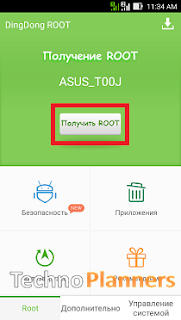
Download here
http://bit.ly/1NQ7KKI
Congratulation i hope it will work for your device, If it not working please share it with us. We will fix it ASAP. You can also check out How to Connect PC Link using Wifi Connection on Asus Zenfone.
Go to link download
Friday, May 19, 2017
ROM Resurrection Remix Nougat 7 0 Asus Zenfone 5 T00J T00F
ROM Resurrection Remix Nougat 7 0 Asus Zenfone 5 T00J T00F
Hey Guys, Recently another developer shared another Nougat ROM for ASUS Zenfone 5 and Zenfone 6. This is more stable and unofficial version of Android 7.0.1 Nougat from minhtri109 and it is based on CM14. This builds create on latest Google Android 7.0.1 source code with Linux 3.10.x kernel. Below you can read working features and bugs. This Resurrection Remix ROM tested with Zenfone 5 T00J/T00F but do it with your own risk and I am not responsible for any damage. If you think there is a bug in this ROM you can check out the Lineage OS on Zenfone 5.
Requirements
Working Features
Whats NOT working
Resurrection Remix Features
There is lots of customization available in the RR like Screen dim timeout mode, Dim alpha, Double tap to sleep on the navbar, Navigation Bar left/Right handed mode Switch for landscape, Navbar slim dim, Button customization on navbar tiles, Animate dim, and the last one is my favorite Enable/ or disable nav bar.
TWRP Recovery
Before Installing the Custom ROM on your device. You have to flash custom recovery TWRP Touch Recovery on your Zenfone. If you are already using Custom Recovery Go to next flash step otherwise, please use this tutorial to flash TWRP Recovery on your Zenfone5/6.
Congratulation, Now you can enjoy the Android 7.0.1 Nougat Update on your Zenfone 5. First boot can take up to 5 - 10 Minutes. So, Please do not power off your device in this stage. Once the boot complete it will ask for WiFi or mobile data connection, Google Account etc. Fill all information if you want to access Play Store/ or Gmail Applications on your device. Before you go, You can also check out Lollipop Marshmallow Nougat Custom ROMs List for Zenfone 5. Please share this post and your reviews/ or bug report with our other visitors.
Requirements
- RR ROM (Download all files from end of post)
- Pico Google Apps for Nougat
Working Features
- WiFi
- Bluetooth
- Camera
- Games
- Play Store
- Internet
- Developer Mode
- Flashlight
Whats NOT working
- FM
- Import contacts from SIM card not work
Resurrection Remix Features
There is lots of customization available in the RR like Screen dim timeout mode, Dim alpha, Double tap to sleep on the navbar, Navigation Bar left/Right handed mode Switch for landscape, Navbar slim dim, Button customization on navbar tiles, Animate dim, and the last one is my favorite Enable/ or disable nav bar.
TWRP Recovery
Before Installing the Custom ROM on your device. You have to flash custom recovery TWRP Touch Recovery on your Zenfone. If you are already using Custom Recovery Go to next flash step otherwise, please use this tutorial to flash TWRP Recovery on your Zenfone5/6.
How to flash Resurrection Remix Nougat Zenfone
- First, You have to download requirements material for the device from the end of the post.
- Download Pico Gapps for Nougat from here and Choose x86 -> Android 7.0 -> Pico.
- Now, From your PC copy ROM and GApps zip files and paste it in your zenfone internal storage using data cable/ or using wireless application for example: Share-it/ Super Beam.
- Unplug your device from PC and Turn off it.
- Reboot into recovery mode by using the Power + Volume Down button.
- Select Wipe > Advance Wipe > check the data, dalvik cache, catch, system and swipe to wipe it.
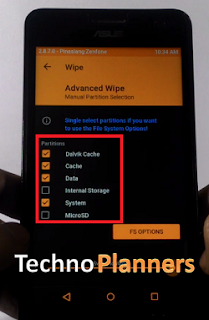
- Tap Install and find the ROM zip file and flash it
- Similarly, flash GApps on your device.
- After flashing, you should format old files from in the TWRP.
- Go back and select Wipe > Advance Wipe > check the data, dalvik cache, data, internal storage (optional).
- Now, finally Reboot your device.
Download here
ROM- http://bit.ly/2jMN9j7
Congratulation, Now you can enjoy the Android 7.0.1 Nougat Update on your Zenfone 5. First boot can take up to 5 - 10 Minutes. So, Please do not power off your device in this stage. Once the boot complete it will ask for WiFi or mobile data connection, Google Account etc. Fill all information if you want to access Play Store/ or Gmail Applications on your device. Before you go, You can also check out Lollipop Marshmallow Nougat Custom ROMs List for Zenfone 5. Please share this post and your reviews/ or bug report with our other visitors.
Go to link download
Thursday, May 18, 2017
How to Flash TWRP Recovery on Asus Zenfone 2 Laser
How to Flash TWRP Recovery on Asus Zenfone 2 Laser
In preivew post we talk about How to Root ASUS Zenfone 2 Laser. Now In this new tutorial Techno Planners will show you How to Install TWRP Recovery for ASUS ZenFone 2 Laser ZE551KL/Z00T, ZenFone 2 Laser Z600KL/Z00L and ZenFone Selfie ZD551KL.
TWRP Recovery
Team Win Recovery Project is the best custom recovery to install any custom ROM on your device. You can access all button using the touch screen.
Compatible Device Model
Requirement
Install ADB Drivers
From the end of post Download ADB drivers and fastboot.zip file on your PC. Once it downloaded, Connect your device with PC and Install the Drivers.

Fast-boot
Download and extract fastboot zip file on your desktop using WinRAR tool.
Enable USB Debugging mode
Enable USB debugging mode on your device from Settings > about > Build number. Hit 7 times on build number to enable developer mode. Once it shows developers mode enabled. Now Go back to settings > Developers Options > Check USB Debugging mode.

Unlock Bootloader
From below link download Unlock Bootloader Application Apk file on your PC. Copy it onto your device. Install It and Run.

Download TWRP Recovery image file according to your device model. Copy image file in fastboot folder.
Now your device will reboot in recovery mode. That means you have successfully installed TWRP recovery on your Zenfone 2 Laser. Now you can install Custom ROM like [CM13] Android 6.0 marshmallow on your Zenfone 2 Lasers.
TWRP Recovery
Team Win Recovery Project is the best custom recovery to install any custom ROM on your device. You can access all button using the touch screen.
Compatible Device Model
- Zenfone 2 Laser ZE551KL
- Zenfone 2 Laser Z600KL/Z00L
Requirement
Install ADB Drivers
From the end of post Download ADB drivers and fastboot.zip file on your PC. Once it downloaded, Connect your device with PC and Install the Drivers.
Fast-boot
Download and extract fastboot zip file on your desktop using WinRAR tool.
Enable USB Debugging mode
Enable USB debugging mode on your device from Settings > about > Build number. Hit 7 times on build number to enable developer mode. Once it shows developers mode enabled. Now Go back to settings > Developers Options > Check USB Debugging mode.
Unlock Bootloader
From below link download Unlock Bootloader Application Apk file on your PC. Copy it onto your device. Install It and Run.
Download TWRP Recovery image file according to your device model. Copy image file in fastboot folder.
How to flash TWRP on Zenfone 2
- Connect your device with PC using data cable.
- From the fastboot folder. Press Shift(Keyboard) + Right Click (mouse) and Click on Open Windows Commend here.

- Type "adb fastboot reboot-bootloader" without quotes in CMD Window.
- Once your device open in droidboot mode. Type "fastboot flash recovery recovery.img" and press enter.
- Type "fastboot oem reboot -recovery" and hit enter.
- Done.
Download here
ADB - http://bit.ly/1L59rca
Fastboot Tool - http://bit.ly/1L59zZg
Fastboot Tool - http://bit.ly/1L59zZg
UnlockBootloader Apk Z00T - http://bit.ly/1UfC6NQ
UnlockBootloader Apk Z00L - http://bit.ly/1mPY4Jz
Zenfone 2 Laser ZE551KL/ Z00T - http://bit.ly/1QrTjxx
Zenfone 2 Laser Z600KL/ Z00L - http://bit.ly/1QrTk4A
Now your device will reboot in recovery mode. That means you have successfully installed TWRP recovery on your Zenfone 2 Laser. Now you can install Custom ROM like [CM13] Android 6.0 marshmallow on your Zenfone 2 Lasers.
Go to link download
Tuesday, May 16, 2017
ROM Resurrection Remix MM 6 0 for Asus Zenfone 5 T00J T00F
ROM Resurrection Remix MM 6 0 for Asus Zenfone 5 T00J T00F
Hey Guys, Recently another developer shared another Marshmallow ROM for ASUS Zenfone 5. This is stable and official version of Android 6.0.1 Marshmallow from tank0412 and it is based on CM13. This builds create on latest Google Android 6.0.1 source code with Linux 3.10.x kernel. Below you can read working features and bugs. This Resurrection Remix ROM tested with Zenfone 5 T00J/T00F but do it with your own risk and I am not responsible for any damage. If you think there is a bug in this ROM you can check out CyanogenMod 13 ROM
Step 2. Now, From your PC copy ROM and GApps zip files and paste it in your zenfone internal storage using data cable/ or using wireless application for example: Share-it/ Super Beam.
Step 3. Unplug your device from PC and Turn off it.
Step 4. Reboot into recovery mode by using the Power + Volume Down button.
Step 5 Once your phone will reboot into recovery mode, Tap Install and find the ROM zip file and flash it
Step 6 Similarly, flash GApps on your device.
Step 7. After flashing, you should format old files from in the TWRP.
Go back and select Wipe > Advance Wipe > check the data, dalvik cache, data, internal storage (optional).

Step 8. Now, finally Reboot your device.
Congratulation, Now you can enjoy the Android 6.0.1 Marshmallow Update on your Zenfone 5. First boot can take up to 5 - 10 Minutes. So, Please do not power off your device in this stage. Once the boot complete it will ask for WiFi or mobile data connection, Google Account etc. Fill all information if you want to access Play Store/ or Gmail Applications on your device. Before you go, You can also check out Lollipop Marshmallow Custom ROMs List for Zenfone 5. Please share this post and your reviews/ or bug report with our other visitors.
Requirements
- RR ROM (Download all files from end of post)
- Pico Google Apps for Android 6.0
Working Features
- Based on Android 6.0.1
- Based On Cyanogenmod 13
- Camera fixed
- WiFi
- Bluetooth
- Games
- Play Store
- Internet
- Developer Mode
- Double Tap on the navigation bar to Sleep, but I am sure not to double tap to Wake up mode
- Landscape Mode on home screen
- Flash light
- SMS/MMS fixed
- Headphone sound fixed
Whats NOT working
- GPS
- FM Radio
Resurrection Remix Features
There is lots of customization available in the RR like Screen dim timeout mode, Dim alpha, Double tap to sleep on the navbar, Navigation Bar left/Right handed mode Switch for landscape, Navbar slim dim, Button customization on navbar tiles, Animate dim, and the last one is my favorite Enable/ or disable nav bar.TWRP Recovery
Before Installing the Custom ROM on your device. You have to flash custom recovery TWRP Touch Recovery on your Zenfone. If you are already using Custom Recovery Go to next flash step otherwise, please use this tutorial to flash TWRP Recovery on your Zenfone5/6.How to flash Resurrection Remix Zenfone
Step 1: First, You have to download requirements material for the device from the end of the post. for Gapps: Choose x86 -> Android 6.0 -> PicoStep 2. Now, From your PC copy ROM and GApps zip files and paste it in your zenfone internal storage using data cable/ or using wireless application for example: Share-it/ Super Beam.
Step 3. Unplug your device from PC and Turn off it.
Step 4. Reboot into recovery mode by using the Power + Volume Down button.
Step 5 Once your phone will reboot into recovery mode, Tap Install and find the ROM zip file and flash it
Step 6 Similarly, flash GApps on your device.
Step 7. After flashing, you should format old files from in the TWRP.
Go back and select Wipe > Advance Wipe > check the data, dalvik cache, data, internal storage (optional).
Step 8. Now, finally Reboot your device.
Download here
GApps- http://bit.ly/1JOWjUq
ROM- http://bit.ly/1qW6wJV
Congratulation, Now you can enjoy the Android 6.0.1 Marshmallow Update on your Zenfone 5. First boot can take up to 5 - 10 Minutes. So, Please do not power off your device in this stage. Once the boot complete it will ask for WiFi or mobile data connection, Google Account etc. Fill all information if you want to access Play Store/ or Gmail Applications on your device. Before you go, You can also check out Lollipop Marshmallow Custom ROMs List for Zenfone 5. Please share this post and your reviews/ or bug report with our other visitors.
Go to link download
Saturday, May 13, 2017
Fix Bootloop on any ASUS Zenfone 4 5 6 Selfie Laser etc
Fix Bootloop on any ASUS Zenfone 4 5 6 Selfie Laser etc
Hello Guys In this tutorial i will tell you How to Fix Bootloop on ASUS Zenfone 4, 5, 6 , Selfie, Laser, Zenfone. If your device going in bootloop that means your device can not start or its show ASUS logo and shutdown and reboot again and aging or it is showing boot animation continuously. That is means you have to fix bootloop issue on your zenfone.
If you can not find the firmware for your device. Please comment below and Ill update as soon as possible.
Requirement
- ADB Driver
- Intel Driver
- ADB Fastboot Tool
- Zenfone Stock ROM (Download All Reqirement files from end of the post)
- Windows PC
Install Drivers on your PC
Download Intel driver from end of the post. Once it downloaded on your PC, Install it on your PC like normal software.Install ADB Driver
- Download ADB Drivers from end of the post.
- Connect your zenfone in recovery mode
- Run ADB Driver, and Click on Install button
- Done
How to fix bootloop on Zenfone
- Now Download ADB Fastboot tool and extract it on your PC desktop.
- Copy Stock ROM zip file in extracted adb folder.
- Now Open Stock ROM using winrar and extract boot.img and recovery.img from it.
- Boot your device in droidboot mode. By Press and hold Power off button after vibrate suddenly press Volume Up button.
- Connect your device with PC using ASUS USB Data cable.
- Now open adb folder and press SHIFT + Right Mouse Button and select open command here.
- Now Type below command one by one and hit enter after each line
- After successfully flash both files dont close CMD Window.
- Now select recovery mode then press power button ( if u dont know how to open recovery mode using droidboot mode then Power off your device and Press and hold Power off button after vibrate suddenly press Volume Down button. May be it show no command or show android image, Now Press and hold Volume down and Volume Up button again and again it will show you recovery menu.
- Now select apply update from adb option
- Now type below command and hit enter then hit enter.
fastboot flash recovery recovery.img
fastboot flash boot boot.img
fastboot flash fastboot fastboot.img
adb sideload filename.zip
If you can not find the firmware for your device. Please comment below and Ill update as soon as possible.
Download here
Intel USB Drivers- http://intel.ly/1hCwP2o
ADB Drivers- http://bit.ly/2cUnlTg
ADB TOOL- http://bit.ly/2dGYSjQ
Zenfone 5 Firmware- http://bit.ly/1NIe9wm
Go to link download
Connect Mouse and Keyboard with Asus Zenfone and Android Phone Tutorial
Connect Mouse and Keyboard with Asus Zenfone and Android Phone Tutorial
Tutorial - How to Connect Asus Zenfone with PC computer mouse and keyboard. You also connect any android phone or tablets. After Connect this device you can write WhatsApp messenger or any note using keyboard. You can also play game using mouse and keyboard like Asphalt 8 and GTA San-Andreas. You can also check out How to Install Resurrection ROM on Zenfone 5 .
Pre Requirement
Pre Requirement
- USB OTA Cable
- Wireless mouse and Keyboard Combo
- Android version above Android 3.1
How to Connect Mouse and Keyboard with Phone
Step 1. Connect OTA Cable with your phone.
Step 2. Now Install Batteries in the Bluetooth mouse and keyboard.
Step 3. Connect the USB receiver to the OTA Cable.
Now You can use mouse and keyboard with you phone. You can write message and play games using mouse and keyboard. Share this amazing guide with your friends and family.
Go to link download
Wednesday, May 10, 2017
How To Install CM 12 1 CyanogenMod Lollipop on Asus Zenfone 4 T00I A400CG
How To Install CM 12 1 CyanogenMod Lollipop on Asus Zenfone 4 T00I A400CG
Tutorial - How To Install CM 12.1 CyanogenMod Lollipop 5.1.1 Rom on Asus Zenfone 4 T00I/A400CG. This CM 12.1 Rom is unofficial but stable for Zenfone 4. You can install it on WW, TW, CC, KE, CN and all device supported. We also attach a video tutorial on Installation Guide CM12.1 on Zenfone 5. How To Install [CM 12.1] CyanogenMod Lollipop on Zenfone 5.

Bug: Tethering not Working
Bug: Tethering not Working
How to Install CyanogenMod 12.1 on ASUS Zenfone 4
Step 1. Make sure your Zenfone 4 running on the latest firmware 7.3.3 .
Step 2. Unlock Bootloader, Unlock tool can be download (Download from - http://bit.ly/1JHyhZg).
Step 3. Extract Unlock bootloader tool > install apk> unlock
Step 4. Download CyanogenMod 12.1 ROM from below Link (Download from below Link).
Step 5. Download ADB tools if you dont have it (Download from below link ).
Step 6. Download Intel usb driver if you dont have/install it (Download from - http://intel.ly/1JWOVrg).
Step 7. Copy boot.img, system.img and recovery_TWRP.img place it to ADB folder.
Step 8. Turn off Zenfone 4.
Step 9. Enter Fastboot mode (Power + Volume up).
Step 10. Connect Zenfone 4 to PC.
Step 11. At ADB Folder press shift+right click > open Command here.
Step 12. At command prompt type (press enter after each line and wait until finish) :
- fastboot flash system system.img
- fastboot flash boot boot.img
- fastboot flash recovery recovery_TWRP.img
Step 13. Factory Reset.
Step 14. Done
Download here
ADB Tool- http://bit.ly/1WRCxOS
CM12.1 Rom- http://bit.ly/1QglEJe
Warning: When you install a custom ROM on your android device, it voids your warranty. We are not responsible of any damage. Do it your own risk. Also Check out How to Install Android 6.0 Marshmallow Boot Animation on Asus Zenfone.
Go to link download
Sunday, May 7, 2017
How to Fix Unfortunately Camera Not found on Asus Zenfone 5
How to Fix Unfortunately Camera Not found on Asus Zenfone 5
Tutorial - How to fix unfortunately, Camera not found on Asus Zenfone 5. Most of Zenfone users are facing camera not found problem on there device after Root installation. Today We are showing how to fix this problem with step by step. This method tested on my Zenfone 5 but do it with your own risk. I am not responsible of any damage. Also Check out How to Install ZenMotion feature on Zenfone 5. Note : - It will delete all data and it will downgrade to kitkat firmware. Before doing this step you can try Backup your data, try wipe cache and wipe data then check your device camera. If doesnt work you need to apply below steps.
Requirement
Requirement
- ADB Fastboot Tool
- FIX file
- Zenfone 5 Firmware (Download all files from end of post)
How to Fix Camera not found on Zenfone 5
Step 1. Download All files from end of post link given.
Step 2. Extract ADB Tools and Place extracted fix file and Firmware to ADB Tools Folder
Step 3. Turn Off Zenfone 5 and Enter Fastboot/droidboot Mode (Press Power + Volume up at the same time until droidboot apear)
Step 4. Connect to PC/Laptop
Step 5. Open ADB Folder, Press Shift + Right Click > Open Command Here

Step 6. At CMD Type adb devices (then press enter) and see your device is connected or not, if it shows your device you can proceed to step 9. If doesnt show try another port or make sure you place at adb folder.
Type this following commands (Press enter after each line) :
Step 8. Choose "Wipe Data" then "Wipe Cache"
Step 9 Select "update from adb"
at cmd type this command and press enter:
Step 2. Extract ADB Tools and Place extracted fix file and Firmware to ADB Tools Folder
Step 3. Turn Off Zenfone 5 and Enter Fastboot/droidboot Mode (Press Power + Volume up at the same time until droidboot apear)
Step 4. Connect to PC/Laptop
Step 5. Open ADB Folder, Press Shift + Right Click > Open Command Here
Step 6. At CMD Type adb devices (then press enter) and see your device is connected or not, if it shows your device you can proceed to step 9. If doesnt show try another port or make sure you place at adb folder.
Type this following commands (Press enter after each line) :
Step 7. On Fastboot mode now choose "Recovery"
- fastboot flash fastboot fastboot.img
- fastboot flash boot boot.img
- fastboot flash recovery recovery.img
Step 8. Choose "Wipe Data" then "Wipe Cache"
Step 9 Select "update from adb"
at cmd type this command and press enter:
Step 10. Reboot your device
- adb sideload UL-ASUS_T00F-WW-2.22.40.53-user.zip
Download here
Zenfone 5 Firmware - http://bit.ly/1GuHFRN
ADB Tools - http://bit.ly/1IrsiYg
Fix File - http://bit.ly/1Irskze
Congratulation, It will fix Unfortunately, Camera Not found on your Zenfone 5. Share this tutorial with your friend and family or in your social circle. You can also check out One Click Root for Zenfone.
Go to link download
Tuesday, May 2, 2017
How to Install Stock Rom on Asus Zenfone 5
How to Install Stock Rom on Asus Zenfone 5
Tutorial - How To Install Stock Rom Asus Zenfone 5 using OTA file with Video Tutorial. Now, Today Techno Planners Show you How To Stock Rom Kitkat 4.4.2 on Asus Zenfone 5 with the help of step by step tutorial. Also Check out How to Install Android 6.0 Marshmallow Boot Animation on Asus Zenfone 5.
Requirement

Step 2. Copy file UL-ASUS_T00F-WW-5.3.3.3-user.zip to the ZenFone5 internal storage.
Requirement
- USB Cable
- OTA file (Download from End of Post)
How to Install Stock Rom on Asus Zenfone 5
Step 1. Download the downgrade image file UL-ASUS_T00F-WW-5.2.2.2-user.zip.
Step 2. Copy file UL-ASUS_T00F-WW-5.3.3.3-user.zip to the ZenFone5 internal storage.
Step 3. Remove the USB cable, the device will pops up the system upgrade information.
Step 4. After finished, device will auto reboot and perform factory reset.
Step 5. Then copy file UL-ASUS_T00F-WW-5.2.2.2-user to the ZenFone5 internal storage again.
Step 6. After downgraded, device will auto reboot and perform factory reset.
Step 7. After finished, please go to Settings - About - Software information- Build number. The version should be V2.21.40.44.
Download here
http://goo.gl/DYMFlP
Congratulations, You are done now you can enjoy Stock Rom Kitkat operating system on your Zenfone 5 phone. How To Install [CM 12.1] CyanogenMod Lollipop on Zenfone 5.
Go to link download
Wednesday, April 26, 2017
How to Install Paranoid Android 5 1 1 Lollipop for Asus ZenFone 2
How to Install Paranoid Android 5 1 1 Lollipop for Asus ZenFone 2
Tutorial - How to Install (Paranoid) Android 5.1.1 Lollipop for Asus ZenFone 2 Z00A (ZE551ML) and Z008 (ZE550ML). Recently Paranoid Launch new rom Android 5.1.1 Lollipop for Asus Zenfone 2 Phone. Paranoid should work like a charm for you if you follow the procedure correctly. But Do it with your own Risk Im not responsible of any damaged. Note : - Backup your data before perform this tutorial. How To Install [CM 12.1] CyanogenMod Lollipop on Zenfone 2.
Files Requirements
Files Requirements
- Intel USB Drivers for Android
- ADB Fastboot Tool
- And some more, which will be mentioned below
How To Install Android 5.1.1 Lollipop on Zenfone 2
Step 1. Your ZenFone 2 must be unlock bootloader, steps are there for unlocking
Step 2. After unlocking, install TWRP Recovery on your ZenFone 2
Step 3. Download ParanoidAndroid 5.1.1 Lollipop Custom ROMs from below link.
Step 4. Download the Gapps from below Link
Step 5. After downloading both zip, place both pa_Z00A-5.1-20150816.zip and Gapps.zip in your MicroSD
Step 6. Now power off, Once it is off, hold down the volume up button and hold on to the power button until the phone vibrates. After the vibration stops, release the power button and continue pressing the volume up button until the green Android robot appears. You should see a blue line below saying "Waiting Fastboot command", Now here click vol down till you see Recovery mode in top big rectangle box, click power button
Step 7. It will enter TWRP, first take the backup of ur current OS (tick everything), so you can restore if u want to use stock at some point (even the apps will be there, but if you kept the obb, data in internal, it will be wiped,so better copy android folder to PC)
Step 8. Now click wipe,click advanced wipe, select everything except the microsd (be careful), if you want to keep the internal files, then untick internal storage also.
Step 9. Click the install, choose externalSD, search for those zip, and install pa_Z00A-5.1-20150816.zip, then install Gapps.zip and then reboot your ZenFone 2.
Enjoy the ParanoidAndroid 5.1.1 Lollipop in ZenFone 2.
Download here
GApps - http://bit.ly/1yg1JFQ
ZenFone 2 Z00A (ZE551ML)- https://adf.ly/1MyvsB
ZenFone 2 Z008 (ZE550ML)- https://adf.ly/1Myvx1
Go to link download
Saturday, April 22, 2017
How to Fix Boot Loop on Asus Zenfone 5
How to Fix Boot Loop on Asus Zenfone 5
Tutorial - How to fix boot loop on Asus Zenfone 5. Now you can fix your Zenfone 5 from boot loop/ USB Logo by doing some simple steps. You needed some files like Drivers and firmware file, you can download it from end of post. We also attract a video Tutorial on Fix Boot loop on Zenfone 5. Also Check out One Click Root for Zenfone 4, 5, 6 and Zenfone 2 Lollipop and Kitkat Supported.
Requirement

Requirement
- Asus USB Drivers and Intel USB Drivers Pre-Installed on System. (Download from Below Link).
- ADB Flash Tool file. (Download from http://bit.ly/1WRCxOS).
- Firmware file UL-ASUS_T00F-WW-2.21.40.44-user.zip (Download from Below Link).
How to Fix Boot Loop on Asus Zenfone 5
Step 1. After downloading adb & fastboot tool extract it to desktop.
Step 2. Copy UL-ASUS_T00F-WW-2.21.40.44-user.zip in adb folder.
Step 3. Open UL-ASUS_T00F-WW-2.21.40.44-user.zip and extract recovery.img from it.
Step 4. Open your mobile in droidboot mode. First Power off your device then Press Power button after vibrate suddenly press Volume Up button.
Step 5. Now open adb folder and press SHIFT + Right Mouse Button and select open command here.
Step 6. Then type fastboot flash recovery recovery.img then enter.
Step 7. Now select recovery mode thn press power button ( if u dont know how to select recovery mode in droidboot mode open the link in step 4).
Step 8. now select apply update from adb then connect with pc and leave it
Step 9. now again follow step 5.
Step 10. now type adb sideload UL-ASUS_T00F-WW-2.21.40.44-user.zip then enter.
Step 11. now reboot and enjoy.
Download here
Asus Drivers - http://bit.ly/1Kavzi1
Intel USB Drivers - http://intel.ly/1LuBd0k
UL-ASUS_T00F-WW-2.21.40.44-user- http://bit.ly/1NIe9wm
Congrulations, Now you can your Zenfone without Boot Loop problem. You can also check out How to Install Android 6.0 Marshmallow Boot Animation on any Asus Zenfone.
Go to link download
Wednesday, April 12, 2017
Install Multi user Mode on Asus Zenfone 5 Zenfone 6
Install Multi user Mode on Asus Zenfone 5 Zenfone 6
Tutorial - How to Install Multi User mode on Asus Zenfone 5 and Zenfone 6. By default Zenfone 5, 6 does not support multi-user mode cause of hardware limitation. For enable multi-user mode we need root access for enable it. You can also check out One Click Root for Zenfone 5 and 6 Kitkat and Lollipop Supported.
Requirement
Requirement
- Multi User Mode file (Download this file from end of post)
How to Enable Multi User Mode on Zenfone 5/6
Step 1. Download and Extract file
First you have to download multi user mode file from end of post. Then first disable Antivirus/Windows Defender on your PC. After disable, Now Extract download file using a password (Enter Password in small letters Password - technoplanners.blogspot.com) on your desktop.
Step 2. Enable USB Debugging Mode
Now Enable USB Debugging from Settings > Developer Options (Note - If no developer options show in setting first go to Settings then About and then Build number tap 7x then developer options will show up in settings.)
Step 3. Connect Zenfone with PC using Data Cable.
Step 4. Install Multi User Mode
Open Multi user folder that you extracted on your desktop. Now double click on Install.exe file. Now enter 1 in choice and Hit enter option.

Step 5. Grant SuperSU Permission
On you Zenfone Screen. Tap on Grant button if its asking for SuperSU Permission. and Wait unit it done.
Download here
http://bit.ly/1Zhse72
Congratulation. After done Now you can enable multi user mode feature on your Zenfone by going in Settings > Users. Share this Tutorial with your friends and family. You also can check out Install CM12.1 on Zenfone 5 based on Android 5.1.1 more stable.
Go to link download
Monday, April 10, 2017
How to Record Screen on Asus Zenfone without Root
How to Record Screen on Asus Zenfone without Root
Tutorial - How to Record Screen or Display on Asus FonePad 7, MeMO Pad 7, and Fonepad 8, Zenfone 5, Zenfone 6, Zenfone Selfie, Zenfone 2, Zenfone 5 LTE, Zenfone 2 Laser, Zenfone Delux and all Zen device supported. In this method we are using PC Link to record Screen. We also attach a video Tutorial it more easy to understand to connect pc link and record display on Zenfone.
Requirement

Requirement
- PC Link (Download from End of Post).
- Genuine Data Cable.
- Updated Version of PC Link in both Device.
How to Record Screen on Asus Zenfone
Step 1. First, You have to download and install PC Link on Your PC. You can also check out How to Connect PC Link on Zenfone Device.
Step 2. After Connect, At the upper right corner select first option, then click on recording button to start capturing screen.
Step 3. To stop recording again go previous option then select recording.
Step 4. Now it show saved file under Document directory.
Download here
http://bit.ly/1MYRLxZ
Congratulations, Now you can record your display without root permission. If you are running Android L 5.0 on your Zenfone. You can connect PC Link without using data cable. You can also check out How to Connect PC Link using Wifi Connection on Zenfone.
Go to link download
Sunday, April 9, 2017
How to Install Dolby Digital Sound on Asus Zenfone 5
How to Install Dolby Digital Sound on Asus Zenfone 5
Tutorial - How to Install Dolby Digital Sound on Asus Zenfone 4, Zenfone 5, Zenfone 6 and you can install it on any zenfone series. Every music lover want to great output sound on there device but unfortunately Zenfone does not have high quality output sound. But now you can improve sound quality with Dolby Digital Application. Note - It will work for Kitkat or Jely Bean. Not available for Lollipop yet but We are working for Lollipop firmware. Also Check out How to Install ZenMotion on Zenfone 5.

How to Install Dolby Digital Sound on Asus Zenfone 5
Step 1. Download Dolby Digital Apk file from end of post.
Step 2. Copy Apk file in your device and install it.
Step 3. Now Go To Settings, Sound, Music Effect and select Dolby Digital.
Step 4. Now You can use Dolby Digital Equalizer in your Asus Music Application. Just Open Music App > Settings > Fine tune audio settings.
Download here
http://bit.ly/1NCh2zO
Congratulation, Now you can use Dolby Digital Equalizer on your Zenfone. I hope you like our tutorials. You can also check out How to Install Android 6.0 Marshmallow on Zenfone [Boot Animation]4, 5, 6 and All Zenfone, Android phone supported
Go to link download
Tuesday, April 4, 2017
How to Flash ADB via sideload on Asus Zenfone 5
How to Flash ADB via sideload on Asus Zenfone 5
Tutorial - How to Flash ADB via sideload on Asus Zenfone 4, Zenfone 5, Zenfone 6 and all Zenfone supported this method. You can update your zenfone in new firmware or fix bootloop problem by using ADB fastboot tool. We will also attach a video tutorial below it will more help full to understand this tutorial.
Requirement for Flash ADB sideload
- Intel USB Driver
- Asus ZenFone Firmware (Download firmware from asus website and put into adb fastboot tool folder).
- ADB fastboot tool
How to Flash ADB via sideload
Step 1. Download and Install Intel USB Drivers on your PC.
Step 2. Download ADB fastboot tool from end of post and extract on your PC.
Step 3. Now Copy UL-ASUS_T00F-XYZ.zip (yourfilename.zip) file, that you download firmware from Asus Website in adb folder.
Step 4. Open adb folder and press SHIFT + Right Mouse Button and select open command here.

Step 5. Open your Zenfone in droidboot mode. First Power off your device then Press Power button after vibrate suddenly press Volume Up button. Now select recovery option from the menu.
Step 6. On your Zenfone Screen it show no command, Now Press Power + Volume Up Button.
Step 7. Now select apply update from adb from menu.
Step 8. Connect Zenfone with PC using data cable.
Step 9. Now type on your adb sideload UL-ASUS_T00F-XYZ.zip(yourfilename.zip) then Hit enter.
Step 2. Download ADB fastboot tool from end of post and extract on your PC.
Step 3. Now Copy UL-ASUS_T00F-XYZ.zip (yourfilename.zip) file, that you download firmware from Asus Website in adb folder.
Step 4. Open adb folder and press SHIFT + Right Mouse Button and select open command here.
Step 5. Open your Zenfone in droidboot mode. First Power off your device then Press Power button after vibrate suddenly press Volume Up button. Now select recovery option from the menu.
Step 6. On your Zenfone Screen it show no command, Now Press Power + Volume Up Button.
Step 7. Now select apply update from adb from menu.
Step 8. Connect Zenfone with PC using data cable.
Step 9. Now type on your adb sideload UL-ASUS_T00F-XYZ.zip(yourfilename.zip) then Hit enter.
Download here
Intel USB Driver- http://bit.ly/1Mbz1cH
ADB Fastboot Tool- http://bit.ly/1MNuWZc
Wait until the process is complete. After Complete it will restart automatically. Please drop your drop if you like or detect any problem we will reply ASAP. You can also check out How to Install ZenMotion Wake/Sleep on Asus Zenfone 5 and Zenfone 6.
Go to link download
Monday, March 27, 2017
How to Root ASUS Zenfone 2 Laser ZE500KG Z00RD Update 2016
How to Root ASUS Zenfone 2 Laser ZE500KG Z00RD Update 2016
Hello Guys, In this tutorial Techno Planners will tech you How to Root ASUS Zenfone 2 Laser ZE500KL/Z00ED with easy steps by steps guide. Thank to XDA developers who create and share requirements documents with us to root this device.
What is Root
With Rooted Zenfone 2 Laser you can install Unapproved Application by Play Store. Root access also helps to change system configurations and help to delete/modify all system files from the device. It also helps to install custom ROM your Zenfone 2.
Void of Warranty
Asus will not cover your Rooted Zenfone under warranty. It is because the client gets framework level access and the client can add, edit or change any part of the product. You wont get OTA air upgrades in the wake of establishing yet you can download new firmware from ASUS official help-desk and redesign your Zenfone by means of adb sideload strategy.
Requirement
ADB Setup on your PC
First, you have to download ADB setup from end of post link given. Once it downloaded, Double click on adb-setup-1.4.2.exe file to install it on your PC. Once the Commend Windows Open on your Screen.
Install ADB system-wide?
Again Type Y and hit enter
Now it will ask - Do you want to install device drivers?
Similarly Type Y and hit enter
Enable USB Debugging mode
Once the above installation process is done. Now Enable USB debugging mode on your Zenfone. From Settings > about > Build number. Hit 7 times on build number to enable developer mode. Once it shows developers mode enabled. Now Go back to settings > Developers Options > Check USB Debugging mode.
What is Root
With Rooted Zenfone 2 Laser you can install Unapproved Application by Play Store. Root access also helps to change system configurations and help to delete/modify all system files from the device. It also helps to install custom ROM your Zenfone 2.
Void of Warranty
Asus will not cover your Rooted Zenfone under warranty. It is because the client gets framework level access and the client can add, edit or change any part of the product. You wont get OTA air upgrades in the wake of establishing yet you can download new firmware from ASUS official help-desk and redesign your Zenfone by means of adb sideload strategy.
Requirement
ADB Setup on your PC
First, you have to download ADB setup from end of post link given. Once it downloaded, Double click on adb-setup-1.4.2.exe file to install it on your PC. Once the Commend Windows Open on your Screen.
It will ask - Do you want to install ADB and fastboot?
Type Y and hit enter button to install it.Install ADB system-wide?
Again Type Y and hit enter
Now it will ask - Do you want to install device drivers?
Similarly Type Y and hit enter
Enable USB Debugging mode
Once the above installation process is done. Now Enable USB debugging mode on your Zenfone. From Settings > about > Build number. Hit 7 times on build number to enable developer mode. Once it shows developers mode enabled. Now Go back to settings > Developers Options > Check USB Debugging mode.
How to Root ASUS Zenfone 2 Laser ZE500KG
- Download fastboot tool and mod_Boot.img from end of post and extract it using WinRAR tool.
- Copy mod_boot.img file to extracted adb fastboot folder.
- Tune off your Zenfone, and open device in fastboot mode using Power + Volume buttons.
- Once your device in fastboot mode. Connect it with PC using data cable.
- From adb fastboot folder Open Commend (CMD) by using the Shift (Keyboard) + right click (mouse) > Open Commend here.
- Type this command in cmd. Fastboot boot mod_boot.img
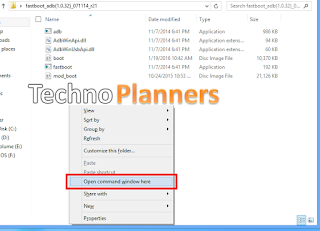
Download here
ADB Setup - http://bit.ly/17BUI5H
Fastboot - http://bit.ly/1ooj0sh
Mod_Boot img - http://bit.ly/1KoRHs4
Fastboot - http://bit.ly/1ooj0sh
Mod_Boot img - http://bit.ly/1KoRHs4
Now Your phone will be rebooted automatically. You can verify your device is successfully rooted by downloading Root Checker Basic Application from Play Store on your ASUS Zenfone 2 Laser ZE500KG/Z00RD. In Previews post we already shared How to Root Asus Zenfone Selfie without PC
Go to link download
Tuesday, March 21, 2017
How to Install ZenMotion Wake Sleep on Asus Zenfone 5 and Zenfone 6
How to Install ZenMotion Wake Sleep on Asus Zenfone 5 and Zenfone 6
Tutorial - How To Install ZenMotion Wak and Sleep Feature on Asus Zenfone 5 and Zenfone 6. Now You can add awesome feature ZenMotion to your Old zenfone. ZenMotion or Double Tap features comes with costly devices. But Now We Show you can add this features on your device with the help of video tutorial, That is more easy to understandable. Before you apply ZenMotion on your phone first you have a Rooted Zenfone you can also check out How to Root using One Click Root for Zenfone 5 and 6 (KitKat and Lollipop Supported).
Requirement
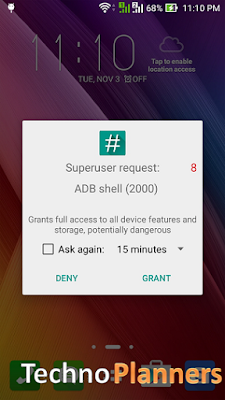
Congratulations, Now you can use Double Tab ZenMotion feature on you Zenfone 5 and Zenfone 6. If your touch screen not work dont worry about it Just Turn off your phone, then Go to Droid-boot (Fastboot) by pressing Power + Volume up button, Now Select reboot and your phone will restart, Now your touchscreen is working.
Step 2. Open ES Explorer then enable Root Explorer featuer from upper right side 3 line button.
Step 3. Now delete two files asus.hardware.touchgesture.double_tap.xml and asus.hardware.touchgesture.double_tap.xml from Device/System/Etc/Permission/
Step 4. After Delete, Reboot your device Normally
Requirement
- ZenMotion Tool (Download from End of Post).
- Rooted Zenfone
- Unlocked Bootloader Also check out How To Unlock Bootloader on Asus Zenfone .
How to Install ZenMotion on Asus Zenfone 5, Zenfone 6
Step 1. Download ZenMotion Tool file from End of Post. File Password technoplanners.blogspot.com
Step 2. Enable USB Debugging (Settings > Developer Options > tick USB Debugging).
Step 3. Connect Zenfone with PC using data cable.
Step 4. Open ZenMotion folder then again open ZenMotion folder then open permission folder now copy both file and paste in your device internal storage.
Step 4. Open ZenMotion folder then again open ZenMotion folder then open permission folder now copy both file and paste in your device internal storage.
Step 5. Now Double Click on Install ZenMotion bat file.
Step 6. SuperSU Prompt Appear on your zenfone and click Grant.
Step 7. Now It will ask for Press any key to continue hit any key and Wait until done.
Step 7. After Complete, Go To Settings > ZenMotion > First disable it then Enable it.
Download here
http://bit.ly/1MDFOiA
Congratulations, Now you can use Double Tab ZenMotion feature on you Zenfone 5 and Zenfone 6. If your touch screen not work dont worry about it Just Turn off your phone, then Go to Droid-boot (Fastboot) by pressing Power + Volume up button, Now Select reboot and your phone will restart, Now your touchscreen is working.
How to Uninstall ZenMotion feature on Asus Zenfone
Step 1. Download and Install ES file Explorer on your device.Step 2. Open ES Explorer then enable Root Explorer featuer from upper right side 3 line button.
Step 3. Now delete two files asus.hardware.touchgesture.double_tap.xml and asus.hardware.touchgesture.double_tap.xml from Device/System/Etc/Permission/
Step 4. After Delete, Reboot your device Normally
Go to link download
Monday, March 20, 2017
How to Install CM 13 Android Marshmallow 6 0 ROM on Asus PadFone S X
How to Install CM 13 Android Marshmallow 6 0 ROM on Asus PadFone S X
Tutorial - How to Install CM 13 CyanogenMod Android Marshmallow 6.0 ROM on your Asus PadFone S/X. This is an unofficial ROM from CyanogenMod release for Asus PadFone. Before you process your device running with custom recovery like TWRP or CWM and Device Bootloader unlocked. You can also check out How to Install Windows 8, 8.1, 10 Boot Animation on Asus Zenfone.

Pre-Requirement
Pre-Requirement
- Device Bootloader Unlocked
- Custom Recovery Installed (TWRP/CWM)
- Android 6.0 ROM and Gapps Zip files
- Take Backup of your Current Rom
How to Install Cyanogenmod 13 in Asus Padfone
Step 1. Download Android 6.0 ROMs and GApps for Asus PadFone from end of post.
Step 2. Now place all the zip files in your device memory and Turn off your
Step 3. Boot Device in recovery mode by pressing and holding Volume Down + Power Button at the same time.
Step 4. Now flash CM13 Rom zip file, then flash Gapps on your device.
Step 5. After successfully flash, Clear Cache and wipe data from your device.
Step 6. Now reboot your device.
Download here
SuperSU Root File - http://bit.ly/1Nie005
Android 6.0 Rom and GApps -
http://bit.ly/1ZN32Xh
Congratulations, Now you have Android 6.0 on your Asus PadFone. Note- First boot can take more than 5 minutes. If its not start in 10 minutes you have to reapply steps from Step 2. You can Root your device by downloading SuperSu files and flash it using previous methods.
Go to link download
RECOVERY TWRP 3 0 2 0 Asus Zenfone 5 A500CG A600CG
RECOVERY TWRP 3 0 2 0 Asus Zenfone 5 A500CG A600CG
Hey Guys, Recently Team Win Recovery Project has updated their version in 3.0 for Zenfone 5 and in this post I will show you how to install TWRP on ASUS Zenfone 5. This tutorial will void your warranty and do it with your own risk I am not responsible for any damage. In previous post share Resurrection Remix ROM for Zenfone 5, this ROM based on Android 6.0.x version. Also You can check out old orange TWRP Recovery Zenfone 5/6.
Requirement
- Rooted Device (Download all files from end of post)
- Intel USB driver
- fastboot Tool
- TWRP 3.0 Image
- Windows PC, Recommend to use Windows 7 ,8
Prepare your Device
- First, make sure you have a rooted device. If you have not a rooted phone use this tutorial to root ASUS Zenfone your phone.
- Make a full backup like SMS, Contact, Application and Internal data. In case if you brick your device. You can use backup files to restore data and application.
- Battery at least 40 % charged.
Install Intel USB Drivers on PC
- Download Intel USB drives from the end of the post. Install it on C: / drive.
Install fastboot Tool on PC
- Download fastboot zip file from the end of the post. Extract it on your desktop using WinRAR or other Zip extracted tools.
How to flash TWRP on Zenfone 5
- Download TWRP recovery image file from end of post.
- Copy it and paste into fastboot folders that you extract to your desktop
- Turn off your Zenfone and boot into bootloader mode by pressing the Power + Volume UP button.
- Connect your device with PC using data cable.
- In Fasboot folder Press and hold shift key and from mouse click on the right button, Click on Open Windows Commend here.

- In CMD Window writes below comment and hit enter.
fastboot flash recovery cm-13.0-20160410-UNOFFICIAL-T00F-recoverytwrp-3.0.M2-0
- Once it shows fined/ or done.
- Type below CMD and hit enter.
adb reboot recovery
- Done
Download here
USB Drivers- http://intel.ly/1BJDf2w
Fastboot- http://bit.ly/1WRCxOS
TWRP- http://bit.ly/1WdSuz5
Congratulation, Now your phone will be rebooted in TWRP Recovery. With this Custom Recovery you can make a backup of your current firmware/ or Custom ROM. Or You can flash any Custom ROM and Google Apps with this recovery. Please share your review and bug report with us. Also Share this post on your social site.Go to link download
Subscribe to:
Posts (Atom)