Wednesday, May 24, 2017
Install Android x86 6 0 Marshmallow on PC notebook with Dual Boot
Install Android x86 6 0 Marshmallow on PC notebook with Dual Boot
- Android x86 6.0 ISO Image. (Download All files from end of post)
- Rufus for Windows
- 1 USB flash drive or Bootable CD/DVD
- USB Device (SD-Card, External hard disk, USB Pen Drive)
How to Install Android x86 6.0 on PC with Dual Boot
- (Make USB To Boot First And Before CD/DVD ROM Under Your System’s BIOS Settings)
Step 5. Choose Partition, Select your hard disk partition where you want to install it.
Step 6. Now, It will ask for installation for Grub Bootloader. Just select "YES".
Step 7. Now, another prompt message will ask you to make system /R/W. hit "YES" on this.
Step 8. After that, It will ask for install internal space. Use 2047 MB for space, As that is the maximum supported.
Step 9. Now, Restart your PC. You can select Android-x86 6.0-rc1 to boot Android and Choose Windows to start Windows on your PC.
Enjoy Android Android x86 6.0 Marshmallow on your PC, notebook and Laptop with Windows, Linux and MAC dual boot. Share this tutorial with your friends and family.
Go to link download

Wednesday, May 10, 2017
Install Remix OS with Windows on UEFI PC with Dual Boot
Install Remix OS with Windows on UEFI PC with Dual Boot
Pre-Requirement
- Remix OS ISO for EFI
- EasyUEFI PC Software
- Minimum 8GB Flash Drive
- A Remix USB Tool for making a bootable pen drive
Bug with Remix OS for UEFI
- Play Store not available
How to Install Remix OS on UEFI PC with Windows
Step 1. Download and InstallDownload Remix Image for UEFI and EasyUEFI software from end of post. Then Install EasyUEFI on your PC.
Step 2. Create a fresh Partition
Now, Create a New partition atlest 10 GB and format it in fat32. Click Windows + R button, then type diskmgmt.msc and press enter button to start disk management. Now right click on any partition, then select shrink volume. Now enter the amount space to shrink 10000 then click on shrink button. Now you will get unallocated space. Right click on the unallocated space and select new simple volume and follow these instructions.
Step 3. Make Bootable flash Drive
Now Connect pen drive with PC and format it in Fat32. After format Run Remix USB Tool and Click on Browser button for the select remix image file, then click on OK button and wait for the process to complete. Dont remove the USB flash drive after process complete.
Step 4. Copy Data from flash Drive to fresh Partition
After making a bootable flash drive. Copy all folders and files from flash drive and copy in your Remix OS partition that you create on your PC.
Step 5. Run EasyUEFI on PC
After Copy All files in Remix OS Partition. Run EasyUEFI, then click on Add New Entry. Now Select type as Linux or other OS. Now Enter Name Remix OS (Or you can enter any name like android-x86) in the Description. After that, Select Remix OS partition from Target Partition menu. Now Click on Browser Button from below then click on + Button. Then double click on EFI then boots folder. Now Select Bootia32 for 32 bit Computer and select bootx64 for 64-Bit Computer then Click on OK Button. Then again OK button to save configurations.

Step 6. Reboot Your PC
Now Shutdown your PC and Turn on using Boot Menu Key (F12 Key Work for Lenovo). There you can select Remix OS. After select Remix OS it will show Guest Mode and Resident Mode.
- In Guest mode Once you reboot, you will lose all the data and installations apps from your device.
- In Resident mode, it will save the data and System Configurations for next time and it can take 5 - 10 minutes to install.
Congratulations, Now You can run Remix OS with Windows 7, 8, 8.1, 10 PC/ Notebook with Dual Boot. Share this Tutorial with your friends and family.
Go to link download
Friday, May 5, 2017
How to Install Android Nougat on PC with Windows 7 0 Dual Boot
How to Install Android Nougat on PC with Windows 7 0 Dual Boot
Pre Requirements
- Android Nougat ISO (Download All files from end of post)
- Rufus to make a bootable Pen-Drive
- 1GB Pen drive needed
Features
- WiFi Working
- Bluetooth Working
- Application and Game
- Dual Boot Supported
- Support External Device
- Power Suspend And Resume Working
- UEFI Supported
- 32-Bit/ 64-Bit Supported
How to Install Android Nougat on PC
- Download Rufus and Android Nougat image from end of post.
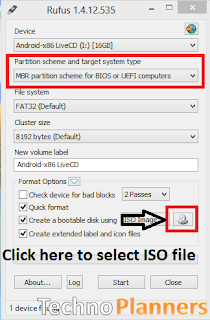
- Run Rufus Software on your PC and Connect USB Flash Drive to PC. Now Click CD-Drive logo button to select ISO file. Now find and select the ISO file and click on the start button. And wait to finish it.
- Reboot your PC
- Now reboot your PC using USB Flash Drive As The Source. (Make USB To Boot First And Before CD/DVD ROM Under Your System’s BIOS Settings)
- When the Android x86 Menu appears, Just Select Install Android x86 to Hard Disk.
- Select your appropriate hard disk partition to install Android x86 or you can install on any new partition.
- Now, You will get a prompt message to the installation of GRUB Bootloader. Make sure to hit on yes.
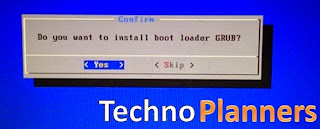
- Now, another prompt message will ask you to make system /r/w. Hit Yes on this.
- After that, you will get another prompt to install internal space. Use 2047 MB of space, as that’s the maximum supported.
- Now select Reboot. After Reboot You can use Android x86 on PC.
Congratulation, Now you can enjoy Android Nougat on PC and notebook with Windows 7, 8, 8.1, 10 dual boot supported. If you find any this help full please drop your comment below and Share this post with your friends thank you and have a nice day.
Go to link download
Monday, May 1, 2017
How to Remove Operating System From Dual Boot Windows
How to Remove Operating System From Dual Boot Windows
?????????? Salatuk (Prayer time) APK :
????? ?? ???? ??? ????? ????? Salatuk (Prayer time) APK ?
???? ????? ????? Salatuk (Prayer time) APK:

???? ?????? ?? ?????
download apk messenger
????? Salatuk (Prayer time) APK ??? :
????? ????? ????? Salatuk (Prayer time) APK
?? ???? ?????? ?? ????????? ????? Salatuk (Prayer time) APK ?????? ?????? !!
??????? ???? ????? ????? :
- apk minecraft 0.13.1
- apk downloader ext
- apk mob
- apk wifi password cracker
- download apk messenger
- apk for android market
Go to link download
Thursday, April 13, 2017
Run Android x86 6 0 6 0 1 on PC with Windows Dual Boot Working WiFi
Run Android x86 6 0 6 0 1 on PC with Windows Dual Boot Working WiFi
Features
- WiFi Working
- Bluetooth Working
- Application and Game (Tested Asphalt 7 and Sprinkle Island)
- Dual Boot Supported
- Support External Device
- Power Suspend And Resume Working
- UEFI Supported
- 32-Bit/ 64-Bit Supported
Pre Requirements
- Android 6.0.1 image (Download All files from end of post)
- Rufus to make a bootable Pen-Drive
- 1GB Pen drive needed
How to Install Android on PC
Step 1. Download Rufus and Android 6.0 x86 image from end of post.Step 2. Make a bootabe Pen-drive
Run Rufus Software on your PC and Connect USB Flash Drive to PC. Now Click CD-Drive logo button to select ISO file. Now find and select the ISO file and click on start button. and wait to finished it.
Step 3. Reboot your PC
Now reboot your PC using USB Flash Drive As The Source. (Make USB To Boot First And Before CD/DVD ROM Under Your System’s BIOS Settings)
Step 4. When the Android x86 Menu appear, Just Select Install Android x86 to Hard Disk.
Step 5. Select your appropriate hard disk partition to install Android x86 or you can install on any new partition.
Step 6. Now, You will get a prompts messages to installation of GRUB Bootloader. Make sure to hit on yes.
![Android 6.0.1 on PC with Windows Dual Boot [Working WiFi]](https://blogger.googleusercontent.com/img/b/R29vZ2xl/AVvXsEget4l1NuVDpUeJQ3P1Oz8zpMNiLiztEUa8X8bIrf4DK4o4XLMebJvJjFkH851B37Jnf73HaMg4wloSVajOZZOlqiUAnl_yef7oWIQS7VJJtGPiGVNZfZ5SFitvL6bm3mLTFJ6E0nT9dig/s320/How+to+install+Android+x86+5.1+on+Windows+10.jpg "Run Android 6.0.1 on PC with Windows Dual Boot [Working WiFi]")
Step 7. Now, another prompt message will ask you to make system /r/w. Hit Yes on this.
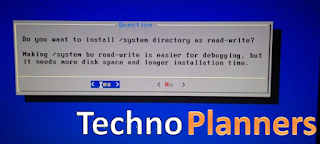
Step 8. After that, you will get another prompt to install internal space. Use 2047 MB for space, as that’s the maximum supported.
Step 9. Now select Reboot. After Reboot You can use Android x86 on PC.
Congratulation, Now you can enjoy Android 6.0.1 Marshmallow OS on PC and notebook with Windows 7, 8, 8.1, 10 dual boot supported.
Go to link download
Wednesday, April 12, 2017
Dual Boot Remix OS Beta with Windows with Pictures Steps
Dual Boot Remix OS Beta with Windows with Pictures Steps
- ISO and Installer Tool (Download from end of post)
How to Install Remix OS Beta on Hard Drive
- Download requirement files from the end of the post and Extract it using WinRAR tool.
- Open extracted folder and Run remixos-installation-tool.
- Now Select ISO file that you downloaded, By clicking on Browser button and select the ISO file.

- Now make sure Hard Disk selected in Type.

- Select Drive Partition (example C:/) where you want to install it.

- From the end click on OK button and wait until the process has finished it.
- Once its done, It will promote for Reboot.
- Now your PC by click Reboot button or you can reboot it manually from Start Menu. It will ask for select Windows/Remix-OS. By using Keyword
How to Uninstall Remix OS
If it is not compatible with your PC or other reasons to remove it. There are very simple and easy method to uninstall it.- Open My Computer.
- Navigate to the Partition directory where you install remix-OS (Example C:Remix-OS).
- Find and Run UninstallRemixOS file.

- It will show a popup message "RemixOS is currently installed. Remove the existing version?" Click on OK button.

- Wait it to finish, Once its done. All files, delete and remove boot menu option automatically from PC.
Congratulation, Now you can Enjoy Remix OS on your Windows PC with Windows actual dual boot. Please share this Tutorial with your social profile.
Go to link download
Sunday, April 9, 2017
How to Install Remix OS for PC Beta on HDD Dual Boot
How to Install Remix OS for PC Beta on HDD Dual Boot
Pre-Requirement
- Remix OS Package Zip file from end of the post
- Download the Remix OS for PC package from end of post.
- Extract the downloaded package using WinRAR Tool and Open the Remix OS Installation Tool.
- Now Press Browser button to select Remix ISO file from desktop.

- Now Select Type as Hard Disk.

- And, Select Drive Partition where you want to Install it.

- Press Ok Button to start and wait it to finished it.
- Once it done, Reboot your PC.
Select Remix OS in Windows Boot Menu.
- Download the Remix OS for PC package from end of post.
- Connect USB flash drive into your PC.
- Run the Remix OS Installation Tool from the extracted package.
- Click on Browser button and select Remix ISO file.
- Select Type as USB Flash Drive.
- Press on OK button and wait it to finished it.
- Reboot your PC.
Press special key (F12 for Dell, F9 for HP, F12 for Lenovo, Option Key for MAC) while booting and enter Boot Menu.
- Select "USB Storage Device" under boot option.
- Select either "Guest Mode" or "Resident Mode" to start Remix OS.
Congratulations, Now you can enjoy Remix OS for PC Beta version of your Desktop. This is official installation from Jide Share this tutorial with your friends and family. Also check out How to install Google Play Store on Remix OS.
Go to link download
Wednesday, March 22, 2017
Install Remix OS on PC laptop Hard Disk with Windows Dual Boot
Install Remix OS on PC laptop Hard Disk with Windows Dual Boot
Pre-Requirement
- Remix ISO
- EasyBCD Tool
- 10 GB Hard Disk Partition
- WinRAR for extracting ISO image
- Windows PC
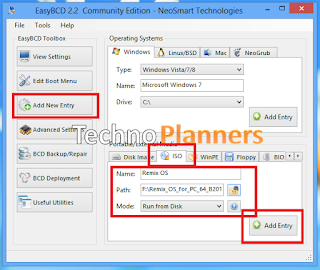
How to Install Remix OS on PC Laptop

Go to link download
Sunday, March 12, 2017
YoWhatsapp V3 60 APK Latest Version Dual Whatsapp
YoWhatsapp V3 60 APK Latest Version Dual Whatsapp
YoWhatsApp, It is an alternative version of the WhatsApp First thing about YoWhatsApp is, No Lag issues, it’s quick and fast.
YoWhatApp provides features like, Hangouts UI,Contact Online/Last See status on main screen, floating action buttons and bubble style messages and supports all Android devices in addition to other features when you download you see them.
DOWNLOAD LINK

Go to link download