Showing posts with label oneplus. Show all posts
Showing posts with label oneplus. Show all posts
Thursday, March 16, 2017
Install TugaPower Android 7 1 nougat on OnePlus One
Install TugaPower Android 7 1 nougat on OnePlus One
Today in this post we will show how to install TugaPower Android 7.1 nougat ROM update on OnePlus One. This nougat update based on CM14.1 with pure android experience like mote g4 or android x86 operating system. Also CM14.1 ROM optimized for hardcore gameplay you can play all games like asphalt 8, Mortal combat 5 etc. Without any lagging issue. This method and ROM tested on this device, but please do it with your own risk I am not responsible for any damage. You can also install Xposed on nougat ROM.
Requirement
- TugaPower Android 7.1 Nougat custom ROM (Download from end of post)
- GApps for Nougat ROM
- TWRP Recovery pre installed
Working features
- WIFI
- Bluetooth
- Camera
- IR Sensor
- Fast Charge
- Double-Tap to Wake
- Vibration intensity control
- Ambient Display
- Advanced Doze options
- DT2W
- OTA Update
- Animation Control
- App Circle Sidebar
- Lock screen Weather
- Screen recorder settings
Bugs and not working features
- Video Recording not working with stock camera app on latest build
- No music visualizer
- No lockscreen wallpaper
- Bluetooth button in notification is not working properly [FIXED]
How to Install TugaPower Android 7.1 Nougat ROM on OnePlus One
- First of all download the ROM zip file from the end of the post link given in red highlighted color.
- Now download Google GApps for Nougat.
- You can download it on your laptop/desktop PC or download it directly on your device.
- Now transfer ROM and GApps zip files on your OnePlus One with the help of data cable or wireless file transfer apps.
- Now boot your device into recovery mode by pressing and holding volume up and power button at the same time.
- Once you reach the recovery mode, you will see many options there.
- Now tap on Wipe, Select Wipe data, wipe cache partition and wipe Dalvik cache option and wipe it
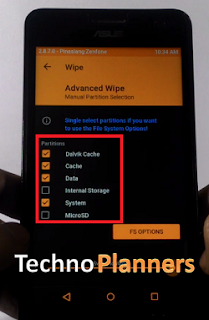
- Go back and select install option, then find and select the ROM zip file
- Similarly, Install GApps
- After installation, Tap on a wipe and factory reset your device.
- Reboot your device
- DONE
Download here
ROM- http://bit.ly/2fg9TbP
ROM Version Info
- ROM OS Version: 7.1 Nougat
- ROM Kernel: Linux 3.10.x
Congratulations, After first boot you can use nougat update on the OnePlus One device. Please note first boot can take upto 5 to 10 minutes. So, Please keep patience. You can also read about Nougat for OnePlus 3.
Go to link download

Thursday, March 9, 2017
Nougat for OnePlus 3 ROM Download How to Install
Nougat for OnePlus 3 ROM Download How to Install
Hello Guys Today In this post we are talking about How to Install Android 7.0 Nougat for OnePlus 3. This is a Custom ROM from CM14 CyanogenMod. At this time ROM status on Alpha that means you cannot use it for daily used and before flashing, please read below work features and bugs. Flash this Custom ROM at own risk and I am not responsible for dead phone, void warranty or any damage.
Note: Before flashing any custom ROM on your device. Please make a backup of your all data, Contacts, Photos and other files.
For first Boot, Your device may take upto 15 to 20 minutes for making new cache and data files so please keep patience. Once this process is done you can use it. Please share this tutorial about How to Update Nougat for Xperia Z2 on your social media profile. Thank you and have a nice day.
Requirement
- Bootloader Unlocked
- TWRP Recovery Pre-Installed on the device
- Nougat ROM for OnePlus 3 (Download all files from end of post)
- GApps for Nougat CM14
- Camera
- Calls
- Alert Slider
- Dash Charge
- Possibly more
Note: Before flashing any custom ROM on your device. Please make a backup of your all data, Contacts, Photos and other files.
How to Update Nougat for One Plus 3
- First, Download Nougat ROM for your device from end of post link given.
- Second, From here Download GApps for Nougat ROM
- Once it downloaded, Copy both ZIP files and paste into internal storage
- Power off your device.
- Now Reboot into recovery mode by press and hold (at the same time and for a few seconds) the Power and the Volume Down buttons. Release these keys when the recovery mode is displayed.
- Once the device successfully boot into TWRP Recovery mode
- Tap on WIPE,
- Tap on Advance Wipe, Select Cache partition, Dalvik Cache and Data, System options then swipe to wipe.
- Update Xperia Z2 to Nougat
- Go back to main page, Tap on Install
- Now navigate to the ROM zip file where you have copied it
- Select the ROM zip file, then swipe to flash it
- Similarly, flash GApps
- Once the both flashing is done, Go back to main page
- Tap on Wipe, then Swipe to Factory
- Reboot your device
Download here
ROM- https://bit.ly/2bQ6qMe
For first Boot, Your device may take upto 15 to 20 minutes for making new cache and data files so please keep patience. Once this process is done you can use it. Please share this tutorial about How to Update Nougat for Xperia Z2 on your social media profile. Thank you and have a nice day.
Go to link download
Subscribe to:
Posts (Atom)