Showing posts with label smartpack. Show all posts
Showing posts with label smartpack. Show all posts
Friday, May 19, 2017
Facebook Not Accessible on Etisalat Smartpack
Facebook Not Accessible on Etisalat Smartpack
~CAUTION~
***~ Never put other phones IMEI in your phone, be careful,
its Illegal using different IMEI in phone & may brick your phone permanently ~***
================
What required
================
- An Android Phone with Invalid IMEI
- Phone Must be Rooted. [See my Posts: How to root MTK Phone]
- Original IMEI Number of your Phone! You will get it below the battery/body of phone
- MobileUncle Tool installed ! [Download: MTK MobileUncle Tool ]
- Confident & Awareness
- Being a Good Citizen
================
How to do
================
- Roote your Android Phone. [See my Posts: How to root MTK Phone] & [Things-to-do-after-rooting]
- Install Mobileuncle tool
- Open Mobileuncle tool
- Grant Root Permission when Asked [Things-to-do-after-rooting]
- Go to Engineering Mode
- Select Mtk Setting
- Go to Connectivity
- Select CDS Information
- Select Radio Information
- You will get two option : Phone 1 & Phone 2!
- Select : Phone 1
- Go to top & Delete: AT+ .
- Now write the following line there:
- AT +EGMR = 1,7,"IMEI_1" ( example: AT(space)+EGMR = 1,10,"15xxxxxxxxxxxxx")
- Click on Send CommandButton
- Now go back & Select: Phone 2 & Delete: AT+
- Now write the following line there:
- AT +EGMR = 1,10,"IMEI_2" ( example: AT(space)+EGMR = 1,10,"15xxxxxxxxxxxxx")
- Click on Send CommandButton
- Restart Phone
- Check IMEI by presing : *#06#
================
Know that
================
## After the text AT and before +EGMR put a (space)
## In Place of : IMEI_1 or IMEI_2 provide your own & original IMEI
(Never put other IMEI, Alerting you again, its Illegal & may brick your phone permanently)
~CAUTION~
You must use your original IMEI, using others phone IMEI is illegal & I am not responsible for your action of anytype!

Go to link download

Wednesday, March 1, 2017
Connect Etisalat Smartpack without IP Using Psiphon
Connect Etisalat Smartpack without IP Using Psiphon
Earlier Post we learnt how to root & Install Custom Recovery in your Android Phone! So now we are good to go for flashing custom ROM in our device. But before flashing any custom ROM we must take our Stock ROM backup. There are various ways to take stock ROM backup. Today I will share a very useful tool to take a total backup of our Android Phones Stock ROM backup & also NVRAM backup.
In this post I will use MTK Droid Root & Tools to get our phones total backup. So lets Start .....
================
What required
================
================
What required
================
1. PC
2. MTK Droid Root & Tools
3. MTK Drivers Installed [USB ADB VCOM Drivers] Download by your Model (For Walton) or For Others
(See my post to see how to install Drivers)
4. MTK / MediaTek based smartphone
5. USB Data Cable
================
How to do
================
================
How to do
================
- Enable USB debugging from Developer option (Click on build Number for 7 times for enabling USB debugging on setting menu)
- Install the USB, ADB-VCOM drivers
- Download, extract, and run the latest version of MTK Droid Tools.
- Keep your phone on.
- Connect the data USB cable to your phone.
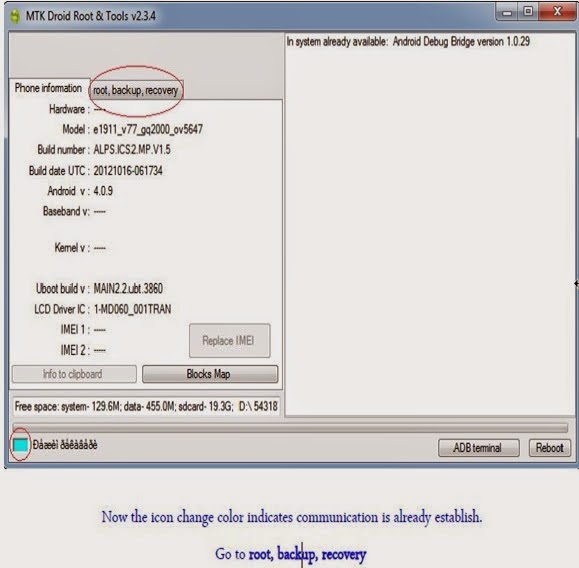
- If Phone is properly connected the icon will be Green as below.
7. Check on Backup User data & Click "Backup
8. The Process will start immediately & will take some time, So keep Patience.
9. After finishing it will ask "Packing Backup" Click "NO"
10. Now Click "To Prepare a backup for Flash Tool" button
11 . A window will appear go to > Backup & Double click on the folder name like: e191_77........Now Select the md.5 file
12. To Prepare a backup for Flash Tool will be successful message will appear.
13. Done.
Now keep the whole backup folder in a safe place for future Restore..
:)
================? How to Restore ?================
- Open SP Flash tool (Download)
- Make sure that USB, ADB-VCOM drivers are installed
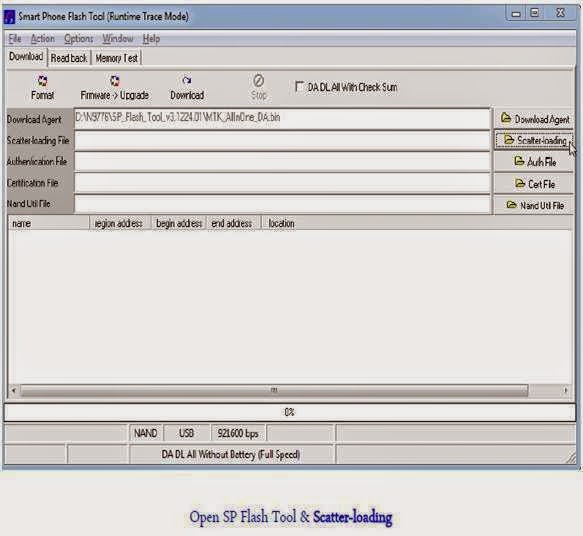
- Click on Scatter-Loading Button
.jpg)
4. A window will appear, Now Go to the Backup folder
5. Select the MTXX_Android_Scatter_emcc.txt file
6. Click Download & Connect your Phone (Switch OFF + Remove Battery)
7. Restore will start & You will see progress (Yalow Bar)
8. After Successful Restore, A green "O" box will over the Screen/SP Flash tool Window
9. Unplug your phone & and Quite SP Flash tool.
10. Reboot your Phone Normally.
11. Done.
Go to link download
Subscribe to:
Posts (Atom)